Kling AI is a multimodal content-generation artificial intelligence platform developed by Kuaishou, best known for its ability to turn text and images into video with realistic motion. The tool supports a range of features such as image generation, content editing, character consistency and video with sound. In this article, TOT explains what Kling AI is, what makes Kling AI 3.0 stand out and how to create videos easily.
>>> See more articles:
- What is AI image recognition? Algorithms & Applications
- TOP 15 best AI code-writing tools
- Top 20+ best free AI image design software
Quick summary
- What is Kling AI? Kuaishou’s multimodal AI platform, which supports creating and editing videos and images from text and images.
- Standout features: Text-to-Video, Image-to-Video, image generation, Element Consistency, Multi-shot, Motion Control and Native Audio.
- Kling AI 3.0: Improved video generation, better character and object consistency, audio generation, multi-scene storytelling and support for longer videos.
- How to sign up for Kling AI: Visit the website, create an account, log in to the Workspace and choose the tool you need.
- How to create a video from text: Write a clear prompt covering the subject, action, setting, motion, camera, lighting and style, then configure the settings and Generate.
- How to create a video from an image: Upload an image, describe the desired motion, configure the settings and fine-tune the result if needed.
- Kling AI Video API pricing: There is a Trial Plan and a 180-Day Plan, with packages billed by Unit and with different validity periods.
- Advantages: Video quality, motion handling, character consistency, Image-to-Video, multimodal generation and Native Audio.
- Disadvantages: Credits are limited, a generation can consume a lot of credits and some complex scenes may still be unstable.
What is Kling AI?
Kling AI is a multimodal content-generation artificial intelligence platform developed by Kuaishou, focused on creating and editing videos and images from text, images and other forms of input. Kuaishou, a Chinese technology company, introduced Kling in June 2024 as a video-generation model developed in-house. The model is designed to simulate complex motion, interactions between objects and real-world physical properties, thereby producing more realistic video.
Kling AI stands out for its ability to generate video from text (Text-to-Video) and generate video from images (Image-to-Video). Users can enter a text description or provide an image for the AI to turn into a video with motion. In addition, Kling AI also supports image generation, AI image editing, audio generation, maintaining consistent characters and objects, and building videos made up of multiple scenes. These features let users carry out many content-creation steps on a single platform.
Kling AI has drawn attention for its ability to combine image quality, motion control and character consistency during content generation. The platform is also expanding from an AI video-generation tool into a multimodal creative ecosystem spanning images, video and audio. With the arrival of newer versions such as Kling AI 3.0, the tool aims to help users create content that is more complex and more seamless.
>>> Read more:
- TOP 15+ effective, super-easy AI app-building tools
- TOP 20 best free AI tools for online sales
What are Kling AI’s standout features?
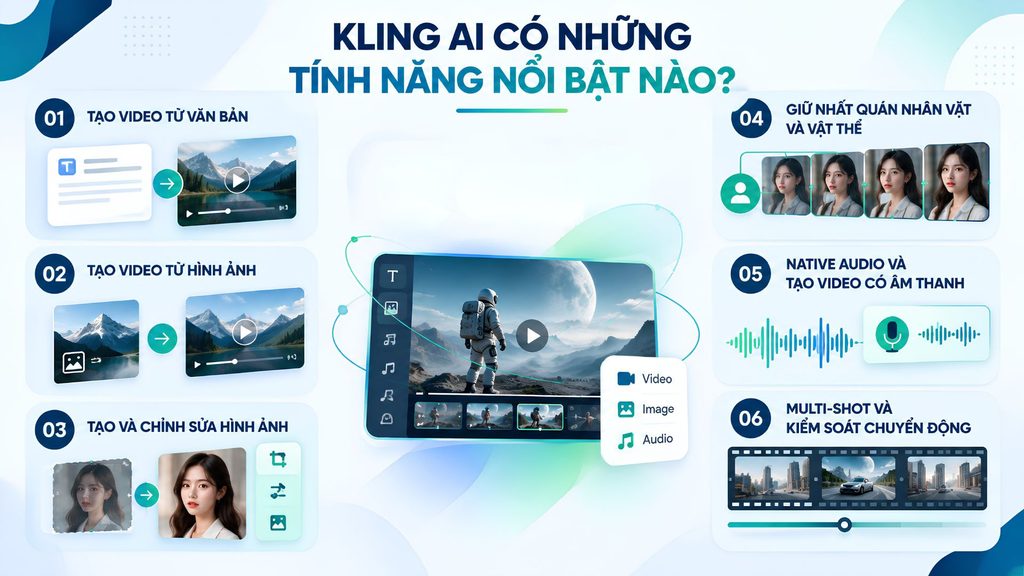
Kling AI has grown from an AI video-generation tool into a multimodal creative platform that supports video, images and audio within the same ecosystem. Users can start from text, images or reference elements to create content in a variety of ways.
Creating video from text with Text-to-Video
Text-to-Video lets users turn a text description into a video without filming or building scenes manually. Users can describe the subject, action, setting, lighting, visual style and camera movement in the prompt. Kling AI can process detailed descriptions to produce videos that closely follow the input idea. With newer versions, the tool can also generate multiple linked scenes from a single prompt and keep the character consistent throughout the scenes.
Creating video from images with Image-to-Video
With Image-to-Video, users can upload a portrait, product photo, illustration or any existing image to Kling AI and then describe the desired motion. Instead of generating every frame from scratch, the AI uses the source image as its basis and focuses on creating motion, expressions or camera movement. Users can also use start and end frames to control the transitions. This feature is well suited to turning product photos, posters or illustrations into a Kling AI video with motion.
Creating and editing images with AI
Kling AI does not focus solely on video; it also provides tools for creating and editing images. Users can generate images from text, transform existing images, combine multiple reference images or adjust the style and camera angle. The platform also supports expanding the frame, in which the main subjects can be kept consistent while new space is added around the original image.
Keeping characters and objects consistent
Character and object consistency (Element Consistency) is one of Kling AI’s most notable strengths. Users can create reference elements from images, multiple viewpoints or video, then reuse the character, prop or setting in other content. According to the official documentation, the Element Library helps the AI remember the key characteristics of characters, objects and scenes so they stay more stable across frames and shots.
Native Audio and the ability to create video with sound
With Native Audio, Kling AI brings sound into the video-generation workflow instead of requiring users to handle audio entirely with external tools. The Video 3.0 versions can generate dialogue, lip movement, sound effects and ambient sound at the same time as the visuals. Native Audio currently supports English, Chinese, Japanese, Korean and Spanish. Users can also combine this feature with reference characters to create content with more consistent visuals and voices.
Multi-shot and motion control
Multi-shot lets Kling AI build a video made up of several consecutive scenes from a single request, rather than producing just one standalone clip. Kling 3.0 can organize a prompt containing multiple scenes into up to five connected shots, helping create content with a narrative flow and reducing the need for manual editing. In addition, the Motion Control tool lets you direct movements such as panning, tilting or zooming the camera, while using start and end frames to define more precise transitions.
>>> Learn more:
- 9+ easiest free mobile app design tools
- Top 19 free task-organizing apps for personal planning
- TOP 15 best low-code platforms
What’s new in Kling AI 3.0?
Kling AI 3.0 is Kling AI’s new generation of video-generation models, focused on multimodal content creation, story control, audio and character consistency. Compared with earlier versions, Kling VIDEO 3.0 and VIDEO 3.0 Omni are built on a unified multimodal architecture that combines images, text and audio within a single content-generation workflow. The new version also raises the maximum video length to 15 seconds, while adding Multi-Shot and more detailed character and object control.
Video 3.0 and Video 3.0 Omni
Kling AI 3.0 currently has two main upgrade paths: Kling VIDEO 3.0 and Kling VIDEO 3.0 Omni. VIDEO 3.0 inherits Text-to-Video, Image-to-Video and start/end-frame video generation, while adding Multi-Shot, Native Audio and subject-consistency control. VIDEO 3.0 Omni, meanwhile, extends multimodal referencing, allowing images, video and Elements to be combined during video generation. Users can also create an Element from a video to preserve a character’s visual and vocal characteristics.
Native Audio
Native Audio is an important upgrade in Kling AI 3.0, allowing visuals and audio to be generated within the same workflow. The system can create dialogue, ambient sound and sound effects while synchronizing lip movement with the speech. Kling VIDEO 3.0 supports Chinese, English, Japanese, Korean and Spanish, along with the ability to handle some regional accents and different pronunciations. In scenes with multiple characters, users can specify which character delivers each line to reduce confusion.
Element Consistency
Element Consistency has been improved to keep characters, objects and key components more stable across multiple frames and camera angles. Users can use multi-angle images, reference images or character videos as input. With VIDEO 3.0 Omni, an Element can also be tied to its own voice, helping preserve both a character’s appearance and audio characteristics across different videos. This is a useful feature when building brand characters, advertisements or multi-scene storytelling content.
Multi-shot narrative
Kling AI 3.0 adds Multi-Shot, which lets you create several consecutive shots in a single generation instead of only a single shot. The system can analyze the prompt itself to determine the transitions, composition, camera angles and progression of each shot. Users can also use Custom Multi-Shot to specify the number of scenes, duration, camera angle, content and camera movement for each shot. According to Kling AI’s documentation, a single generation can build a sequence of up to five connected shots, suitable for videos with storytelling elements.
Support for longer videos
Another notable change in Kling AI 3.0 is that video generation now reaches up to 15 seconds in a single generation, instead of the 10-second limit of some earlier models. Users can choose flexible durations ranging from 3 to 15 seconds, depending on the model and usage mode. Longer durations create more room for action sequences, camera movement and story development, while reducing the need to stitch several short clips into one complete video.
>>> Reference:
- 10 best AI website design tools with a detailed comparison
- TOP 20+ AI design tools leading support for designers today
- Standout GitHub repos in 2026: AI agents dominate every field
How to register a Kling AI account
To use Kling AI, users need to create an account and log in to the platform. Under Kling AI’s terms, registering an account is a requirement for accessing the platform’s services. Users must provide accurate information as instructed during the registration process.
Access Kling AI
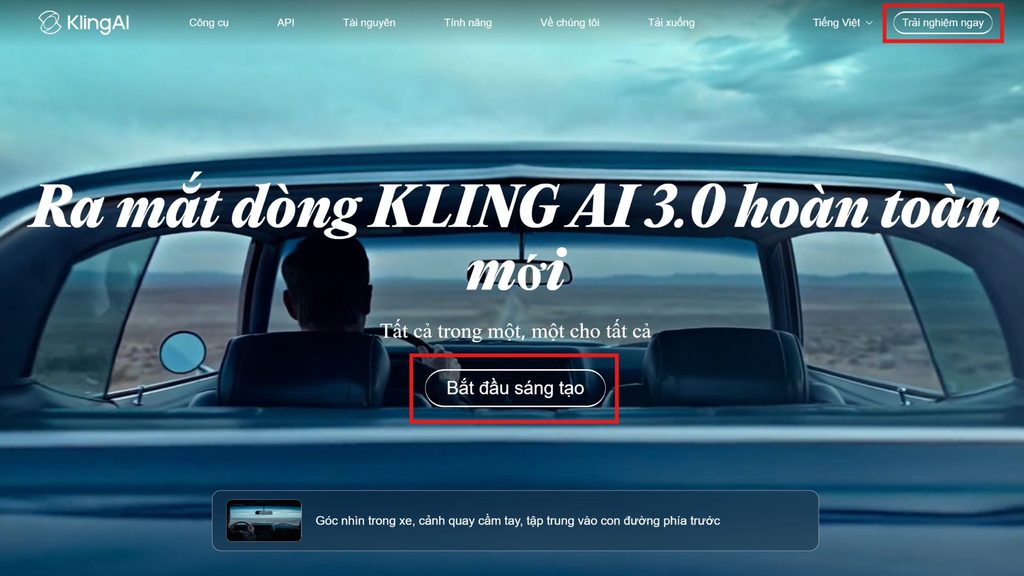
First, open Kling AI’s official website at kling.ai. From the home page, choose the “Experience now” or “Start creating” option to go to the account area. Kling AI now offers a Vietnamese-language interface, making it easy for users to find and use the content-creation tools. Then choose “Sign In” at the lower-left corner of the screen to begin registering an account.
Register an account
On the sign-in screen, choose the account-registration option and follow the on-screen instructions. Users can register with an email or an Apple account and complete the verification step as required by the system.
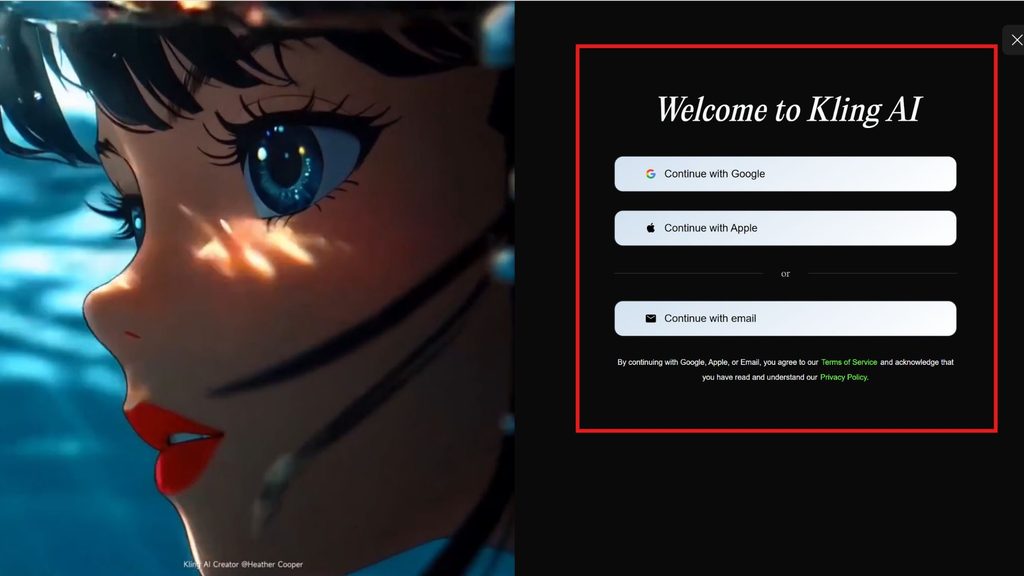
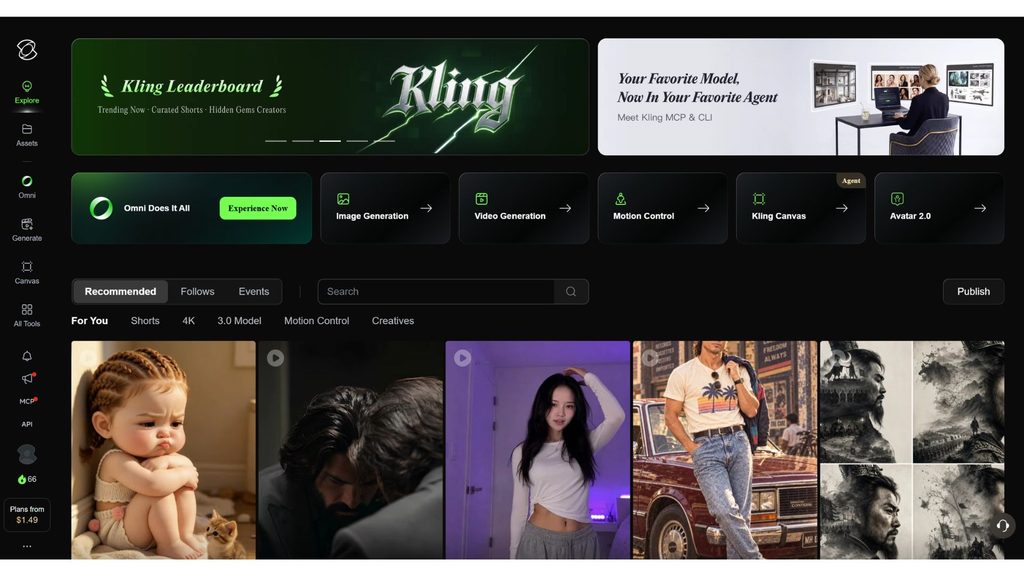
Log in and access the Workspace
After completing registration, log in with the account details you created. Once you have successfully signed in, you can enter the workspace to start creating content. Here, Kling AI provides several tool groups for video, images, audio and other creative features.
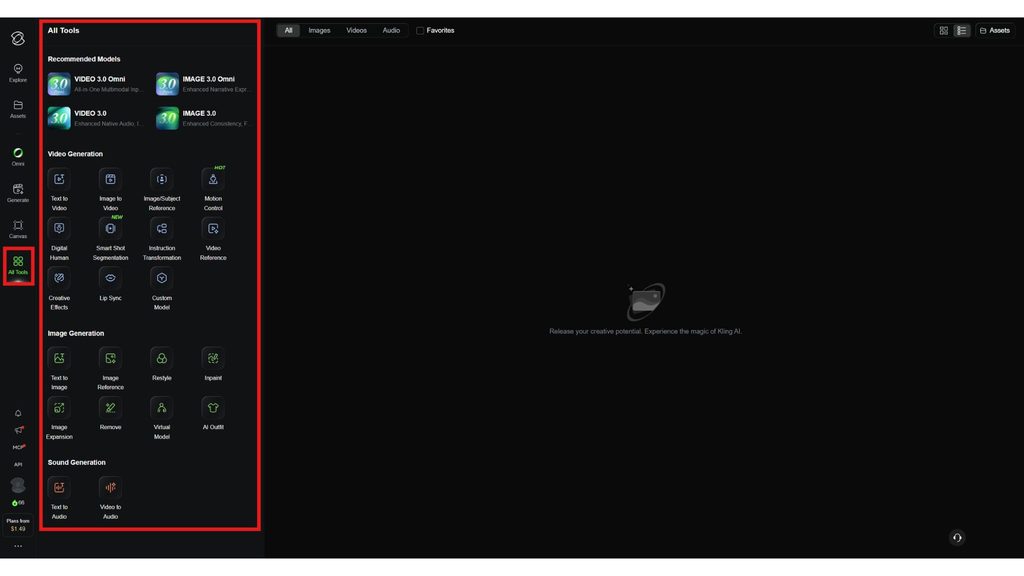
Choose the tool you need
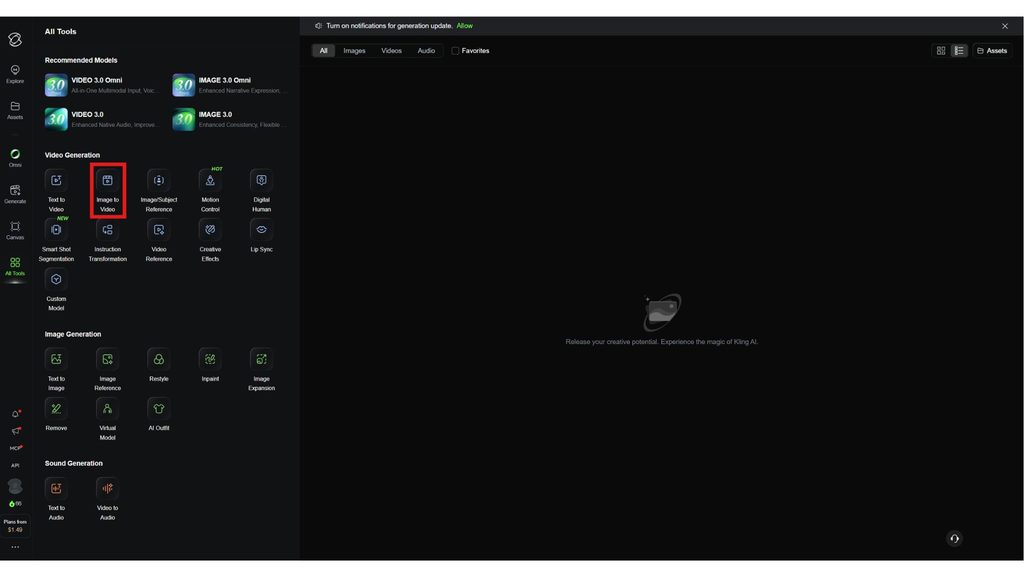
In the Workspace, select the tool that fits your purpose. If you want to create a Kling AI video, you can choose Text-to-Video to create a video from a prompt or Image-to-Video to turn an image into a video. In addition, the platform also offers Omni, Text-to-Image, Digital Human and many other tools.
>>> Learn more:
- How is AI applied in software development?
- How does AI-assisted programming affect coding skills?
- What is generative AI? How it works & real-world applications
How to use Kling AI to create a video from text
Kling AI lets users create videos from text descriptions using the Text-to-Video feature. To get a result that closely matches your idea, you should not only enter a prompt but also clearly define the subject, action, setting, camera angle and desired motion. The process below can be applied when creating a Kling AI video from text.
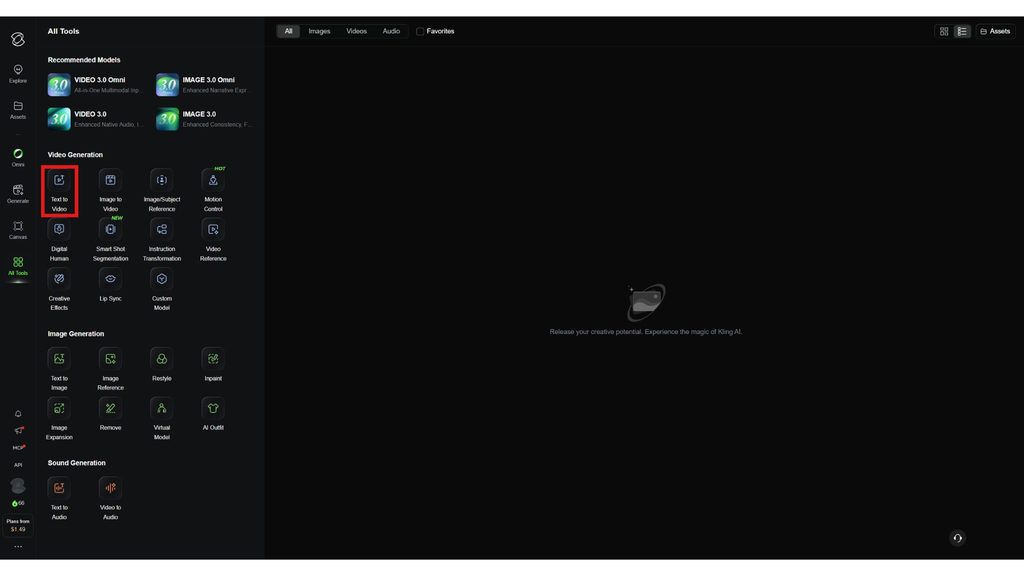
Step 1: Log in and choose the video-generation tool
Go to Kling AI’s official website and log in to your account. Once in the Workspace, find the video-generation tool group and choose Video Generation or Text-to-Video, depending on how the interface is displayed at the time of use.
If Kling AI offers multiple models, choose the version that fits your goal. Newer models are usually designed to handle motion, visuals and prompt adherence better, but they may consume different amounts of credits. So users should check the model information before starting a generation.
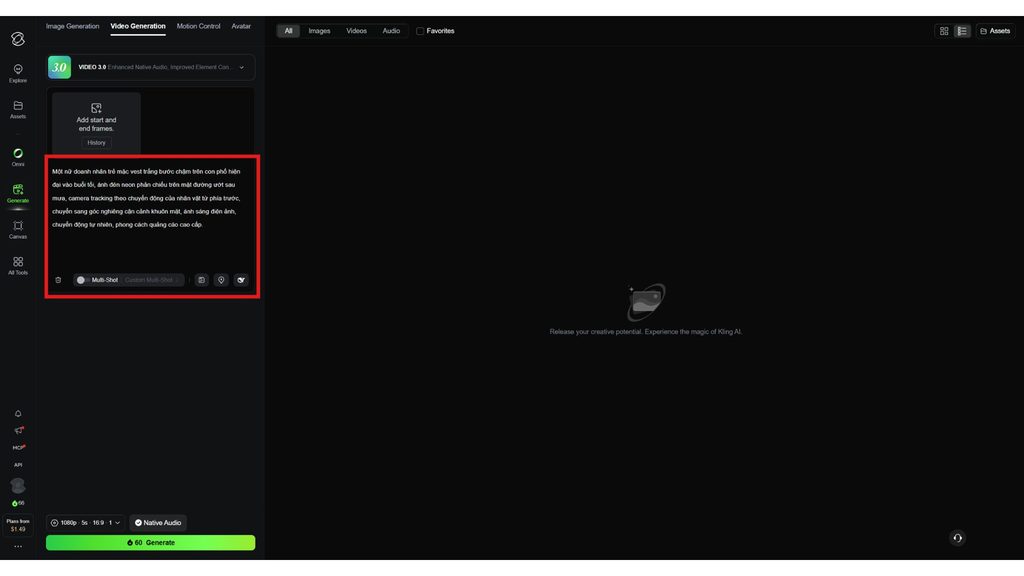
Step 2: Enter a prompt describing the video you want to create
This step has a major influence on the output. Instead of just writing a short sentence like “a girl walking on the street,” describe all the important elements in full: subject + action + setting + motion + camera angle + lighting + style.
For example, a prompt might read:
A young businesswoman in a white suit walks slowly down a modern street in the evening, neon lights reflecting on the wet road after rain, the camera tracking the character’s movement from the front before shifting to a close-up angled shot of her face, cinematic lighting, natural motion, premium advertising style.
This way of writing gives Kling AI more information about the content and how to present the video. For complex scenes, it is better to describe the actions in sequence rather than putting too many movements happening at once.
Step 3: Configure the video settings
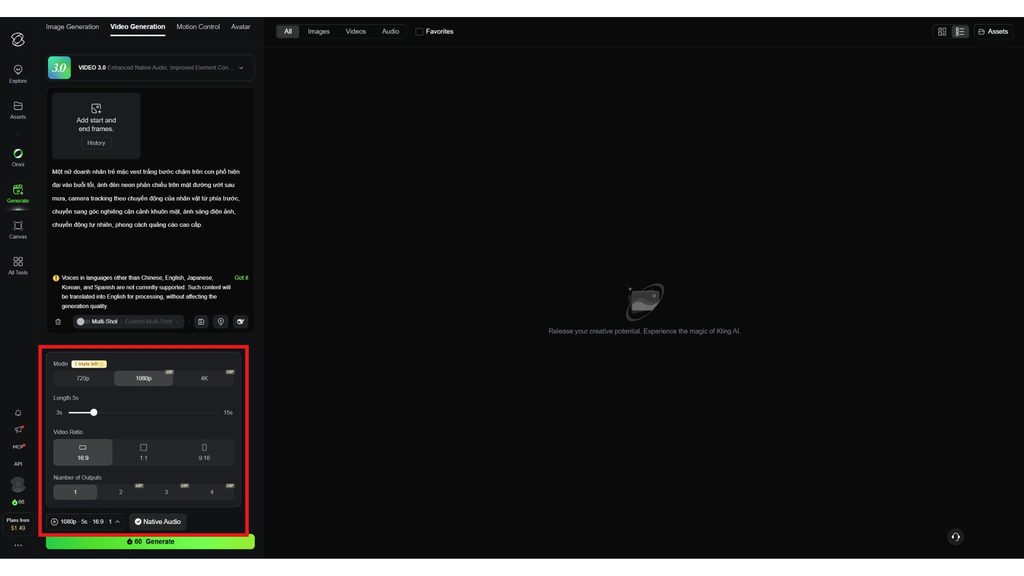
After entering the prompt, review the video-generation options provided. Depending on the model and account, users can choose an aspect ratio such as 16:9 for landscape video, 9:16 for TikTok, Reels or Shorts, and 1:1 for square content.
Next, choose the video length, model and output quality if these options are supported. For models capable of generating audio, users can enable Native Audio or the related audio settings when they want the video to have dialogue, effects and ambient sound.
You should choose settings based on your use case from the start. For example, an advertising video posted on social media should be set to a vertical 9:16 ratio before generation to avoid having to edit or crop the frame later.
Step 4: Create the video with Kling AI
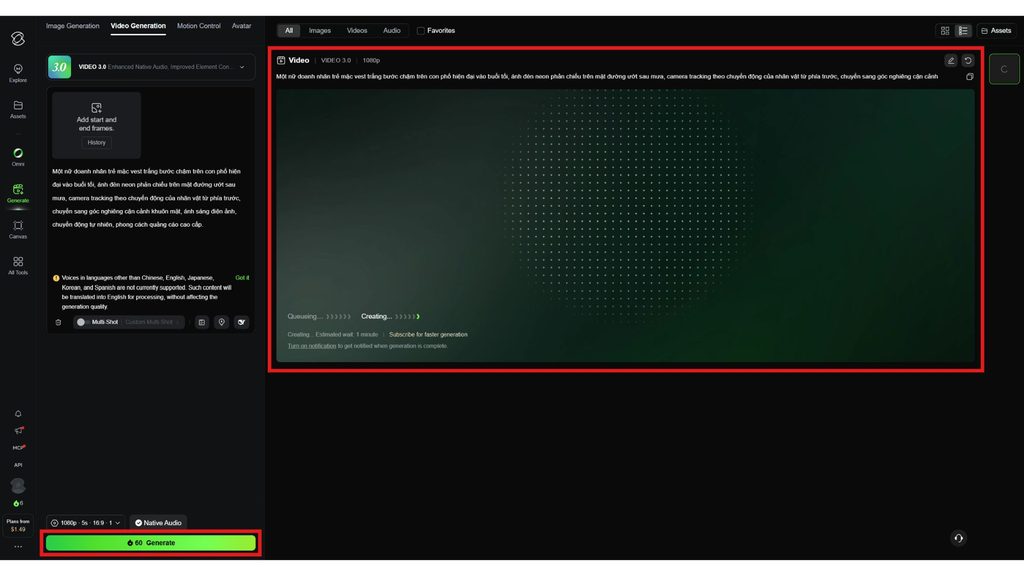
Double-check the prompt and settings, then press Generate for Kling AI to start processing. Generation time can vary depending on the model, video length and system status.
When the video is finished, don’t judge it solely on overall image quality. Check, one by one, the character’s motion, face, hands and body parts, objects in the scene, camera movement, consistency and prompt adherence. If there is audio, also check how well the dialogue, lip movement and visuals are synchronized.
Step 5: Fine-tune the prompt and regenerate the video
If the result does not meet your requirements, identify exactly what needs fixing before regenerating. When motion looks unnatural, describe the direction and speed of the movement specifically instead of just adding the word “realistic.” If the camera is off, add phrases such as camera angle, camera movement, tracking shot, close-up, wide shot or clearly describe how the camera moves.
When a character becomes distorted or its features change, add a description that identifies the character and use a reference image or Element if the model supports it. For overly complex scenes, reduce the number of actions and focus on a few key movements.
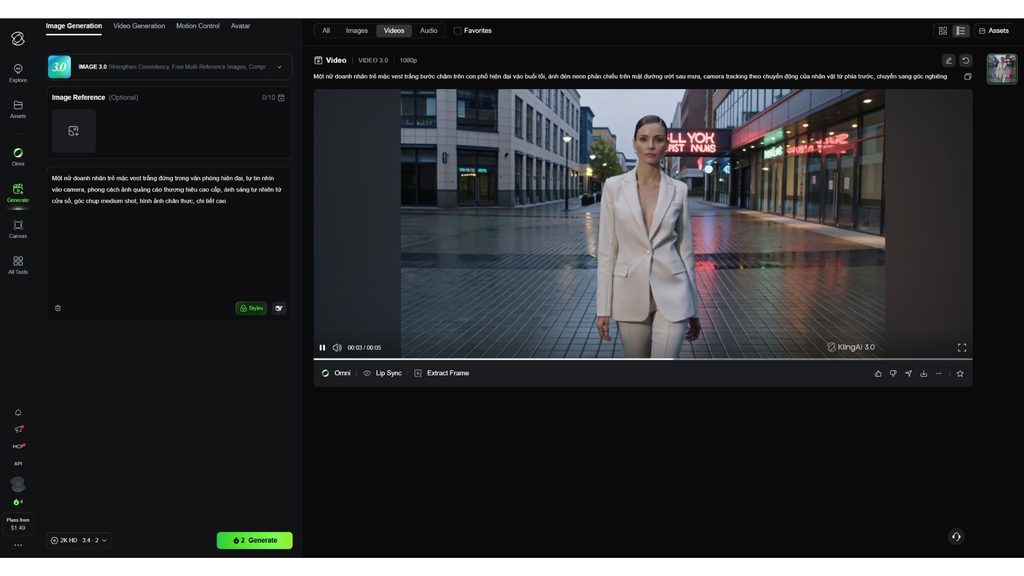
Creating a video with Kling AI usually requires experimenting with several prompt versions. Fine-tuning each element rather than changing the entire prompt after each generation helps users pinpoint the cause and control the result more effectively.
>>> See more:
- Image analysis with AI: How it works & real-world applications
- 7 ways to apply AI to optimize customer experience
- 18 highly effective ways to apply AI to ecommerce
How to use Kling AI to create a video from an image
Kling AI supports Image-to-Video, which lets users turn a still image into a video with motion. Unlike Text-to-Video, users already have an image as the foundation, so the prompt mainly needs to describe the motion, expressions and camera movement rather than rewriting all the content in the image. This approach helps Kling AI focus its processing resources on the motion and limits unwanted changes to the original subject.
Step 1: Prepare the image you want to turn into a video
First, choose an image of good quality, with a clear subject that is not obscured by too much detail. For photos of people, prioritize images that clearly show the face, body and clothing. For product photos, the product should be placed in an easily recognizable position and not obscured by other objects.
At the same time, decide on the video’s aspect ratio in advance. If the content is for a website or YouTube, a 16:9 ratio is usually appropriate, while TikTok, Reels or Shorts can use 9:16. For advertising videos, prepare a product photo with a composition that matches the intended direction of motion, to keep the subject from being cut out of the frame.
Step 2: Upload the image to Kling AI
After logging in, open the Image-to-Video tool in the Workspace. Upload the image you prepared as the source image and wait for the system to display a preview.
At this step, check whether Kling AI has correctly recognized the subject and composition. If the image is blurry, has the wrong ratio or the subject sits too close to the edge of the frame, replace it with another image before generating the video. The quality and composition of the input image directly affect how well the subject’s shape is preserved in the video.
Step 3: Write a prompt describing the motion
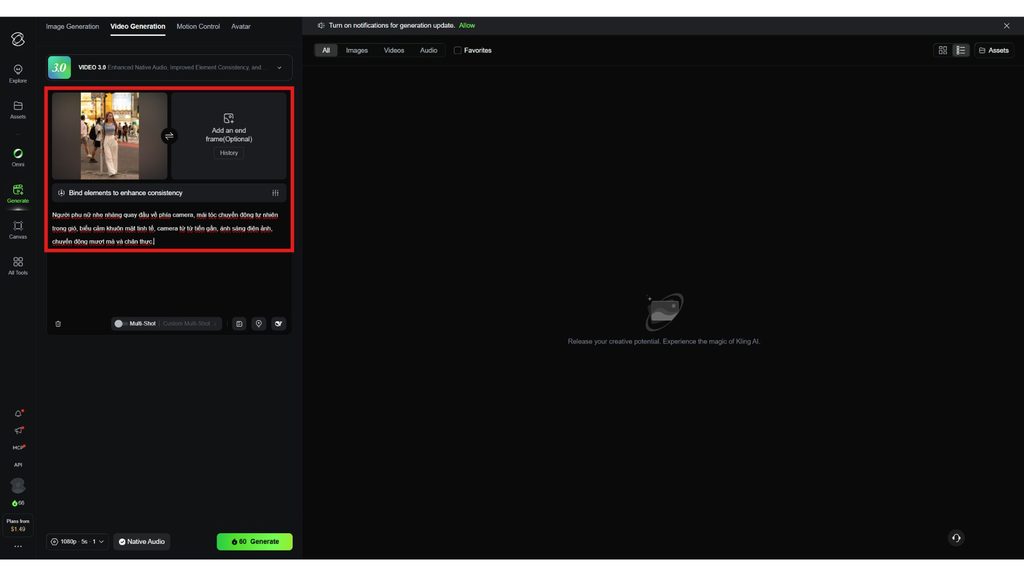
With Image-to-Video, there is no need to re-describe the entire image. Instead, focus on what you want to happen after the image starts to move.
For example, with a photo of a person standing in the middle of a street, the prompt might read:
The woman gently turns her head toward the camera, her hair moving naturally in the wind, a subtle facial expression, the camera slowly moving closer, cinematic lighting, smooth and realistic motion.
The prompt above focuses on the motion of the head, hair, expression and camera rather than repeating the description of the appearance, clothing or setting already present in the image.
If you want to create more complex motion, break it into a few key actions in sequence. Introducing too many movements at once can cause the character, limbs or objects to become distorted.
Step 4: Configure the settings and create the video
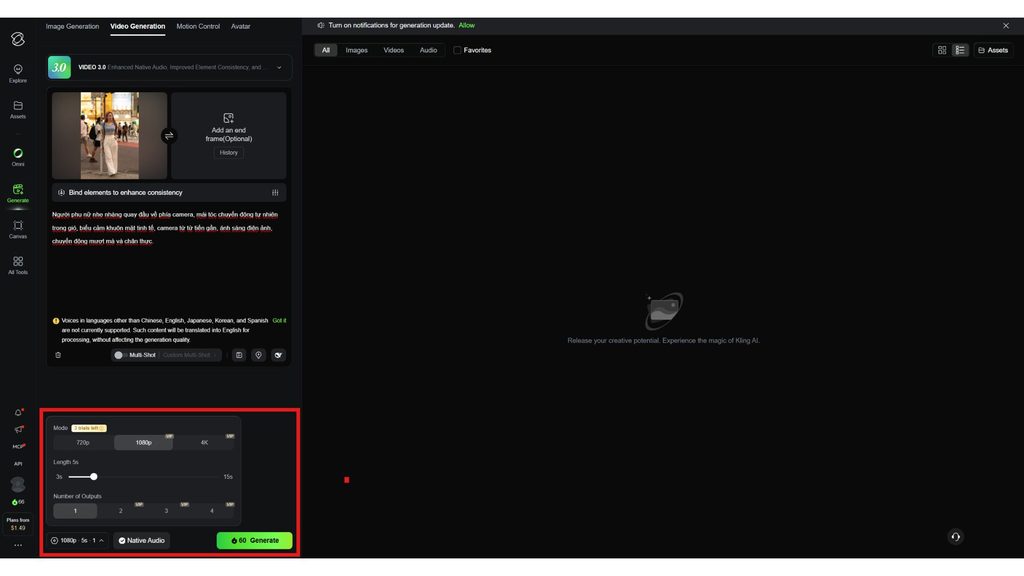
Next, choose the duration, aspect ratio and model that fit your use case. If Kling AI offers multiple quality levels or models, weigh the output quality against the amount of credits required.
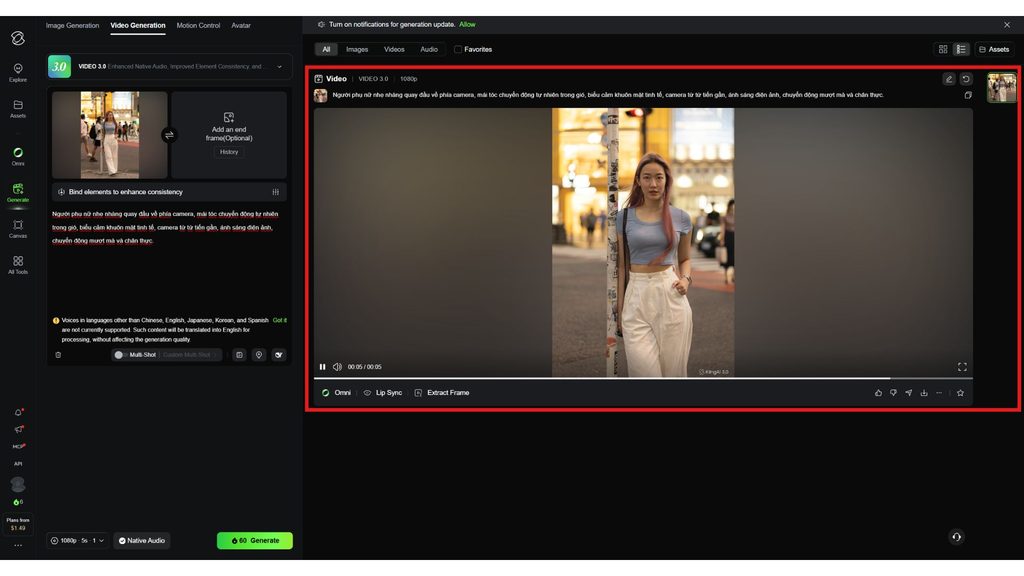
After checking the prompt and settings, press Generate to start creating the video. Processing time can vary depending on the model, duration and system status. When the video is finished, watch the entire clip instead of only checking a few opening frames.
Step 5: Review and fine-tune the video
Check whether the character keeps its original face, build, hair, clothing and features. For product photos, pay special attention to the shape, logo, packaging and identifying details. At the same time, check the motion of the hands, face, hair, clothing and surrounding objects.
If the motion is too strong or distortion appears, reduce the complexity of the prompt and clearly describe a single key movement. For instance, instead of asking the character to walk, turn, wave and have the camera rotate 360 degrees all at once, you could ask only for the character to step slowly forward together with a gentle camera movement.
If the result is not good enough, adjust the prompt or settings and then Generate again. For content that requires a consistent character across multiple scenes, you can combine a reference image or Element if the model you are using supports this feature.
Tips for better Image-to-Video results with Kling AI
- Input image: Use a sharp, well-lit image with an easily recognizable subject that is not obscured.
- Prompt: Focus on motion and camera movement, and avoid re-describing too many details already present in the image.
- Motion: Request only a few key movements in a single clip to reduce the risk of distortion.
- Camera: Clearly describe camera movement such as slow push-in, tracking shot, pan or camera pull-back if you want a cinematic feel.
- Advertising videos: Prioritize gentle, controlled motion to preserve the shape, logo and identifying details of the product.
>>> Read more:
- AI in UI/UX design: The power of Generative AI
- What is Agentic AI? How it works & real-world applications
- A simple guide to deploying AI in mobile apps
How to create images with Kling AI
Kling AI supports generating images from text through the Image Generation tool, letting users turn ideas into images without designing from scratch. To get a result close to what you want, describe the subject, setting, pose, style and lighting clearly right in the prompt.
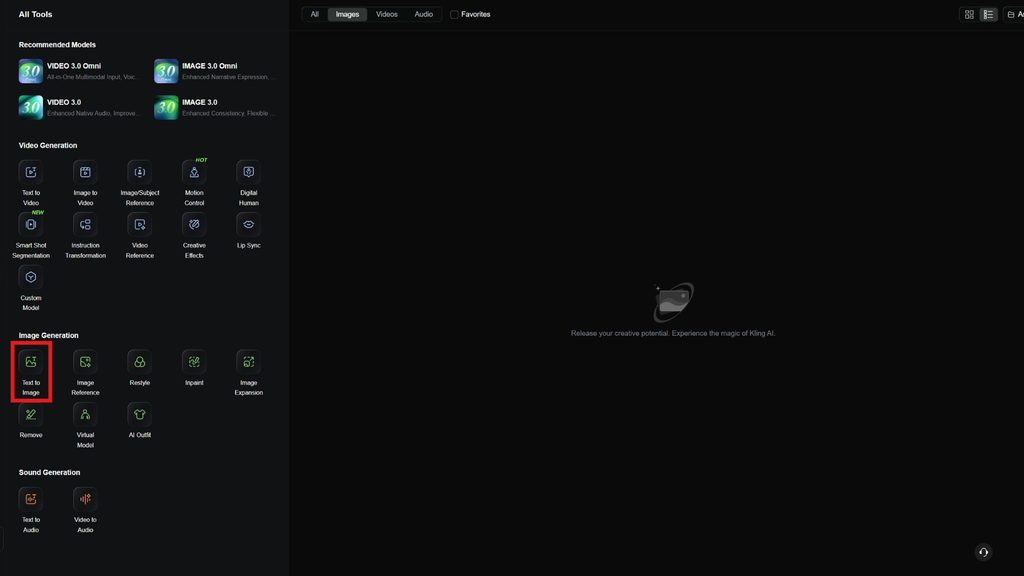
Step 1: Log in to Kling AI and choose the image-generation tool
Go to Kling AI, log in to your account and open Image Generation in the Workspace. Depending on the interface and the model in use, users may see areas to enter a prompt, upload a reference image, choose an aspect ratio and model, or other image-generation options.
Step 2: Enter a prompt to create the image
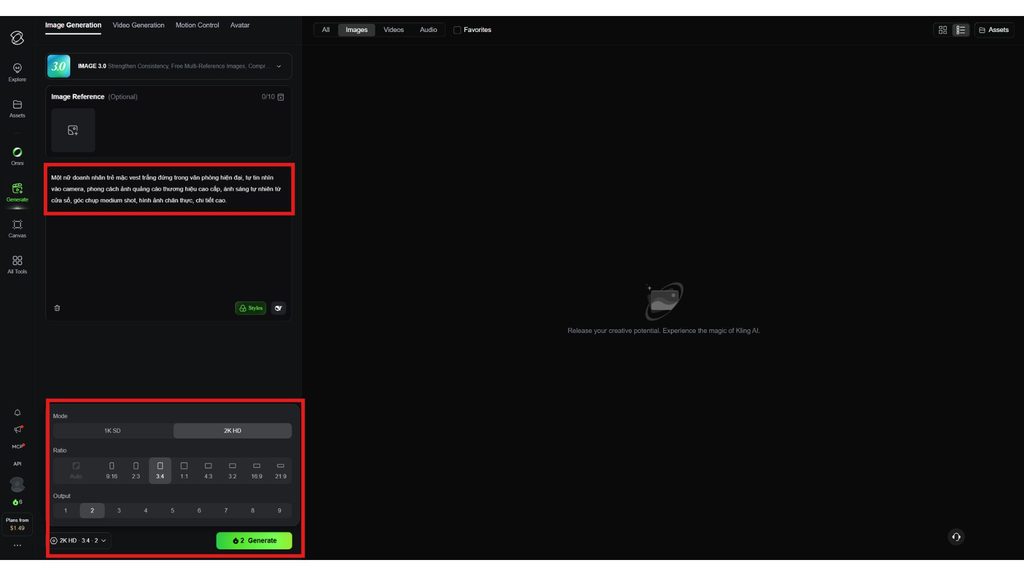
The prompt should describe the important elements specifically rather than entering just a short sentence. You can use the formula:
Subject + Setting + Action/Pose + Style + Lighting + Camera angle
For example:
A young businesswoman in a white suit stands in a modern office, looking confidently into the camera, premium brand advertising photo style, natural light from the window, medium-shot camera angle, realistic image, high detail.
Step 3: Configure the image settings
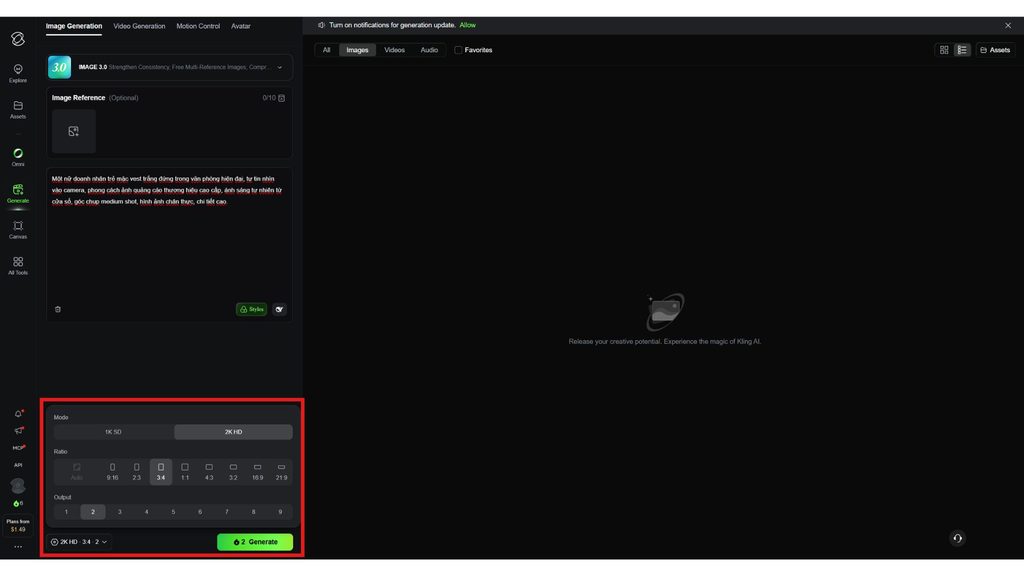
Next, choose the settings that fit your use case. Users can set the aspect ratio, image style and number of images to create if the model or interface in use supports it. In cases where you need to keep a character or product consistent, you can additionally use a Reference Image or the editing tools provided.
Step 4: Generate and evaluate the result
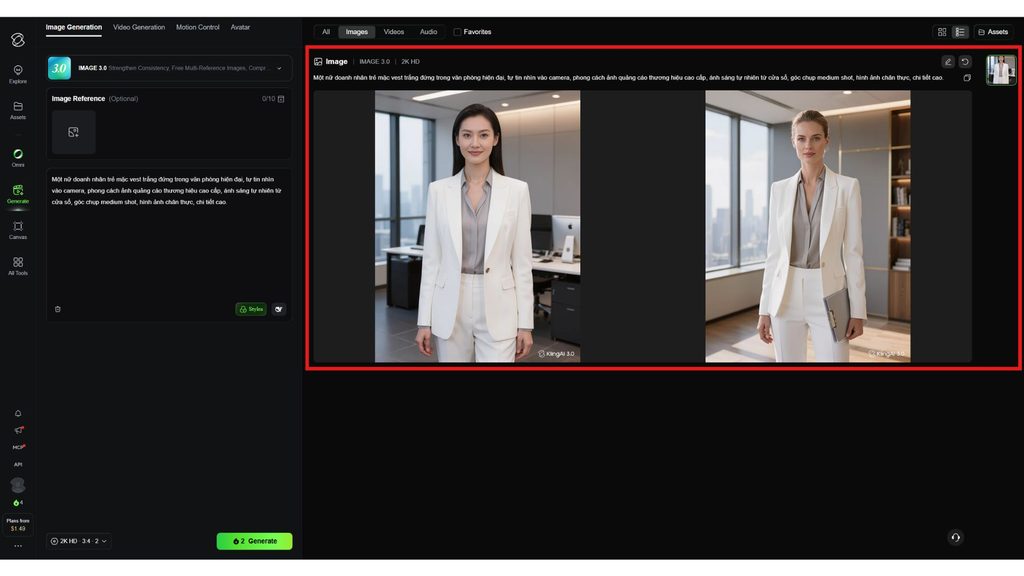
Press Generate for Kling AI to create the image. Once it is finished, check the accuracy of the subject, composition, face, objects, colors and other important details. If the result is not suitable, identify what needs fixing and then adjust the prompt instead of rewriting everything from scratch.
Step 5: Fine-tune and use the image
Keep experimenting by changing individual elements such as lighting, camera angle or style to find the right result. Images created with Kling AI can be used for social media, advertising, websites, thumbnails or as reference images to continue creating videos with Image-to-Video.
>>> Read more:
- A quick guide to creating a Landing Page with AI for free, effectively
- A guide to using Google AI Studio effectively and quickly
Kling AI pricing plans
Kling AI offers flexible API service packages with a prepaid billing model, suitable for different needs from individual customers to large-scale enterprises. The platform provides two main services: Video API and Image API, along with specialized e-commerce solutions.
Kling AI Video API pricing – Trial Plan
| Package | Price | Number of Units | Validity | Concurrency |
|---|---|---|---|---|
| Trial Package 1 | 9.8 USD | 100 Units | 30 days | 5 |
| Trial Package 2 | 98 USD | 1,000 Units | 30 days | 5 |
| Business Inquiry | Custom Package | As needed | By agreement | As needed |
Offer: Both Trial Packages are 30% off on the first purchase. Trial Package 1 has an original price of 14 USD, while Trial Package 2 has an original price of 140 USD. Each account can purchase up to 5 times, and unused Units cannot be rolled over or extended.
For usage needs greater than the Trial packages, businesses can submit a Business Inquiry for Kling AI to advise on a Custom Package that fits their usage volume.
Kling AI Image API pricing – Trial Plan
| Package | Price | Number of Units | Validity | Concurrency |
|---|---|---|---|---|
| Trial Package 1 | 2.45 USD | 1,000 Units | 30 days | 9 |
| Trial Package 2 | 24.5 USD | 10,000 Units | 30 days | 9 |
| Business Inquiry | Custom Package | As needed | By agreement | As needed |
Offer: Both Trial Packages are 30% off on the first purchase. Trial Package 1 has an original price of 3.5 USD, while Trial Package 2 has an original price of 35 USD. Each package is valid for 30 days, with no rollover or extension of unused Units, and up to 5 purchases under the current offer.
Kling AI’s Image API supports capabilities such as Text-to-Image, Image-to-Image, Multi-image Reference Generation, Image Outpainting and Image Recognition.
Kling AI Video API pricing – 180-Day Plan
| Package | Price | Number of Units | Validity | Concurrency |
|---|---|---|---|---|
| Standard Package 1 | 700 USD | 5,000 | 180 days | 20 |
| Standard Package 2 | 2,100 USD | 15,000 | 180 days | 20 |
| Standard Package 3 | 3,780 USD | 30,000 | 180 days | 20 |
| Standard Package 4 | 5,670 USD | 45,000 | 180 days | 20 |
| Standard Package 5 | 7,560 USD | 60,000 | 180 days | 20 |
| Business Inquiry | Custom Package | As needed | By agreement | As needed |
Note: The Standard Packages have a validity period of 180 days, with no rollover or extension of unused Units. Standard Packages 3, 4 and 5 currently have a 10% discount according to the information shown on the pricing page. For larger usage needs, businesses can contact Kling AI to request a Custom Package.
Kling AI Image API pricing – 180-Day Plan
| Package | Price | Number of Units | Validity | Concurrency |
|---|---|---|---|---|
| Standard Package 1 | 350 USD | 100,000 Units | 180 days | 9 |
| Standard Package 2 | 1,050 USD | 300,000 Units | 180 days | 9 |
| Standard Package 3 | 1,890 USD | 600,000 Units | 180 days | 9 |
| Standard Package 4 | 3,780 USD | 1,200,000 Units | 180 days | 9 |
| Standard Package 5 | 5,670 USD | 1,800,000 Units | 180 days | 9 |
| Business Inquiry | Custom Package | As needed | By agreement | As needed |
Note: Standard Packages 3, 4 and 5 currently have a 10% discount. The original prices are 2,100 USD, 4,200 USD and 6,300 USD respectively. All Standard Packages are valid for 180 days, with no rollover or extension of unused Units, and support up to 9 concurrency.
The Image API supports features including Text-to-Image, Image-to-Image, Multi-image Reference Generation, Image Outpainting and Image Recognition.
Flagship Models Video API pricing
Kling AI prices the Video API by usage duration, with a list price of 1 Unit = 0.14 USD. Costs vary depending on the model, resolution, Native Audio and the use of input video.
| Model | Billing method | Features | 720P price | 1080P price | 4K price |
|---|---|---|---|---|---|
| Kling 3.0 Turbo | Per second | With Native Audio | 0.8 Unit (0.112 USD)/second | 1.0 Unit (0.14 USD)/second | – |
| Kling 3.0 | Per second | No Native Audio | 0.6 Unit (0.084 USD)/second | 0.8 Unit (0.112 USD)/second | 3.0 Unit (0.42 USD)/second |
| Kling 3.0 | Per second | With Native Audio, no Voice Control | 0.9 Unit (0.126 USD)/second | 1.2 Unit (0.168 USD)/second | 3.0 Unit (0.42 USD)/second |
| Kling 3.0 Omni | Per second | No input video, no Native Audio | 0.6 Unit (0.084 USD)/second | 0.8 Unit (0.112 USD)/second | 3.0 Unit (0.42 USD)/second |
| Kling 3.0 Omni | Per second | No input video, with Native Audio | 0.8 Unit (0.112 USD)/second | 1.0 Unit (0.14 USD)/second | 3.0 Unit (0.42 USD)/second |
| Kling 3.0 Omni | Per second | With input video, no Native Audio | 0.9 Unit (0.126 USD)/second | 1.2 Unit (0.168 USD)/second | 3.0 Unit (0.42 USD)/second |
Note: The prices above are calculated per second of video. The actual cost depends on the model and the features enabled. For the same model, choosing a higher resolution or using Native Audio can increase the number of Units consumed per second.
Flagship Models Image API pricing
Kling AI prices the Image API at 1 Unit = 0.0035 USD (list price). The cost is calculated per image and varies depending on the model, function and resolution.
| Model | Function | Resolution | Price |
|---|---|---|---|
| Kling Image 3.0 | Text-to-Image, Image-to-Image | 1K, 2K | 8 Unit (0.028 USD)/image |
| Kling Image 3.0-omni | Text-to-Image, Image-to-Image | 1K, 2K | 8 Unit (0.028 USD)/image |
| Kling Image 3.0-omni | Text-to-Image, Image-to-Image | 4K | 16 Unit (0.056 USD)/image |
| Kling Image O1 | Text-to-Image, Image-to-Image | 1K, 2K | 8 Unit (0.028 USD)/image |
| Kling Image 2.1 | Text-to-Image | 1K, 2K | 4 Unit (0.014 USD)/image |
| Kling Image 2.1 | Image-to-Image | 1K, 2K | 8 Unit (0.028 USD)/image |
Note: The prices above use the Unit, with a list rate of 1 Unit = 0.0035 USD. Costs may vary depending on the model, resolution and features used.
E-commerce Solutions Video API pricing
Kling AI applies a rate of 1 Unit = 0.14 USD for its e-commerce video API solutions. Costs are calculated per second of video and vary depending on the solution, features and resolution.
| Solution | Billing method | Features | 720P price | 1080P price | 4K price |
|---|---|---|---|---|---|
| AI Apparel Replicator | Per second | Voiceover (off-camera) | 1.7 Unit (0.238 USD)/second | 2.0 Unit (0.28 USD)/second | – |
| AI Apparel Replicator | Per second | On-camera Speech | 1.3 Unit (0.182 USD)/second | 1.7 Unit (0.238 USD)/second | – |
| Goods Studio | Per second | – | 1.7 Unit (0.238 USD)/second | 2.0 Unit (0.28 USD)/second | – |
| Video Commerce | Per second | Creator Voiceover | 1.0 Unit (0.14 USD)/second | 1.2 Unit (0.168 USD)/second | – |
| Video Commerce | Per second | Product Voiceover | 1.4 Unit (0.196 USD)/second | 1.6 Unit (0.224 USD)/second | – |
E-commerce Solutions Image API pricing
| Solution | Billing method | Features | Resolution | Price |
|---|---|---|---|---|
| Virtual Try-On | Per image | – | 1K | 32 Unit (0.112 USD)/image |
Note: The prices above use the Unit, with a list rate of 1 Unit = 0.0035 USD. Costs may vary depending on the model, resolution and features used.
Other Models Video API pricing
| Model | Billing method | 720P price | 1080P price |
|---|---|---|---|
| Motion Control | Per second | 0.9 Unit (0.126 USD)/second | 1.2 Unit (0.168 USD)/second |
| Avatar | Per second | 0.4 Unit (0.056 USD)/second | 0.8 Unit (0.112 USD)/second |
| Effects | By template | Per Effects pricing | Per Effects pricing |
Note: The prices in the tables above are calculated at 1 Unit = 0.14 USD (list price). Models billed per second are based on the duration of the video generated. Effects, in particular, have prices that vary depending on the template selected.
Other Features Image API pricing
| Model / Feature | Price |
|---|---|
| Image Outpainting | 8 Unit (0.028 USD)/image |
| AI Multi-Shot | 20 Unit (0.07 USD)/call |
>>> See more:
- How to build an AI app with vibe coding on Google AI Studio, made simple
- Build a sales website with AI for free, SEO-ready and highly effective
- AI Data Labeling: A guide to labeling AI data
Pros and cons of Kling AI
Kling AI’s strengths lie in its ability to create high-quality video, handle motion and keep characters consistent across multiple scenes. However, the tool still has some limitations regarding credits, generation cost and stability when handling complex scenes.
Advantages of Kling AI
Video quality: Kling VIDEO 3.0 supports videos up to 15 seconds long, resolutions up to 4K and the ability to display text directly within the video, making it suitable for advertising and social media content. Kling 3.0 also supports native text rendering, which displays text directly in the video for cases such as signs, captions or advertising content.
Motion: Users can describe the motion of the character and camera such as pan, tilt, zoom, while using start and end frames to control the transitions.
Character Consistency: The Element Reference feature lets you reference a character, object or scene from images and video, helping preserve identifying characteristics across scenes. With VIDEO 3.0 Omni, users can also create an Element from a reference video 3–8 seconds long and attach a voice to the character, helping preserve both visual and vocal characteristics.
Image-to-Video: Users can start from an existing image instead of creating the entire video from a prompt. Kling VIDEO 3.0 supports Image-to-Video combined with Element Reference, helping lock in a character or object while the camera zooms, pans or tilts.
Multimodal Generation: Kling AI supports multiple input types such as Text-to-Video, Image-to-Video, Start & End Frames and Element Reference, giving users flexibility to build content.
Native Audio: Kling VIDEO 3.0 can generate dialogue, ambient sound and effects along with the video. Native Audio currently supports 5 languages: English, Chinese, Japanese, Korean and Spanish. For scenes with three or more characters, Multi-Character Coreference helps attach dialogue to the correct character.
Many use cases: The features above can be applied to advertising, product videos, social media, storytelling, educational content and videos with consistent characters.
Disadvantages of Kling AI
Credits are limited: Every generation uses credits, and credits are deducted as soon as content generation begins. Kling AI currently states a standard conversion rate of 1 USD = 66 Credits for additional credits purchased. Note that credit policies and benefits may be adjusted over time.
Generation can consume credits: The cost depends not only on the number of times you press Generate but also on the model, duration and output settings. When you need to create several versions to fix the motion, face or camera, the total credits can add up quickly.
Output still depends on the prompt: Kling AI can understand multi-layered prompts, but users still need to clearly describe the subject, action, camera and scene sequence. With Multi-Shot, the prompt may have to specify each shot and its duration to achieve the desired composition
Some complex scenes are not yet stable: Scenes with many interacting characters, complex hand movements or close-up dialogue may still need checking and regenerating. Some real-world reviews have noted lip-sync mismatches, character drift and errors in hand interactions in complex situations.
Pricing/models change over time: Kling AI continuously updates the models, credits, features and benefits of each package. The current credit policy also clearly states that the validity periods and applicable rules may change as the product strategy is adjusted. So you should check the official pricing before using Kling AI for a long-term project.
Conclusion
Kling AI is a standout multimodal AI platform that can create images and videos from text and images, while also supporting features such as Character Consistency, Multi-Shot and Native Audio. Through the guide above, users can register an account, create images, perform Text-to-Video or Image-to-Video and choose an API package that fits their needs. However, the output quality still depends on the prompt, model and number of credits used. With its continually expanding capabilities, Kling AI can support many needs in content creation, advertising and AI-powered media production.
Frequently asked questions
What is Kling AI?
Kling AI is a multimodal AI platform developed by Kuaishou that supports creating images and videos from text or images. The tool provides features such as Text-to-Video, Image-to-Video, Character Consistency, Multi-Shot and Native Audio. Kling AI is used for many needs such as content creation, advertising, social media and AI-powered video production.
Is Kling AI free?
Yes, Kling AI offers a free version, but it comes with usage limits. Users are granted a certain amount of credits to try out the image- and video-generation features. When the credits run out or more resources are needed, users can choose paid packages. The credits, features and limits of a free account may change according to Kling AI’s policy.
What features does Kling AI 3.0 have?
Kling AI 3.0 stands out with Native Audio, Element Consistency and Multi-Shot Narrative. Native Audio supports generating dialogue and sound and synchronizing lip movement. Element Consistency helps keep characters, objects or reference elements more consistent. Multi-Shot Narrative lets you create several consecutive scenes in a single video, suitable for storytelling and advertising content.
What features can you use with Kling AI for free?
A free account can use some image- and video-generation tools within the granted credit allowance. Depending on the time and model, users can try Text-to-Image, Text-to-Video, Image-to-Video and some editing features. The free version is suitable for testing prompts, getting familiar with the tool and evaluating quality before using the paid packages.
Does a free Kling AI account require registration?
Yes, users need to register an account to use Kling AI, including the free features. After registering and logging in, users can access the Workspace to use the tools for creating images, videos and other AI features. The account also helps Kling AI manage credits and resource access on a per-user basis.
Can Kling AI Video create a video from an image?
Yes. Kling AI Video supports creating videos from images through the Image-to-Video feature. Users upload an image, then enter a prompt describing the motion, such as turning the head, walking, hair blowing or the camera moving closer. Kling AI uses the input image as the basis for generating motion, making it suitable for product photos, portraits, posters and illustrations.