Making videos with AI is the process of using artificial intelligence models to turn ideas, scripts or still images into finished videos without manual filming or editing. Users describe the content in natural language or supply an input image, and the AI then handles generating the visuals, creating motion, adding voice-over and stitching everything into the final product. In this article, TOT walks through the process of making videos with AI and introduces 10 standout AI tools for video creation, suited to a wide range of needs and budgets.
>>> See more articles:
- AI image recognition: what is it? Algorithms & applications
- How to build an app with AI for free: a simple, detailed guide
- Top 20+ leading AI design tools for designers
Quick summary
- Making videos with AI is the process of using AI to turn text, images or ideas into videos with visuals, motion, voice and sound.
- The process for making videos with AI has 7 steps: define the goal → write the script → build the prompt → choose a tool → generate the video → add voice-over, subtitles and music → edit and publish.
- An effective prompt for AI video generation should clearly describe the subject, action, setting, camera angle, lighting, style and audio to give you better control over the output.
- Many tools support free AI video generation or come with a free plan, notably Google Veo/Flow, Runway, Kling AI, HeyGen, CapCut AI, VEED AI, Synthesia, InVideo AI, Pika, Hailuo AI, Canva, Viggle, Elai.io, GliaCloud and Adobe Firefly.
- Each tool has different strengths: Veo/Runway/Kling suit AI-generated video scenes; HeyGen/Synthesia/Elai.io suit virtual-presenter videos; CapCut/VEED/Canva suit creating and editing social media videos.
- When using AI video, check the copyright of visuals, audio, characters and voices, and comply with the policies of the platform you publish on.
- Avoid using AI to impersonate real people, create misleading information or simulate real events without being transparent with viewers.
- For content that requires disclosure, label the video or disclose the use of AI to ensure transparency and maintain viewers’ trust.
What is AI video generation?
AI video generation is the process of using generative artificial intelligence models (Generative AI) to automatically create or transform video content from text, images, audio or other inputs. Instead of the traditional filming and editing workflow, models trained on huge volumes of data predict each frame and connect them into seamless motion.
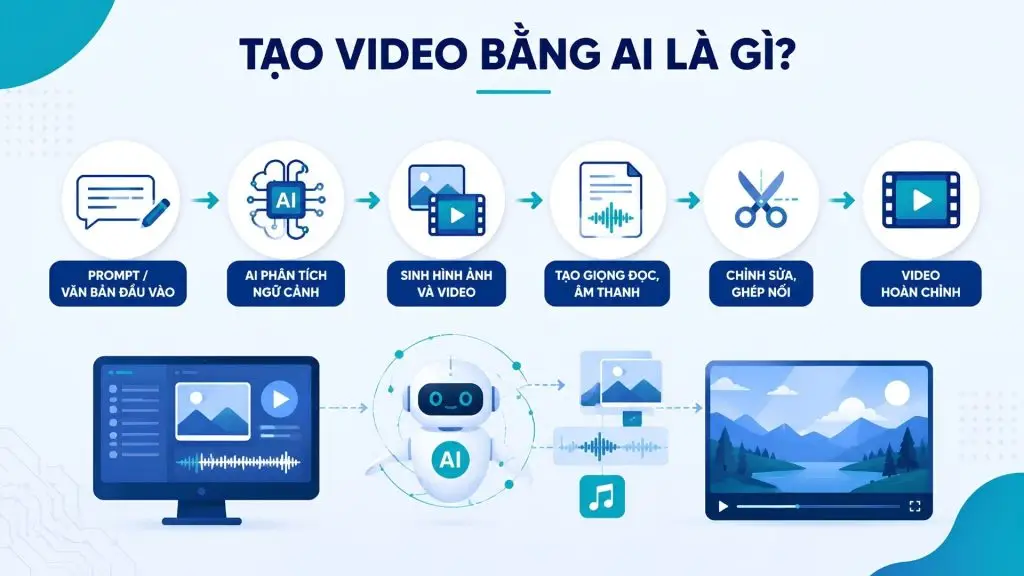
At a basic level, the processing flow runs in this sequence: prompt or input text → AI analyzes the context → generates visuals and video → creates voice-over and audio → edits and assembles → finished video. As a result, a short description can become a video in just a few minutes.
AI now supports many different video formats, each suited to a specific use case. The most common are product ads, business introduction videos, short-form social videos for TikTok or Reels, animated videos, virtual-presenter videos and explainer videos for lessons. Beyond creating new content, AI is also used to analyze existing footage and detect objects in video for moderation or automatic tagging. Depending on the tool, users can generate video from text, from a still image, or from a combination of both for better control over composition.
>>> Learn more:
- Top 15 best AI coding tools
- Top 15+ AI app builder tools that are effective and super easy to use
How to make an AI video in 7 simple steps
Making a video with AI can be broken down into 7 clear steps: define the goal, write the script, write the prompt, choose a tool, generate the video, add audio, and finally edit and publish. This process works for beginners and professional marketing teams alike, helping you control quality at every stage.
Step 1. Define the goal and topic of the video
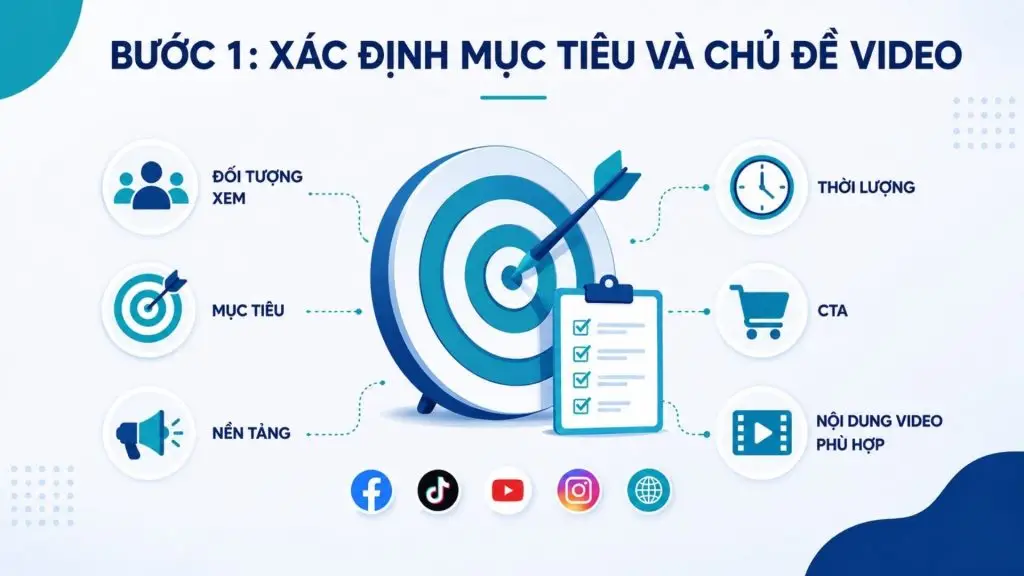
Before you start making a video with AI, clearly define the goal and topic to steer all of the content. A sales ad is completely different from a tutorial or an entertainment video on social media, so locking in the goal from the start helps you choose the right tool, tone and format.
Elements to clarify at this step:
- Audience: Potential customers, current users, employees, students, social media followers or a specific professional group?
- Goal: Build brand awareness, introduce a product, educate viewers, drive engagement or boost conversions?
- Platform: YouTube, TikTok, Facebook, Instagram Reels, a website or online ads?
- Length: Set the length from the start to avoid writing a script that is too long for the number of scenes you can generate.
- CTA (Call to Action): What do you want viewers to do after watching: sign up, buy, visit the website, leave a comment or learn more?
For example, if the goal is to create a Facebook video promoting a sale for a fashion brand, you might define:
- Audience: women aged 18–30 who love fashion
- Goal: increase awareness and drive purchases
- Platform: Facebook
- Length: 30 seconds
- CTA: visit the online store to claim the offer.
>>> See more:
- How to implement AI in mobile apps: a simple guide
- Top 20 AI tools for online sales: the best free options
Step 2. Write the video script with AI
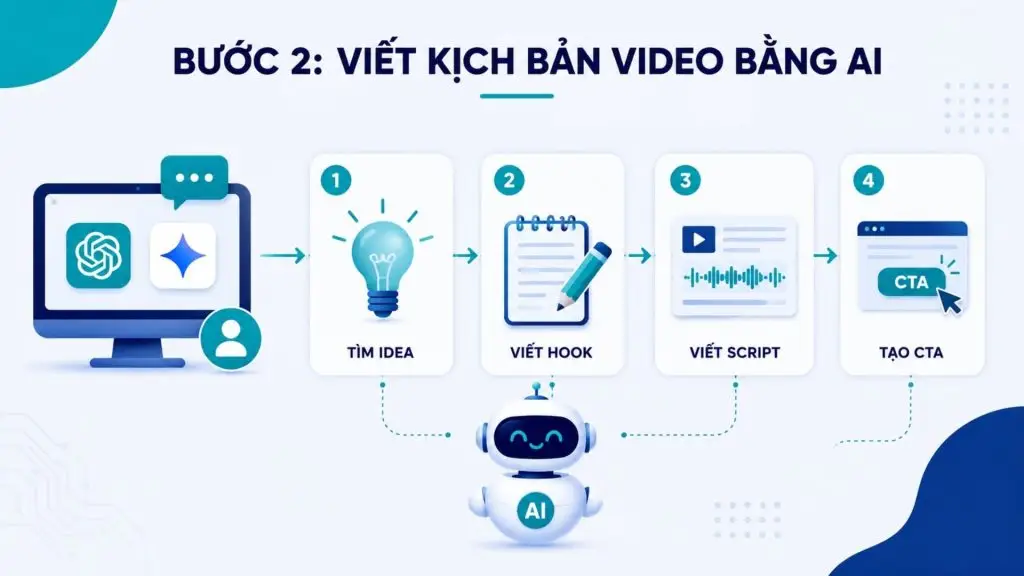
Once the goal is set, you can use AI chatbots such as ChatGPT or Gemini to develop ideas and build the script. Instead of a vague request like “write a video script about marketing”, provide full context so the AI understands exactly what video you need.
AI can help you at several stages:
- Finding ideas: Suggest topics based on the product, audience and platform.
- Writing the hook: Create an opening line compelling enough to hold attention in the first few seconds.
- Writing the script: Break the content down into scenes, dialogue, voice-over and actions.
- Creating the CTA: Suggest a call to action that fits the conversion goal.
One prompt structure you can use is:
Role + goal + audience + topic + length + tone + CTA
Example:
“You are a content marketing expert. Write a 45-second TikTok script introducing an AI tool that helps businesses create content. The audience is small business owners who don’t have a professional marketing team. Use a friendly, easy-to-understand tone with a strong hook in the first 3 seconds. Break the script into scenes, each with visuals, dialogue and on-screen text. End with a CTA encouraging viewers to visit the website to learn more.”
Once you have the script, don’t generate the video right away. Check whether each scene has a clear purpose, whether the content packs in too much information, and whether the visuals can actually be turned into AI video. If needed, ask the AI to rewrite it as a shot list with Scene 1, Scene 2, Scene 3… to make the video generation step easier.
>>> Read more:
- AI image analysis: How it works & real-world applications
- 18 ways to apply AI to ecommerce that deliver strong results
Step 3. Write the AI video prompt
This step largely determines the quality of the video’s visuals and motion. A good prompt doesn’t just say “create a video of a person drinking coffee”; it describes who the person is, what they are doing, where they are, how the camera moves, what the lighting is like and what style the video has.
Google DeepMind also recommends describing specific elements such as framing, camera movement, style, lighting, characters, location, action and dialogue to gain more control over the result.
AI video prompt formula
A practical formula you can apply is:
Subject + Action + Environment + Camera + Lighting + Style + Audio
Where:
| Component | What to describe | Example |
|---|---|---|
| Subject | Main character/object | A white serum bottle |
| Action | Action/movement | Rotating slowly on a stone pedestal |
| Environment | Setting | An upscale, minimalist bathroom |
| Camera | Camera angle and movement | Close-up, slow dolly-in |
| Lighting | Light source and quality | Soft morning light |
| Style | Visual style | Luxury commercial, photorealistic |
| Audio | Sound/voice/dialogue | Gentle water sounds, ambient music |
1. Subject – the main focus: Pin down exactly which object or character should appear. For characters, you can describe their age, gender, clothing, appearance and facial expression.
2. Action – what happens: State clearly what the subject is doing and how the motion unfolds. Specific verbs such as “walks slowly”, “turns around” or “picks up the product” usually work better than generic descriptions.
3. Environment – the setting: Describe the location, time of day, weather, surrounding objects and the atmosphere of the scene.
4. Camera – shot and movement: Specify the shot, such as close-up, medium shot or wide shot, and describe the movement, such as pan, tilt, tracking, dolly-in, zoom or static shot. Google DeepMind also recommends using specific instructions on framing and camera movement to control the shot.
5. Lighting – the light: You can describe the light source, direction, color and intensity, such as warm sunset light, soft studio lighting or dramatic rim light.
6. Style – the look: Decide whether the video should be photorealistic, cinematic, 3D animation, stop-motion, documentary or commercial.
7. Audio – the sound: If the tool supports audio generation, describe the voice, dialogue, ambient sound, sound effects or background music. Some modern models such as Veo can generate dialogue, sound effects and environmental sound all from a prompt.
AI video prompt examples
Example 1 – Product video
“A premium skincare serum bottle standing on a white marble pedestal in a luxurious minimalist bathroom. The bottle slowly rotates while tiny water droplets sparkle on its surface. Close-up macro shot, slow dolly-in, soft morning sunlight coming through a large window, elegant luxury beauty commercial, photorealistic, shallow depth of field. Subtle water sounds and soft ambient music.”
This prompt clearly defines the product, action, setting, camera, lighting, style and audio, rather than simply asking the AI to “create a promotional video for the serum”.
Example 2 – Cinematic video
“A lone traveler wearing a dark brown coat walks through a misty pine forest at dawn, carrying a small backpack. The camera follows from behind and slowly moves to a wide side shot as sunlight breaks through the trees. Cinematic 35mm film look, muted green and golden color palette, volumetric fog, realistic natural movement, atmospheric wind and distant birds.”
Example 3 – TikTok video
“A young Vietnamese entrepreneur sits at a modern desk and looks directly into the smartphone camera. He quickly points at three floating icons representing time, cost and productivity. Vertical 9:16 social media video, dynamic handheld smartphone camera, bright modern office, natural daylight, energetic and friendly tone, fast-paced editing style, subtle upbeat background music.”
Key principle: Prompts don’t need to be very long in every case. Prioritize details that are useful for the output. If a scene involves many complex actions, you can split it into several short shots instead of asking the AI to generate the whole story in one go. Google DeepMind’s guidance also shows that describing actions in a detailed sequence can help with complex motion scenes.
Step 4. Choose an AI video tool
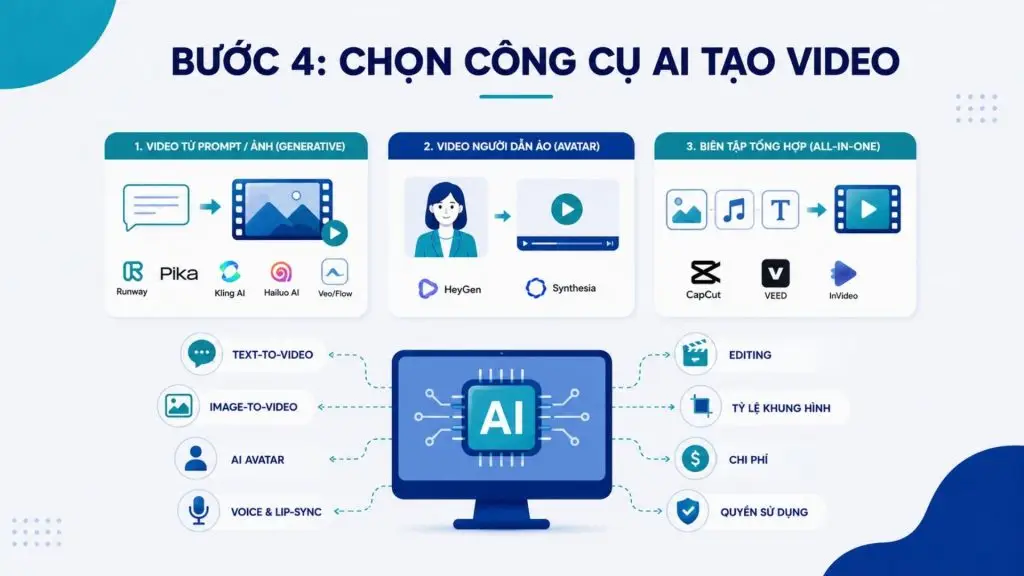
Your choice of tool should depend on the type of video you need to make, since each platform has its own strengths. AI video tools can be grouped into three main categories to make the choice easier.
- Tools that generate video from a prompt or image: Google Veo/Flow, Runway, Kling AI, Pika, Hailuo AI, suited to creative and cinematic footage.
- Virtual-presenter (avatar) video tools: HeyGen, Synthesia, suited to training, presentation and sales videos.
- All-in-one editing tools: CapCut, VEED, InVideo, suited to social media and marketing videos thanks to their stock footage libraries, subtitles and voice-over features.
Beyond the type of video, weigh the budget, ease of use, ability to export at high resolution and the copyright policy of each tool before deciding. New users should start with a tool that offers a trial plan to get familiar with it before investing in a paid plan.
Before signing up, check the following:
- Text-to-video: Can it generate video directly from a prompt?
- Image-to-video: Does it support turning still images into video?
- AI avatar: Is it suitable for training or presentation videos?
- Voice and lip-sync: Can it generate voice-over and sync lip movements?
- Editing: Is there a timeline for cutting clips and adding subtitles and music?
- Aspect ratio: Does it support 9:16, 16:9 and 1:1?
- Pricing: Is there a free plan, and what are the credit/watermark limits?
- Usage rights: Check the commercial terms if the video will be used for business or advertising.
>>> See more:
- 9+ free, easy-to-use mobile app design tools
- 15+ free, easy-to-use Android app design software tools
Step 5. Generate the video from a prompt or image
With your script, prompt and tool ready, you can start generating each scene. The process varies by platform but usually includes these steps:
Upload an image/enter a prompt → Choose a model → Set the aspect ratio → Generate the video → Review → Regenerate the video
If you are generating video from text, enter the prompt you prepared in step 3.
If you are generating video from an image, first upload an image with the right composition and characters, then describe the motion you want to add. For example, instead of asking the AI to recreate the entire scene, you can write “camera slowly pushes in while the subject turns toward the window”.
Next, choose the appropriate model or mode if the tool offers several options. Set the aspect ratio for your platform before generating to avoid having to crop or rebuild the video later.
Don’t expect the first generation to always be perfect. Check:
- Does the character look right?
- Are hands, faces or objects distorted?
- Is the motion natural?
- Is the camera moving in the right direction?
- Has the product/logo been altered?
- Do any odd objects appear in the background?
- Is the audio or dialogue accurate?
If the result falls short, adjust a few specific elements and regenerate, rather than rewriting the entire prompt at random. Some newer systems also support editing video with natural language and changing just the camera, the action or individual elements in the scene.
For longer videos, generate short individual shots and then stitch them together. This gives you better control over continuity and makes it easy to replace a flawed scene without regenerating the entire video.
>>> Learn more:
- Top 35 time management apps: the best and most effective picks
- 10 free 3D home design programs for phones and computers
Step 6. Add voice-over, subtitles and background music
An AI video with great visuals but no voice, subtitles or sound design often struggles to get its message fully across. Once you have the main scenes, bring them into an editor to finish the audio.
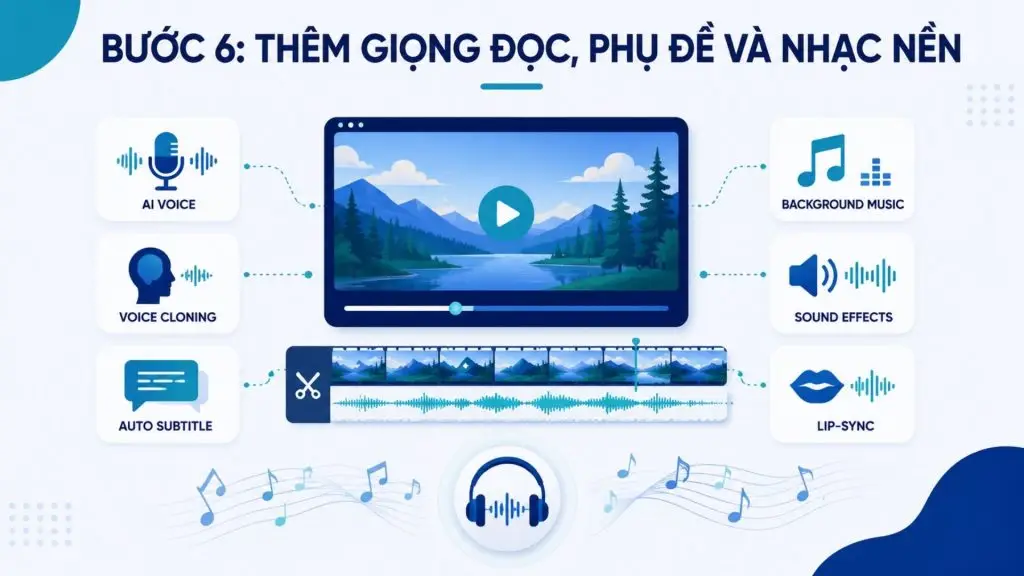
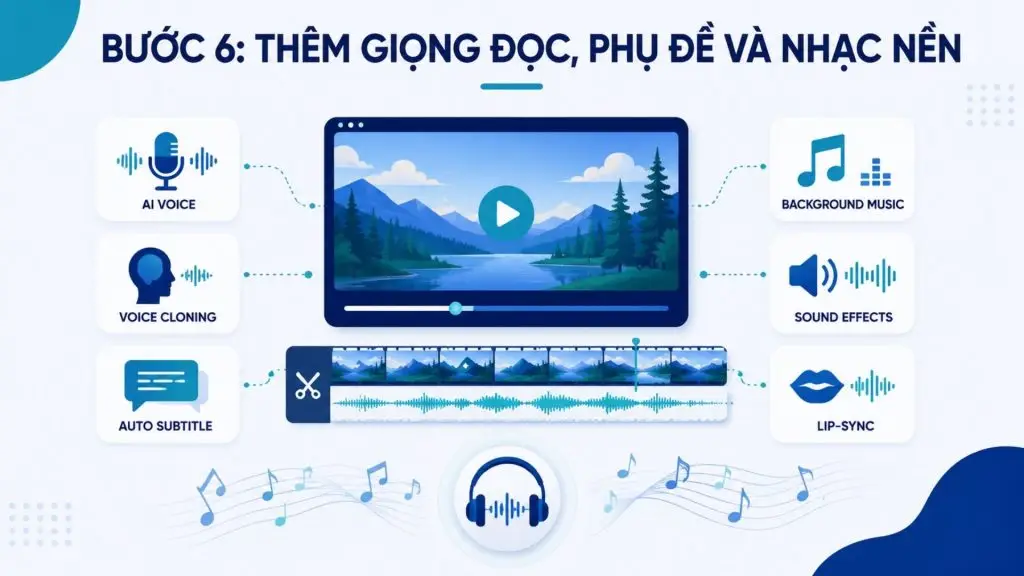
You can use:
- AI voice: Turn the script into natural-sounding narration.
- Voice cloning: Create a voice similar to a sample voice, where the tool and usage rights allow it.
- Auto subtitle: Automatically turn dialogue into subtitles.
- Background music: Add background music that matches the video’s tone.
- Sound effects: Add sounds such as click, whoosh, footsteps or ambient sound.
- Lip-sync: Sync the character’s mouth movements with the voice-over or dialogue.
Prioritize clear, audible dialogue rather than letting the background music get too loud. Subtitles also need a manual check, because AI can misrecognize proper names, technical terms or numbers.
If your video tool supports generating audio directly from the prompt, you can describe the sound right in the prompt. Google DeepMind also recommends pairing visual descriptions with sound design to create a consistent multisensory experience.
>>> See more:
- Top 17 leading graphic design apps for professionals
- Mobile app design costs and app maintenance costs: the latest figures
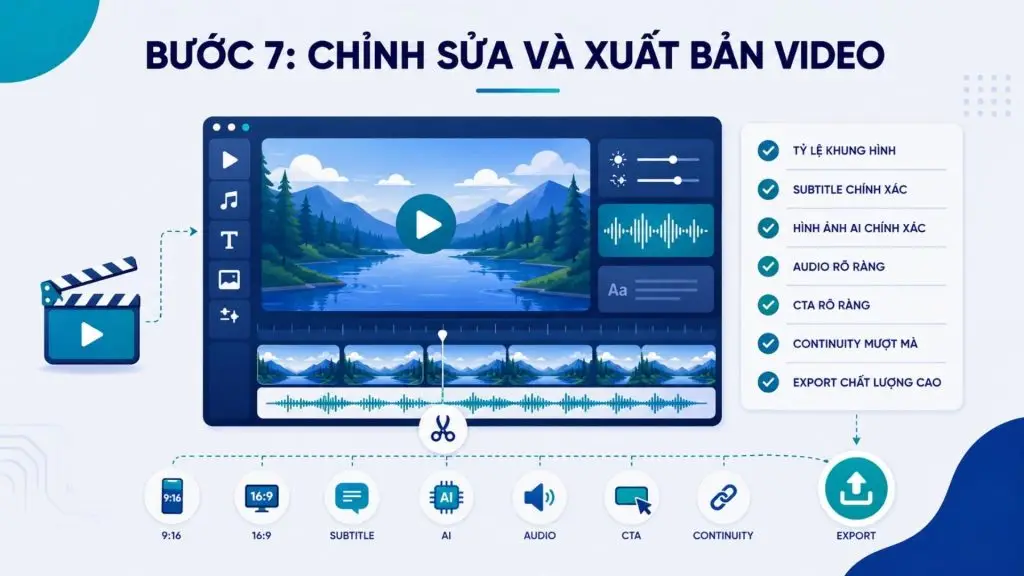
Step 7. Edit and publish the video
The final step is turning the individual AI clips into a complete video. Cut out unnecessary segments, arrange the scenes following the script’s logic and make sure the pacing suits the platform.
Before publishing the video, you can use this checklist:
- 9:16: Suited to vertical video on TikTok, Reels and Shorts.
- 16:9: Suited to horizontal YouTube videos and a lot of website content.
- Check subtitles: No spelling errors, and they don’t cover the product or faces.
- Check AI visuals: Pay special attention to hands, faces, text on products, logos and moving objects.
- Check audio: The voice is clear enough, free of clipping and balanced with the background music.
- Check the CTA: The CTA must appear clearly and at the right moment.
- Check continuity: Characters, outfits, settings and products don’t change unexpectedly between scenes.
- Export: Prefer 1080p or higher, depending on your use case.
YouTube states that the standard aspect ratio on desktop is 16:9 and recommends uploading video at the highest suitable resolution; for 16:9 content, 1080p corresponds to 1920 × 1080 pixels. Google Ads also uses 1080p as the recommended resolution for video creatives, with 16:9 for horizontal video and 9:16 for vertical video.
Finally, watch the video on the exact device and platform where you plan to post it before publishing. A video may look great on a computer screen, yet the subtitles may be too small on a phone or the CTA may get cut off in vertical format. For important content, export a high-quality master version first, then create optimized versions for each platform.
>>> Read more:
- Top 20 leading app design companies: the most reputable in Vietnam
- Top 5 home design apps: the best free, high-quality options
Top 15 best AI video tools today
The market now offers many AI video tools, each aimed at a different set of needs, from cinematic footage and virtual-presenter videos to short-form social media content.
The table below summarizes each tool’s strengths and free-trial availability for easy comparison, and the sections that follow go into detail on each tool.
| Tool | Key features | Best-fit video types | Pricing |
|---|---|---|---|
| Google Veo/Flow | Text/image-to-video; audio and dialogue generation; scene extension and editing; multi-scene building | Cinematic videos, product ads, storytelling, branding, social media | Free: 50 credits/day; AI Plus: 4.99 USD/month; AI Pro: 19.99 USD/month; AI Ultra: 99.99 USD/month |
| Runway | Text/image-to-video with Gen-4.5; AI video editing; multiple aspect ratios | Cinematic videos, ads, product videos, social media, storytelling | Free: 125 credits; Standard: 15 USD/month; Pro: 35 USD/month; Max: 95 USD/month |
| Kling AI | Text/image-to-video; complex motion; character/product consistency; audio and dialogue generation | Cinematic videos, ads, TikTok/Reels, storytelling, character videos | Free: Limited; Standard: about 10 USD/month; Pro: about 37 USD/month; Premier: about 92 USD/month |
| HeyGen | Virtual presenters; text-to-video; voice cloning; translation and lip-sync | Business, training, tutorial, sales and marketing videos | Free: 3 videos/month; Creator: 29 USD/month; Pro: 49 USD/month; Business: 149 USD/month |
| CapCut AI | Text/image-to-video; multiple integrated AI models; editing, captions, music and effects | TikTok, Reels, Shorts, product ads, social media videos | Free: Limited; Pro: Pricing varies by region/platform |
| VEED AI | Text/image-to-video; multiple integrated models; AI voice, virtual presenters, captions and online editing | Social media, ad, tutorial, training and business videos | Free: Limited; Lite: from 9 USD/month billed annually; Pro: from 24 USD/month billed annually |
| Synthesia | Virtual presenters; video from scripts/documents; 160+ languages; voice cloning; video translation | Training, tutorial, business, sales and internal communications videos | Free: up to about 10 minutes/month; Starter: 29 USD/month; Creator: 89 USD/month; Enterprise: custom quote |
| InVideo AI | Turns ideas into finished videos; generates scripts, visuals and voiceovers; supports multiple AI models; prompt-based editing | YouTube, ads, explainers, social media, education, marketing | Plus: 17 USD/month billed annually; Max: 85 USD/month; Generative: 170 USD/month; Elite: 900 USD/month |
| Pika | Text/image-to-video; many transformation effects; well suited to short videos and creative content | TikTok, Reels, Shorts, effects videos, short ads, entertainment | Free: Yes; paid plans are billed monthly/annually and by credits |
| Hailuo AI | Text/image-to-video; motion and effects; multiple aspect ratios; watermark-free downloads on paid plans | Product, ad, cinematic and storytelling videos, TikTok/Reels/Shorts | Free: Limited; Standard: 14.99 USD/month; Pro: 54.99 USD/month; Master: 119.99 USD/month |
| Canva AI | AI video creation and editing; ready-made templates; drag and drop; image/video/audio library; captions and effects | TikTok, Reels, Shorts, ads, presentations, business | Free: Yes; Canva Pro: paid, varies by plan/region; AI Pass is an add-on |
| Viggle | Puts characters from photos into motion videos; motion generation; multiple characters; audio sync | Meme videos, TikTok, Reels, Shorts, dance videos, entertainment | Free: up to 5 videos/day; Pro: 9.99 USD/month; Live: 19.99 USD/month; Max: 79.99 USD/month |
| Elai.io | Virtual presenters; video from scripts/documents/links; 75+ languages; video translation; PowerPoint-to-video conversion | Training, tutorial, explainer, sales, marketing and business videos | Free: 1 minute of video; Creator: 29 USD/month; Team: 125 USD/month; Enterprise: custom quote |
| GliaCloud | Automatically turns text/data into video; production automation; supports high-volume production | News videos, article summaries, e-commerce, education, marketing | No public pricing; contact the vendor for a quote |
| Adobe Firefly | Text/image-to-video; multiple integrated AI models; video editing; audio and effects generation | Ad, marketing, B-roll, cinematic, social media and animated videos | Free: Limited generations; Standard: 9.99 USD/month; Pro: 19.99 USD/month; Premium: 199.99 USD/month |
1. Google Veo/Flow
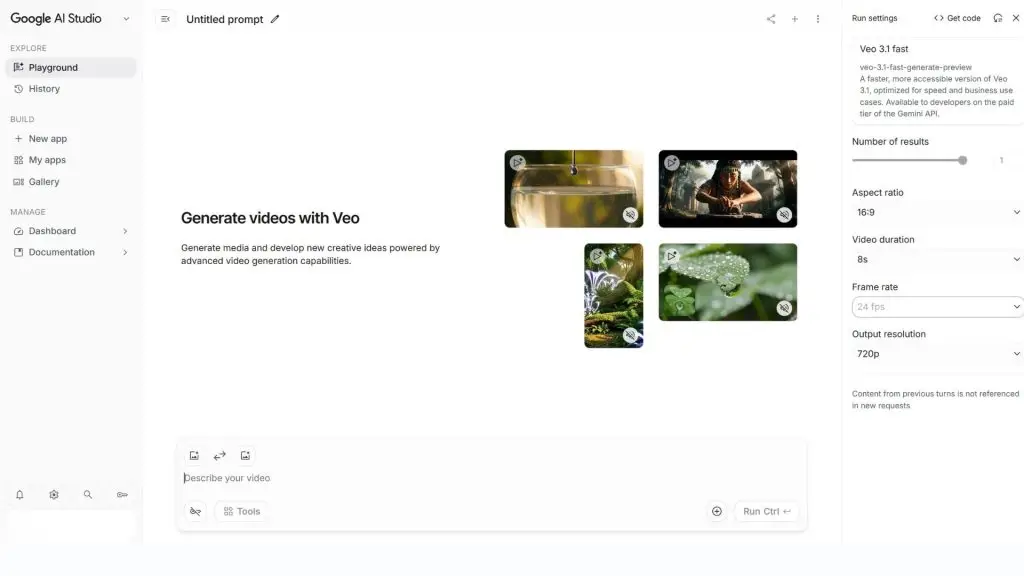
Google Veo on AI Studio is Google’s family of AI video generation models. Users can enter a text description or provide reference images to generate video scenes, then use Google Flow to arrange, extend and edit multiple scenes into a finished video. Veo 3.1 now supports generating video with native audio, and Google highlights its ability to produce realistic motion, simulate physics and follow prompts closely.
- Basic usage:
- Go to Google Flow or Google AI Studio.
- Sign in with your Google account.
- Choose the video generation tool and the Veo model.
- Enter a text description or upload reference images.
- Clearly describe the following elements:
- Characters.
- Action.
- Setting.
- Visual style.
- Camera angle.
- Choose the duration or format if the app offers these options.
- Click Generate to create the video.
- Once the video is ready, you can:
- Preview it.
- Download it.
- Regenerate it with a different prompt.
- Bring the video into Flow for editing.
- Extend the scene.
- Arrange multiple scenes into a finished video.
- Key features:
- Generates video from text and images.
- Generates video from multiple reference images.
- Extends scenes and edits video with prompts.
- Generates audio, sound effects and dialogue with Veo 3.1.
- Lets you build multiple scenes and arrange them into a story in Flow.
- Includes tools for creating characters and images and for upscaling resolution.
- Video types: Product ads, cinematic videos, storytelling videos, brand introduction videos, social media videos and any content that calls for realistic visuals.
- Best for: Content creators, marketers, businesses, filmmakers and users who want to create high-quality videos from text or images.
- Pricing:
- Free: 50 Google Flow credits per day, with access to Veo 3.1 and basic video generation features.
- Google AI Plus: 4.99 USD/month, including 200 Google Flow credits per month.
- Google AI Pro: 19.99 USD/month, including 1,000 Google Flow credits per month.
- Google AI Ultra: 99.99 USD/month, including 10,000 Google Flow credits per month.
- If you use Veo 3.1 via the Gemini API, pricing is charged per second: Standard costs 0.40 USD/second at 720p/1080p; Fast costs 0.10 USD/second at 720p and 0.12 USD/second at 1080p; Lite costs 0.05 USD/second at 720p and 0.08 USD/second at 1080p.
- Limitations:
- The number of videos you can generate depends on the credits included in each plan.
- Features, quotas and availability may vary by country, platform and subscription plan.
- Videos with many small details, text, logos or complex motion can still contain errors and may need to be regenerated.
- If you use Veo via the API at high volume, costs can climb quickly because billing is based on video length.
>>> See more:
- A quick, practical guide to how to use Google AI Studio effectively
- How to build an AI app with vibe coding on Google AI Studio the easy way
2. Runway
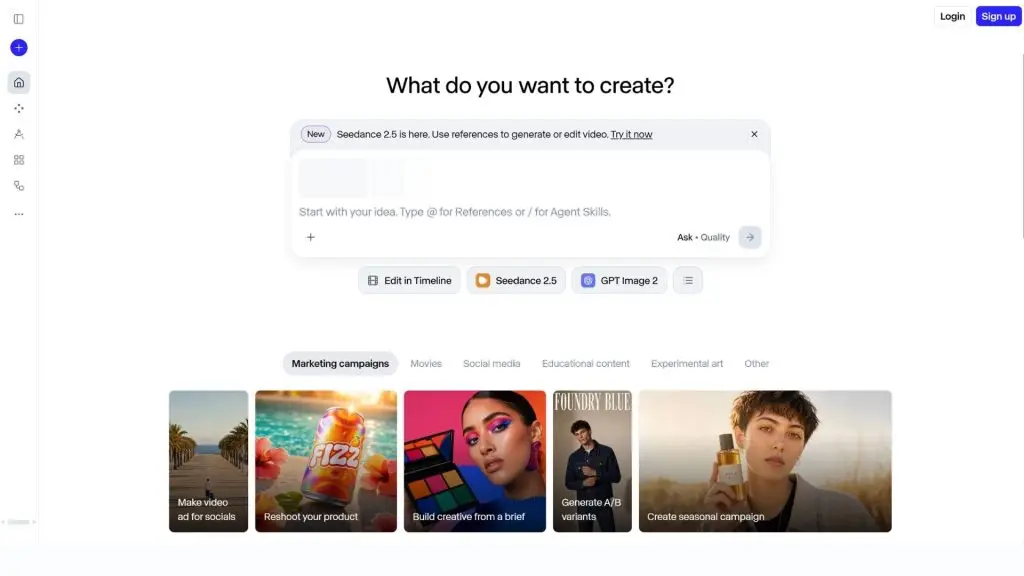
Runway is an AI platform for creating and editing video, images and audio. With the Gen-4.5 model, users can generate video from text or reference images while controlling the scene’s motion, camera angle and style. To use it, simply choose the video generation tool, enter a description or upload an image, configure the settings and generate the video. You can then tweak the prompt and regenerate if the result isn’t quite right.
- Basic usage:
- Go to Runway
- Sign up or sign in to your account.
- Open the Dashboard and choose the video generation tool.
- Select the Gen-4.5 model.
- Enter a text description or upload a reference image.
- Clearly describe:
- The character or product.
- Action.
- Setting.
- Camera angle and camera movement.
- Visual style.
- Choose the duration and aspect ratio.
- Click Generate to create the video.
- Review the result and adjust the prompt if needed.
- Download the video or keep editing it with Runway’s AI tools.
- Key features:
- Generates video from text and images with Gen-4.5.
- Supports multiple aspect ratios such as 16:9, 9:16, 1:1 and 21:9.
- Offers AI tools for editing and transforming video content.
- Supports image and audio creation and editing.
- Lets you combine multiple tools within a single content production workflow.
- Video types: Product ads, cinematic videos, social media videos, storytelling videos, brand introduction videos and scenes that need AI editing.
- Best for: Content creators, designers, marketers, filmmakers and businesses that need an AI platform for both video generation and post-production.
- Pricing:
- Free: 0 USD/month, including 125 one-time credits to try it out.
- Standard: 15 USD/month or 12 USD/month billed annually, including 625 credits/month.
- Pro: 35 USD/month or 28 USD/month billed annually, including 2,250 credits/month.
- Max: 95 USD/month or 76 USD/month billed annually, including 9,500 credits/month.
- Gen-4.5 uses 12 credits/second, so a 5-second video costs about 60 credits.
- Limitations:
- The free plan provides only 125 one-time credits, which are not renewed monthly.
- Gen-4.5 generates short clips, so longer videos usually require generating multiple scenes and stitching them together.
- Credits can run out quickly if you have to regenerate many versions.
- Some advanced tools and features require a paid plan.
3. Kling AI
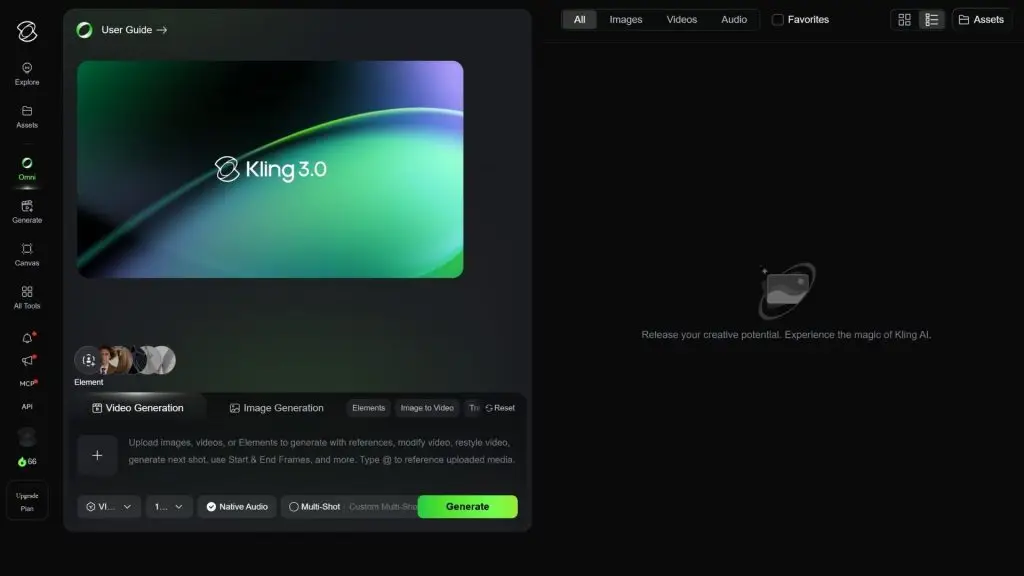
Kling AI is an AI video generation platform focused on creating motion, visuals and audio from text or images. Users can upload reference images and describe the action and setting, and the AI turns them into a complete video scene. Kling AI also offers features that keep characters, products and style consistent across scenes. The workflow is fairly simple: choose the video generation tool, enter a prompt or upload an image, configure the settings and click generate.
- Basic usage:
- Go to Kling AI.
- Sign up or sign in to your account.
- Choose the video generation tool.
- Choose text-to-video or image-to-video mode.
- If you are working from an image, upload the reference image.
- Enter a prompt describing:
- The character or product.
- Action.
- Setting.
- Camera movement.
- Video style.
- Choose the model, duration and video quality.
- Click Generate to create the video.
- Check the motion, visuals and audio.
- Adjust the prompt or settings and regenerate if the result falls short.
- Download the video or continue editing it.
- Key features:
- Generates video from text and images.
- Handles scenes with complex motion.
- Preserves character and product traits from reference images.
- Kling VIDEO 3.0 supports video with audio, dialogue and sound effects.
- Supports multiple scenes within a single video.
- Offers high-resolution output options, including 4K in supported modes.
- Video types: Cinematic videos, product ads, TikTok/Reels videos, storytelling videos, character videos and scenes that require motion or synchronized audio.
- Best for: Content creators, marketers, filmmakers, businesses and users who want to create AI videos with complex motion from text or images.
- Pricing:
- Free: Kling AI can be used within certain limits; credit quotas and features depend on the platform’s current policy.
- Standard: about 10 USD/month, including about 660 credits/month.
- Pro: about 37 USD/month, including about 3,000 credits/month.
- Premier: about 92 USD/month, including about 8,000 credits/month.
- Kling AI may run promotional pricing or change quotas from time to time, so check the pricing page before subscribing.
- Limitations:
- High-quality, longer or audio-enabled videos usually consume a lot of credits.
- Scenes with multiple characters, complex motion or strict consistency requirements may need to be regenerated several times.
- The free plan limits credits and some features.
- Pricing, credit quotas and commercial usage rights may change depending on the plan and Kling AI’s policies.
>>> See more:
- AI in software development: How is it being applied?
- Build an online store with AI for free: SEO-friendly and highly effective
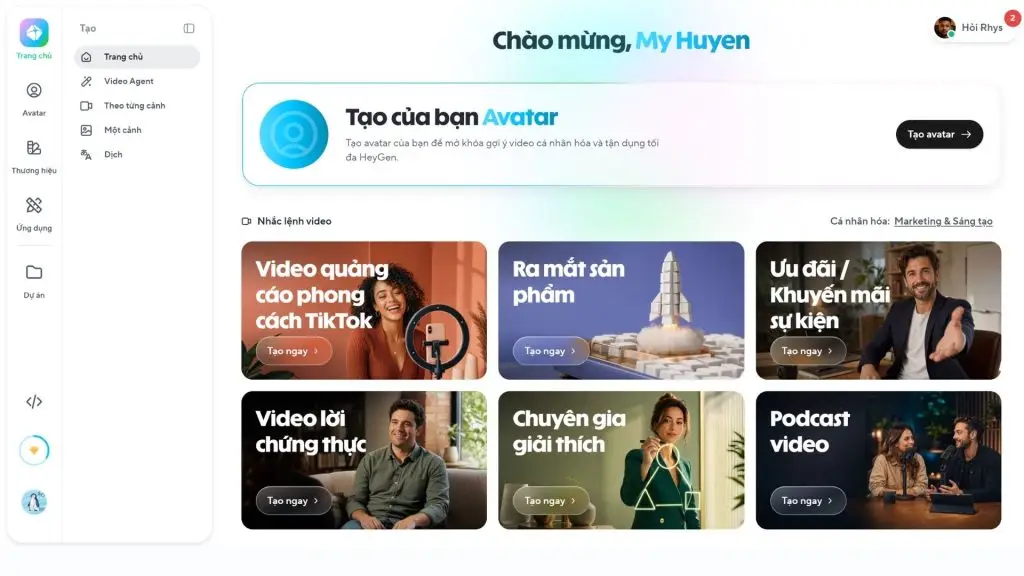
4. HeyGen
HeyGen is an AI video generation platform known for its virtual presenters, text-to-speech and voice cloning. Users can enter a script and choose a presenter, voice and language to create a video without filming it themselves. HeyGen also supports translation and lip-sync, making it a good fit for businesses that need to produce content in multiple languages. The basic workflow is: choose a video template or presenter → enter the script → customize the voice and visuals → generate and export the video.
- Basic usage:
- Go to HeyGen.
- Sign up or sign in to your account.
- Choose the AI video tool.
- Choose a virtual presenter or create a custom one.
- Enter a script or generate one with AI.
- Choose:
- Voice.
- Language.
- Presentation style.
- Video layout.
- Add images, videos or supporting documents if needed.
- Click generate and check the visuals, voice and lip-sync.
- Edit the script or settings if needed.
- Export the finished video.
- Key features:
- Creates videos with AI virtual presenters.
- Turns text into speech and video.
- Supports voice cloning.
- Supports many languages and dialects.
- Lets you create custom virtual presenters.
- Supports lip-sync when translating content into other languages.
- Paid plans support high-resolution export, with Pro supporting 4K export.
- Video types: Company introduction videos, training videos, tutorials, sales videos, marketing videos, presentation videos and multilingual content.
- Best for: Businesses, marketing teams, training staff, content creators and anyone who wants presenter-led videos without filming themselves.
- Pricing:
- Free: 0 USD/month, up to 3 videos/month, each up to 1 minute long.
- Creator: 29 USD/month or 24 USD/month billed annually, including 600 credits/month, videos up to 30 minutes and 1080p export.
- Pro: 49 USD/month, including 1,000 credits/month, videos up to 30 minutes and 4K export.
- Business: 149 USD/month + 20 USD/month per additional user, including 1,500 credits/month and videos up to 60 minutes.
- The free plan lets you try features such as Avatar IV, but limits the number and length of videos.
- Limitations:
- The free plan is limited to 3 videos per month and a maximum of 1 minute per video.
- Advanced features and longer videos require a paid plan.
- Videos with virtual presenters can look less natural than real people in some situations involving nuanced expressions or complex dialogue.
- The cost of advanced video generation features depends on the number of credits and the AI model used.
>>> See more:
- AI in UI/UX design: A tool or a rival for designers?
- AI website optimization: What it is and how to optimize SEO content
5. CapCut AI
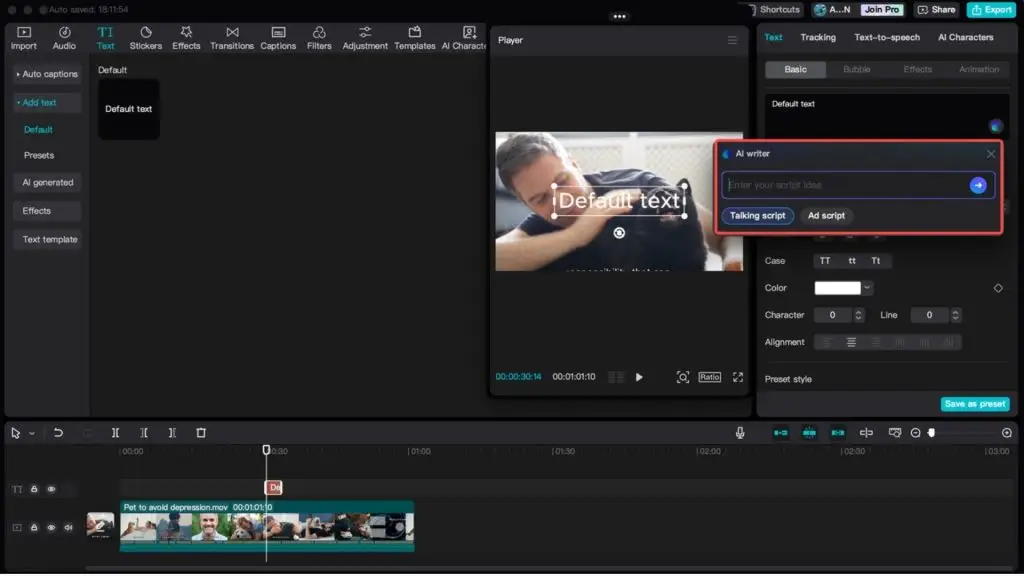
CapCut AI is the suite of AI tools built into CapCut, a good fit for anyone who wants to create and edit videos on a single platform. It can turn text or images into video and now integrates models such as Veo 3.1 and Sora 2 for some of its AI video generation features. Users can enter a prompt or upload an image, choose the model, duration and aspect ratio, then generate the video. The video can then be edited further, with captions, audio and effects added directly in CapCut.
- Basic usage:
- Go to CapCut AI or open CapCut on your computer.
- Sign in to your account.
- Open AI Media and choose:
- Text to video: Enter a prompt describing the video.
- Image to video: Upload a reference image.
- Choose a suitable AI model, such as Veo 3.1 or Sora 2 if available.
- Choose the duration and aspect ratio.
- Click Generate to create the video.
- Review the result and edit it if needed.
- Add music, captions, effects or other elements.
- Select Export to save the video.
- Key features:
- Generates video from text and images.
- Integrates Veo 3.1 and Sora 2 for supported AI video generation features.
- Creates videos with motion, voiceover and audio.
- Generates videos of up to about 8 seconds in the AI video generator CapCut showcases.
- Comes with built-in video editing, captions, music and effects.
- Supports high-resolution video export, depending on the feature and device.
- Video types: TikTok videos, Reels, Shorts, product ads, social media videos, product introduction videos and short content that needs quick editing.
- Best for: Video beginners, social media content creators, marketers and small businesses that need one tool for both creating and editing videos.
- Pricing:
- Free: CapCut offers a free AI video generator with certain features and quotas. Not all AI features are free.
- CapCut Pro: Pricing varies by country, region and platform. CapCut confirms that Pro pricing may differ between markets.
- Because AI and CapCut Pro pricing can vary by region, check the price shown directly in your account before subscribing.
- Limitations:
- Some AI video generation models and features require separate access or have their own usage limits.
- Videos generated by AI models are usually short, so longer content has to be assembled from multiple scenes.
- Some advanced features may require CapCut Pro or consume AI resources.
- CapCut Pro pricing and access vary by region, platform and CapCut’s policies.
>>> Learn more:
- AI data labeling: Trends, tools and workflows
- How to build a WordPress website with AI: A detailed A-to-Z guide
6. VEED AI
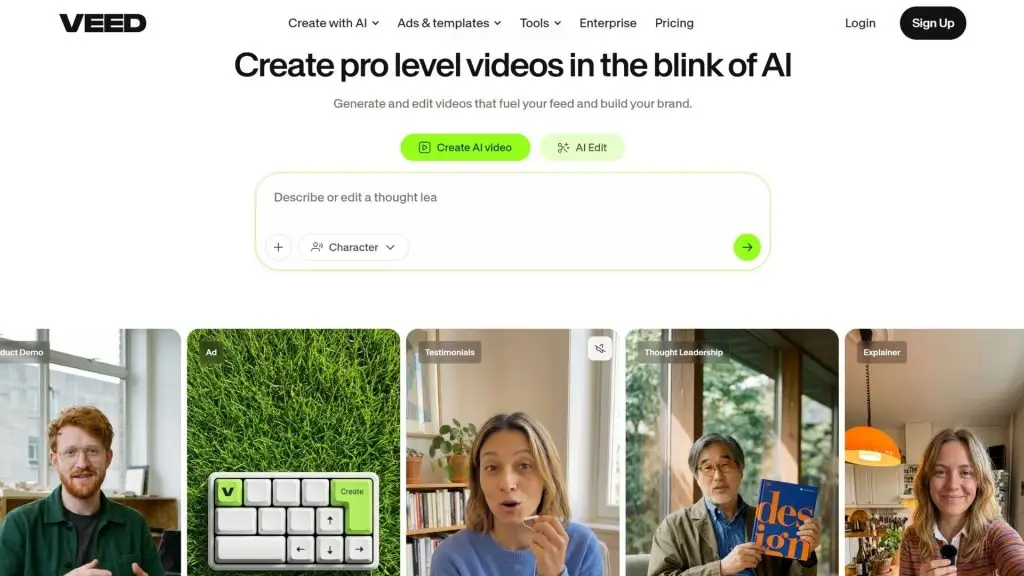
VEED AI is an online video creation and editing platform that brings multiple AI tools together in a single workflow. Users can enter an idea, a script or images to generate a video, then add AI narration, a virtual presenter, captions, music and brand assets. VEED also lets you choose among several video generation models, such as Veo, Kling and Hailuo, depending on your needs. The workflow runs: enter your content → choose a style and format → generate the video → edit in the editor → publish.
- Basic usage:
- Go to VEED AI.
- Sign up or log in to your account.
- Open the AI Video Generator tool.
- Enter your video idea or script.
- Choose the content type and style you want.
- Configure:
- Aspect ratio.
- Presenter or voiceover.
- Captions.
- Background music.
- Choose an AI model if the tool offers several options.
- Click to generate the video.
- Replace scenes or add your own images or videos if needed.
- Edit the video in VEED’s editor.
- Export the finished video.
- Key features:
- Creates videos from text, scripts or images.
- Integrates multiple AI video generation models, such as Veo, Kling and Hailuo.
- Generates AI voiceovers and virtual presenters.
- Generates captions automatically.
- Supports turning images into videos.
- Includes an online video editor for refining videos after generation.
- Supports adding music, images, video, logos and other brand identity elements.
- Supports translating captions and content into multiple languages.
- Video types: Social media videos, ad videos, tutorial videos, training videos, product showcase videos, corporate videos and videos with virtual presenters.
- Best for: Content creators, marketing specialists, businesses, training teams and users who want to generate AI videos and then edit and polish them on the same platform.
- Pricing:
- Free: 0 USD/month; includes the basic editing tools. AI credits for video generation may depend on your region. In regions where free credits are supported, AI videos can be up to 12 seconds long.
- Lite: 19 USD/month, or about 9 USD/month when billed annually, depending on current pricing.
- Pro: 49 USD/month, or 24 USD/month when billed annually, with more AI features and higher usage limits.
- Enterprise: Custom quotes for businesses with large-scale usage needs.
- Limitations:
- AI video generation features use credits, so the number of generations depends on your plan and remaining credits.
- The free plan has limits on resolution, length and certain features; free AI credits are also not available in every region.
- Video quality and length can vary depending on the AI model selected.
- Users need to pay extra to use premium AI models or advanced editing features on a regular basis.
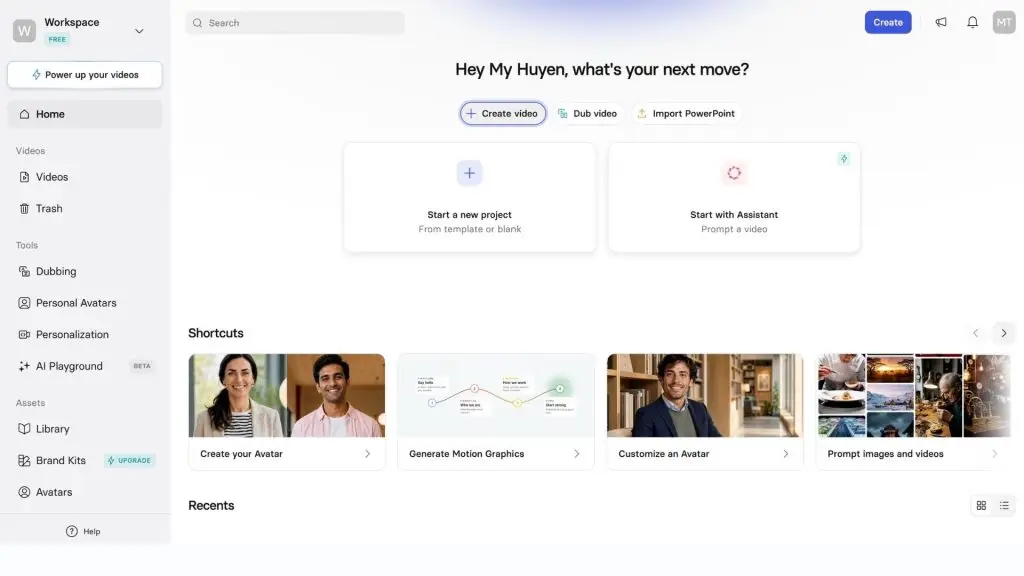
7. Synthesia
Synthesia is an AI video generation platform focused on virtual presenters, AI voices and business videos. Users can enter an idea, a script, a document or a link, and Synthesia automatically builds a video complete with scenes, a presenter and a voiceover. The tool also supports more than 160 languages, voice cloning and personal AI avatars. It is a good choice when you need training videos, product introductions or corporate communications without filming anything yourself.
- Basic usage:
- Go to Synthesia.
- Sign up or log in to your account.
- Select the AI video creation tool.
- Enter:
- Your idea.
- Your script.
- Documents or links, if you have them.
- Choose a suitable virtual presenter.
- Choose a voice and language.
- Customize the layout, colors, images and brand identity.
- Generate the video and review the content.
- Edit the script, scenes or voiceover if needed.
- Export the video or share it directly.
- Key features:
- Creates videos from text, scripts, documents or links.
- More than 240 virtual presenters on higher-tier plans.
- Supports more than 160 languages.
- Voice generation and voice cloning.
- Personal AI avatar creation.
- Automatic video translation and dubbing.
- Automatic caption generation.
- Supports building videos around your brand identity.
- Video types: Training videos, tutorial videos, company introduction videos, sales videos, internal communications videos, marketing videos and presentation videos with virtual presenters.
- Best for: Businesses, training and HR departments, marketing and sales teams, and anyone who needs to produce professional videos without filming.
- Pricing:
- Basic: Free, includes 1,200 credits/month, which lets you create up to about 10 minutes of video/month, plus 25 AI video assets.
- Starter: 29 USD/month or 264 USD/year, includes 1,200 credits/month and up to 10 minutes of video/month.
- Creator: 89 USD/month or 804 USD/year, includes 3,600 credits/month and up to 30 minutes of video/month.
- Enterprise: Custom quote, with unlimited video minutes and administration features built for businesses.
- Limitations:
- Its strong focus on virtual-presenter videos makes it a less-than-ideal choice if your main goal is creating complex cinematic scenes.
- The free plan has length limits and does not support video downloads the way paid plans do.
- Advanced features such as personal avatars, video translation and team management depend on the plan.
- Costs can be higher than those of short-form video tools built for social media.
>>> See more:
- The 10 best AI website design tools, with a detailed comparison
- 19 task organizer apps for effective planning and schedule management
8. InVideo AI
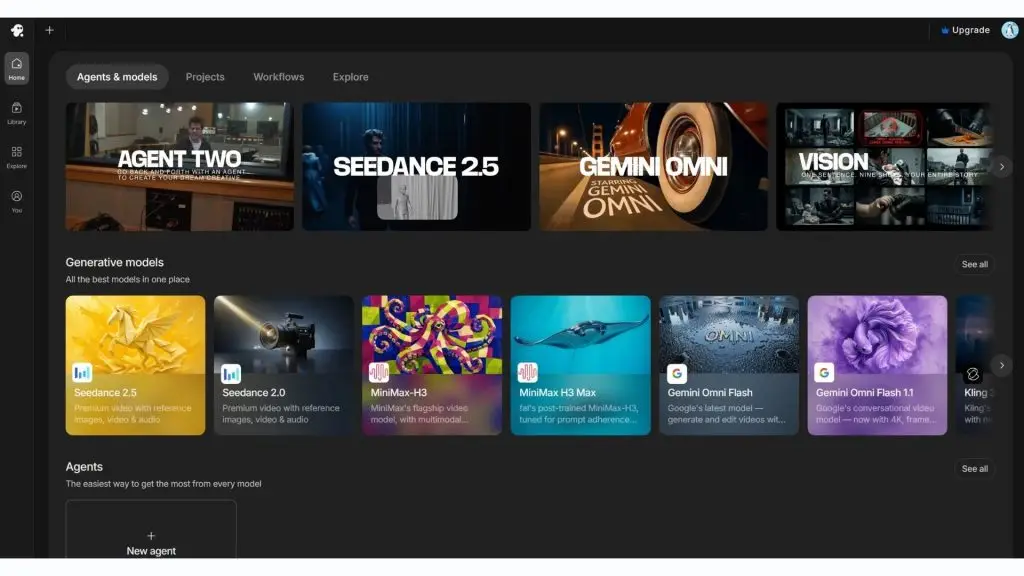
InVideo AI is an AI video generation platform that turns an idea or a prompt into a finished video, including the script, visuals, footage, voiceover and other necessary elements. The tool currently gives access to several different AI video models, such as Veo 3.1, Kling 3 and Seedance 2.5, on a single platform. Users simply enter a request, let the AI build the video, and then refine it with prompts or in the editor. It is a good fit for people who want to create videos quickly without building every scene from scratch.
- Basic usage:
- Go to InVideo AI.
- Sign up or log in to your account.
- Enter your idea or a description of the video you want to create.
- Provide more details if needed:
- Target audience.
- Length.
- Style.
- Aspect ratio.
- Voiceover.
- Choose a suitable AI model or workflow.
- Click to generate the video.
- Review the script, footage, voiceover and captions.
- Ask the AI to make edits with prompts, or edit manually.
- Export the finished video.
- Key features:
- Creates videos from an idea or a prompt.
- Supports multiple AI video models on the same platform.
- Access to models such as Veo 3.1, Kling 3 and Seedance 2.5.
- Supports virtual presenter creation and voice cloning.
- Library of images, videos and iStock assets, depending on the plan.
- Supports editing videos with prompts.
- Watermark-free video exports on paid plans.
- Video types: YouTube videos, ad videos, explainer videos, social media videos, product showcase videos, educational videos and marketing content.
- Best for: Content creators, YouTubers, marketing specialists, small businesses and beginners who want to create finished videos quickly.
- Pricing:
- The pricing page currently lists these individual plans:
- Plus: 17 USD/month billed annually, includes 75 credits/month.
- Max: 85 USD/month billed annually, includes 390 credits/month.
- Generative: 170 USD/month billed annually, includes 800 credits/month.
- Elite: 900 USD/month billed annually, includes 4,250 credits/month.
- All plans provide access to multiple AI models, including Veo 3.1 and Kling 3; your credit allowance determines how much AI content you can generate.
- Limitations:
- Usage costs depend on credits and the AI model selected.
- Premium video generation models can use up credits quickly.
- Users who create content frequently may need a higher-tier plan to get enough usage.
- Output quality depends on each AI model used, rather than being fully controlled by InVideo AI.
9. Pika
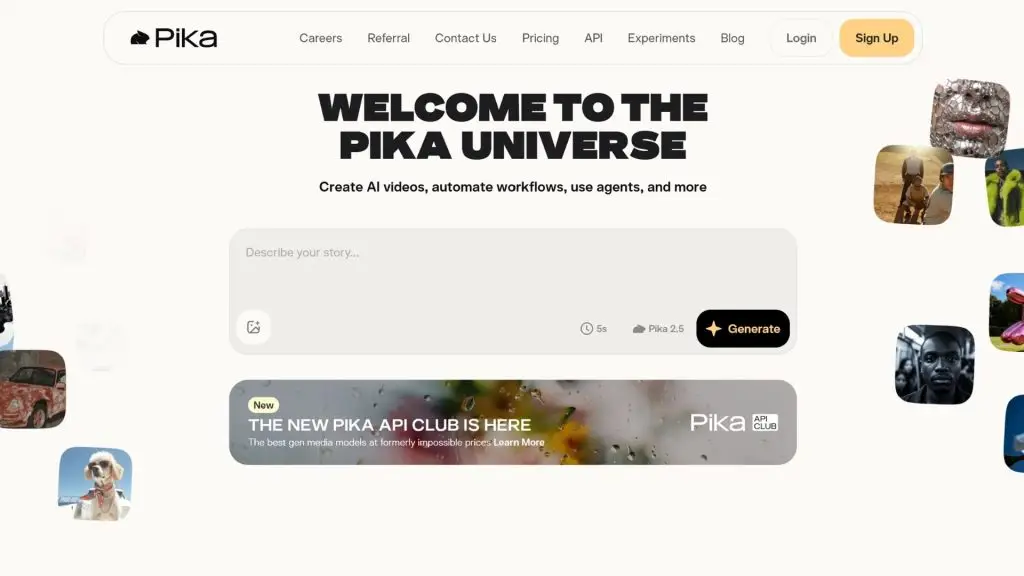
Pika is an AI video tool designed to turn text, images and creative ideas into short video clips. Pika stands out for its image and video transformation effects, making it well suited to social media content and highly creative scenes. Users can pick an effect or enter a request, upload images/videos if needed, and let the AI generate a new version. The tool suits people who want to create eye-catching short videos without a complex editing workflow.
- Basic usage:
- Go to Pika.
- Sign up or log in to your account.
- Choose the video generation or transformation tool.
- Enter a description or upload images/videos.
- Choose the effect or transformation you want.
- Configure the settings if the tool offers them.
- Click to generate the video.
- Review the result and adjust your request if needed.
- Download the video or continue editing.
- Key features:
- Creates videos from text and images.
- Transforms images or videos with AI effects.
- Supports creative effects suited to social media content.
- Can create short scenes with a visual, highly entertaining style.
- Supports multiple AI models and features, depending on the plan.
- Video types: TikTok videos, Reels, Shorts, short ad videos, effects videos, entertainment content and creative video clips.
- Best for: Social media content creators, marketers, beginners learning AI video creation and anyone who needs short video clips with special effects.
- Pricing:
- Pika has a free plan that lets users try out its AI video generation features.
- Paid plans are billed monthly or annually and provide extra credits, model access and advanced features.
- Because Pika’s pricing and credit limits change over time, check Pika’s pricing page directly before signing up to confirm the current rates.
- Limitations:
- Better suited to short videos and creative content than to long videos with complex structures.
- Some premium effects or models consume a lot of credits.
- Scenes with multiple characters, complex motion or strict consistency requirements may need to be regenerated several times.
- Users should carefully check the commercial use terms for each plan and content type.
>>> See more:
- Top 10+ mobile sales management apps: the best free options
- A guide to building iOS apps for people with no coding experience
10. Hailuo AI
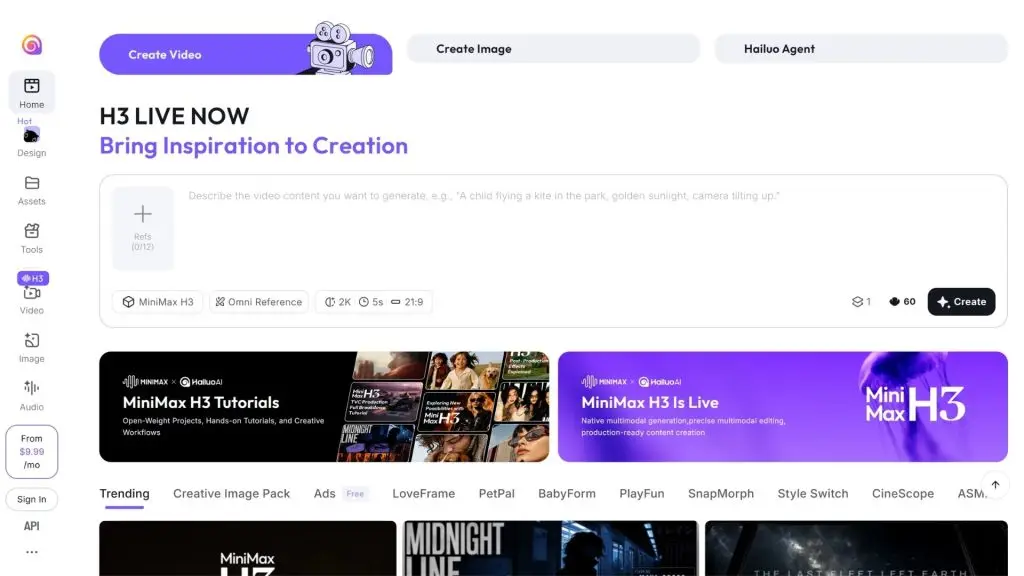
Hailuo AI is MiniMax’s AI video generation platform, focused on turning text or images into video clips with natural motion. The tool suits short scenes such as product videos, cinematic shots, social media content and storytelling videos. Users simply enter a description or upload a reference image, choose the right settings and generate the video. They can then review the result, adjust the prompt and regenerate if needed.
- Basic usage:
- Go to Hailuo AI.
- Sign up or log in to your account.
- Select the video generation tool.
- Enter a video description or upload a reference image.
- Clearly describe:
- The character or product.
- The action.
- The setting.
- Camera movement.
- Visual style.
- Choose a model and video settings, if available.
- Click to generate the video.
- Review the motion, visuals and composition.
- Adjust the prompt and regenerate if the result falls short.
- Download the video or continue editing.
- Key features:
- Creates videos from text and images.
- Supports Hailuo’s AI video models.
- Can create scenes with motion and visual effects.
- Supports multiple aspect ratios, such as 1:1, 16:9 and 9:16.
- Priority processing mode for paid users.
- Paid users can download videos without a watermark.
- Video types: Product videos, ad videos, cinematic videos, storytelling videos, TikTok, Reels, Shorts and short clips that need striking visual motion.
- Best for: Content creators, marketing specialists, advertising professionals, designers and users who want to create short AI videos from text or images.
- Pricing:
- Free: 0 USD/month, with access to basic features, but downloaded videos carry a watermark.
- Standard: 14.99 USD/month, includes 1,000 credits/month, priority video generation and watermark-free downloads.
- Pro: 54.99 USD/month, includes 4,500 credits/month.
- Master: 119.99 USD/month, includes 10,000 credits/month.
- Hailuo AI also offers Ultra and Max plans for heavy usage, listed in its terms of service at 124.99 USD and 199.99 USD/month respectively.
- Subscription credits are valid for one month and do not roll over to the following month.
- Limitations:
- The free plan adds a watermark and limits usage.
- High-quality videos, or generating many versions, can use up credits quickly.
- Long videos or complex scenes usually require generating several clips and stitching them together.
- Features and limits may change depending on the model, subscription plan and Hailuo AI’s policies.
11. Canva AI
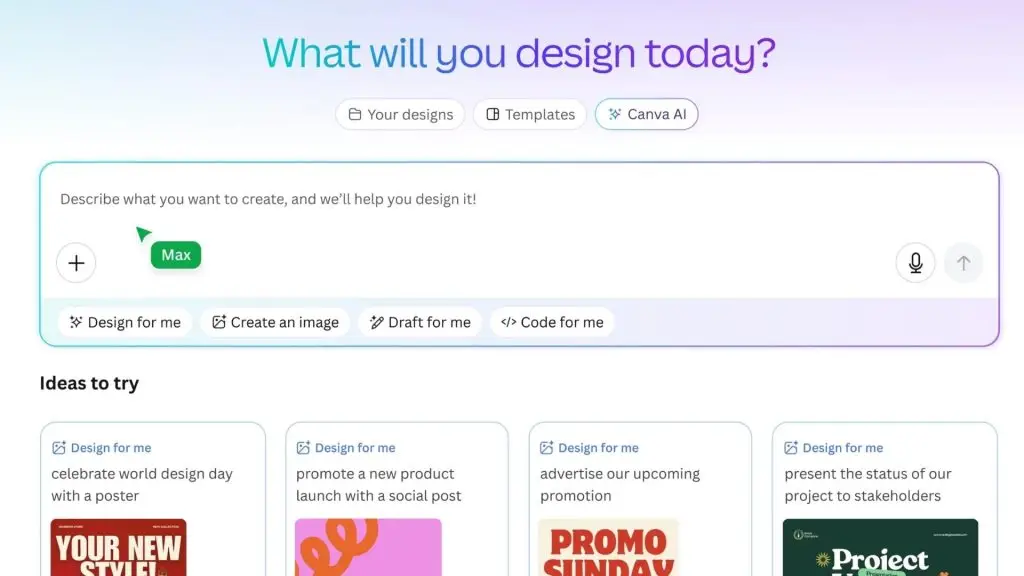
Canva is an online design platform that integrates many AI tools for creating and editing videos. Canva is beginner-friendly because the workflow relies mainly on drag-and-drop, ready-made templates and the AI features built into the editor. Users can create content from text and images, add video, audio, captions and effects, then finish everything within the same design. Beyond video creation, Canva also offers a design ecosystem for social media, marketing and business needs.
- Basic usage:
- Go to Canva.
- Sign up or log in to your account.
- Choose Video or a ready-made video template.
- Open the AI tools in the editor.
- Enter a description or upload your own images and videos.
- Generate the AI images or content you need.
- Drag and drop elements onto the timeline.
- Add:
- Text.
- Captions.
- Background music.
- Effects.
- Images and videos.
- Adjust the colors, layout and brand identity.
- Preview and export the video.
- Key features:
- AI tools that generate content from descriptions.
- Magic Media helps generate AI images and content for designs.
- Easy-to-use drag-and-drop video editor.
- Library of images, videos, audio and design templates.
- Supports captions, text effects and transitions.
- Advanced AI features in Canva Pro.
- Supports saving and editing designs across multiple devices.
- Video types: TikTok videos, Reels, Shorts, ad videos, product showcase videos, presentation videos, corporate videos and social media content.
- Best for: Video beginners, marketing staff, small businesses, teachers, content creators and anyone who wants to both create and edit videos on one platform.
- Pricing:
- Canva Free: Gives access to many design tools and some AI features within certain limits.
- Canva Pro: Adds premium content, brand features and more AI tools. Canva does not display a fixed price on the Vietnamese-language page that was reviewed, as pricing may depend on region and subscription type.
- AI Pass: An add-on for Canva Pro or Canva Business that raises usage limits for AI tools. Canva states that AI Pass is not required to use basic AI features.
- Limitations:
- Canva is stronger at design and video editing than at generating complex cinematic scenes from scratch.
- Some assets, templates and advanced AI features require Canva Pro.
- AI usage limits are shared across multiple tools, so they can run out quickly if you use many AI features.
- The quality of AI-generated video depends on the tools or models Canva has integrated at any given time.
>>> See more:
- 6 rules for mobile app interface design that looks great and meets UI/UX standards
- Top 20+ AI image design software picks: the best free options
12. Viggle
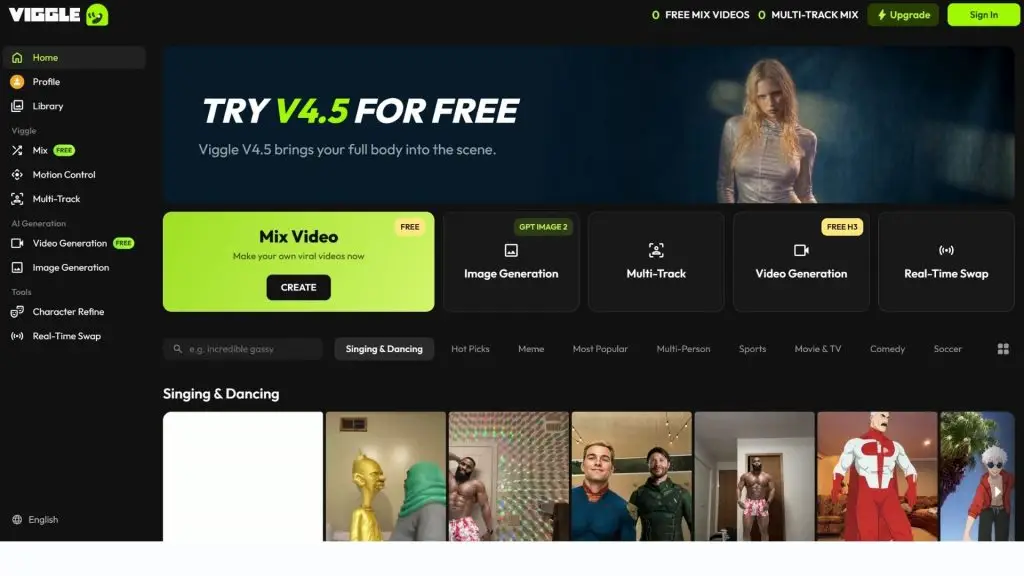
Viggle is an AI platform focused on putting characters from photos into existing motions or videos. Rather than simply generating a video scene from a prompt, Viggle stands out with features such as placing characters into motion videos, animating characters in photos, or making them talk along to audio. The tool is especially well suited to meme videos, social media content, virtual characters and entertainment videos. Users can upload a character photo and a motion video, choose the right tool and let the AI create a new video.
- Basic usage:
- Go to Viggle.
- Sign up or log in to your account.
- Choose the right video generation tool.
- Upload a character photo.
- Choose or upload a reference motion video.
- Available options:
- Mix: Places the character from a photo into a motion video.
- Multi: Puts multiple characters into the same video.
- Move: Animates the character in a still image.
- Mic: Makes the character talk or sing along to audio.
- Rap: Creates a rap-style video from a prompt and a character photo.
- Adjust the settings if needed.
- Click to generate the video.
- Review the result and regenerate if the motion isn’t right.
- Download the video or continue editing.
- Key features:
- Places characters from photos into motion videos.
- Animates characters from still images.
- Supports multiple characters in one video.
- Syncs characters with audio to create talking or singing scenes.
- Offers short-form video tools for meme and social media content.
- Supports multiple AI video models, such as Kling and Veo, on paid plans.
- Video types: Meme videos, TikTok videos, Reels, Shorts, character videos, dance videos, entertainment videos and promotional content featuring virtual characters.
- Best for: Social media content creators, meme makers, designers, game developers, brands and anyone who wants to turn characters or still images into animated videos.
- Pricing:
- Free: 0 USD/month, create up to 5 free videos per day, 1 video at a time, with assets stored for 7 days.
- Pro: 9.99 USD/month, includes 80 credits/month, up to 4 videos at once, unlimited asset storage and watermark removal.
- Live: 19.99 USD/month, includes 200 credits/month, up to 6 videos at once and access to all models.
- Max: 79.99 USD/month, includes 800 credits/month, up to 10 videos at once, suited to high-volume production.
- With annual billing, Viggle currently offers a discount of about 20% on paid plans.
- Limitations:
- Viggle is best suited to character animation and video transformation, and is not the ideal choice for every need when it comes to generating cinematic scenes from text.
- The free plan limits the number of videos per day and the storage period.
- Credit usage varies by feature and model.
- Some models and advanced features are only available on paid plans.
- Monthly credits expire on the next billing date; purchased add-on credits have their own usage terms.
13. Elai.io
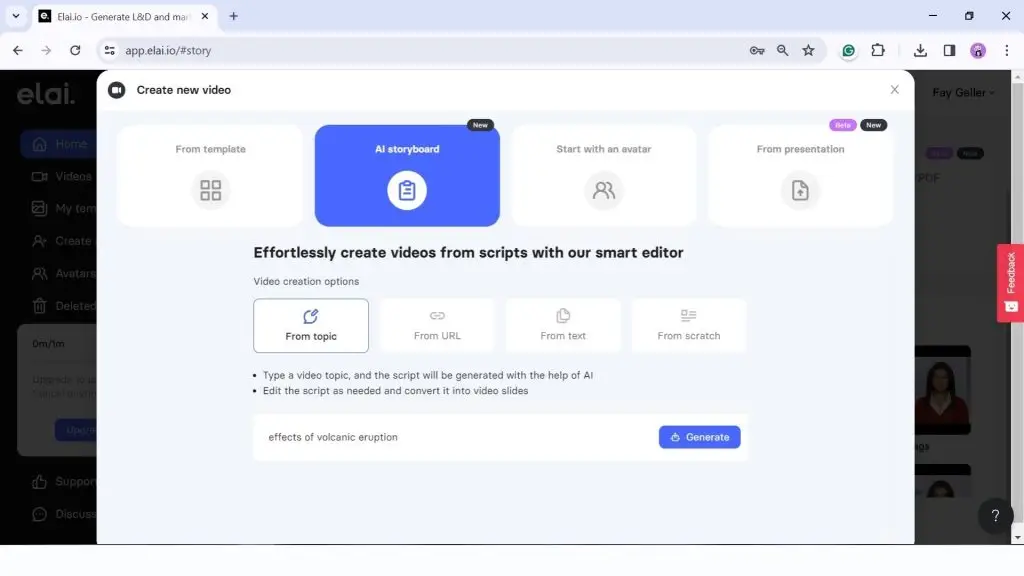
Elai.io is an AI video generation platform focused on virtual presenters, training videos and business content. Users can enter a script, document, link or idea to create a video with ready-made presenters, voices and layouts. Elai.io supports more than 75 languages and offers a library of more than 80 virtual presenters. The workflow mainly consists of choosing a template or presenter → entering the content → customizing the voice and visuals → generating and exporting the video.
- Basic usage:
- Go to Elai.io.
- Sign up or log in to your account.
- Choose a video template or virtual presenter.
- Enter the script, document or link you want to turn into a video.
- Choose:
- Virtual presenter.
- Voice.
- Language.
- Layout and visuals.
- Customize the content, colors and elements in the video.
- Click to generate the video.
- Check the voice, captions and visuals.
- Make edits if needed, then export the video.
- Key features:
- Creates videos from scripts, documents or links.
- More than 80 virtual presenters and more than 75 languages.
- AI storyboard generation from prompts, links or documents.
- Automatic video translation.
- Automatic caption generation.
- Supports voice cloning and custom virtual presenters.
- Supports converting PowerPoint presentations into videos.
- Includes an editor plus a library of images, videos and music.
- Video types: Training videos, tutorial videos, explainer videos, sales videos, marketing videos, internal communications videos and company introduction videos.
- Best for: Businesses, training departments, marketing and sales teams, teachers and content creators who need videos with virtual presenters.
- Pricing:
- Free: 0 USD/month, including 1 user, 1 minute of video, more than 80 virtual presenters and more than 75 languages.
- Creator: 29 USD/month or 23 USD/month billed annually, including 15 minutes of video/month and Full HD export.
- Team: 125 USD/month or 100 USD/month billed annually, including 50 minutes of video/month, 3 editors and 3 guests, with 4K video support.
- Enterprise: Custom quote, for businesses with large-scale usage needs.
- Extra video minutes can be purchased at 2 USD/minute on paid plans.
- Limitations:
- Its focus on virtual-presenter videos means it can’t match tools specialized in cinematic scenes.
- The free plan only allows you to create a 1-minute video.
- Long videos and features such as custom presenters and voice cloning may incur additional costs.
- Video length is capped by the number of minutes included in each plan.
14. GliaCloud
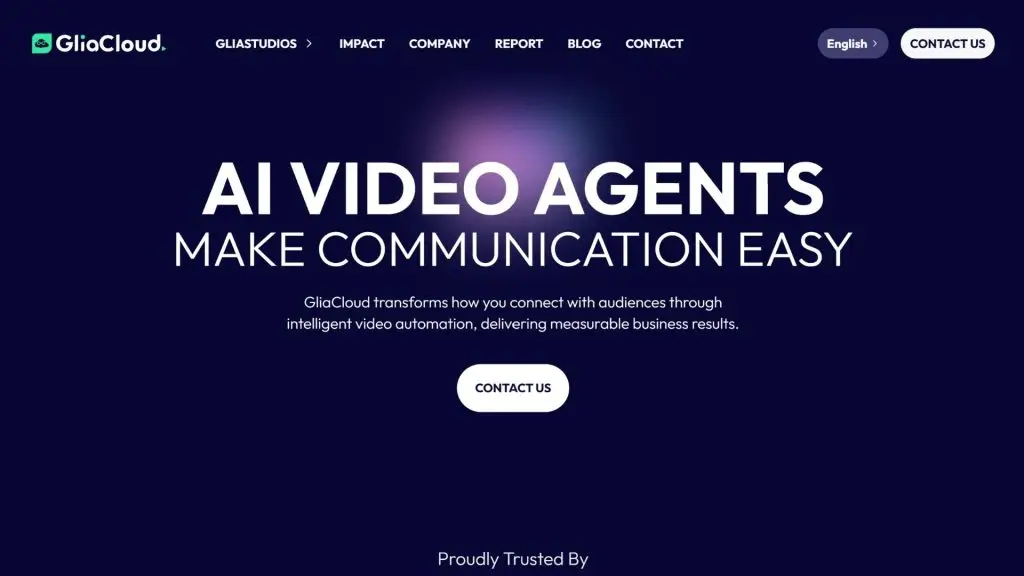
GliaCloud is an AI platform built for automating video production for businesses, especially marketing, e-commerce, education and media content. The tool can turn text, data or existing content into videos without requiring advanced video editing skills. GliaCloud suits high-volume video creation and automated content production workflows. Because it is geared toward businesses, users can contact GliaCloud for solution consulting and a quote tailored to their needs.
- Basic usage:
- Go to GliaCloud.
- Sign up or contact the GliaCloud team to get access.
- Choose a suitable video creation solution.
- Provide input content such as:
- Articles.
- Text.
- Data.
- Product content.
- Choose a template, style and video format.
- Let the AI build the scenes automatically.
- Review and adjust the content.
- Add images, audio or brand identity elements if needed.
- Export the video or roll out a batch production workflow.
- Key features:
- Automatically converts text and data into video.
- Helps automate the video production workflow.
- Can create videos for marketing, e-commerce, education and media.
- Supports high-volume video production.
- Offers business-oriented AI solutions and specialized content workflows.
- Content can be customized to fit the brand and use case.
- Video types: News videos, article summary videos, e-commerce videos, advertising videos, educational videos, corporate communications videos and social media content.
- Best for: Businesses, media organizations, e-commerce companies, educational institutions, marketing teams and any organization that needs to produce videos at high volume.
- Pricing:
- No fixed public pricing: GliaCloud does not currently publish detailed pricing on its official website.
- Quote based on needs: Users need to contact GliaCloud directly for a quote based on their usage scale and business requirements.
- Limitations:
- With no public pricing, it is hard to compare costs directly against tools designed for individuals.
- It is aimed mainly at businesses and large-scale video production, so it is not the best choice for someone who only wants to create a few short videos.
- You need to talk with the GliaCloud team to work out the features, limits and costs that fit your specific needs.
15. Adobe Firefly
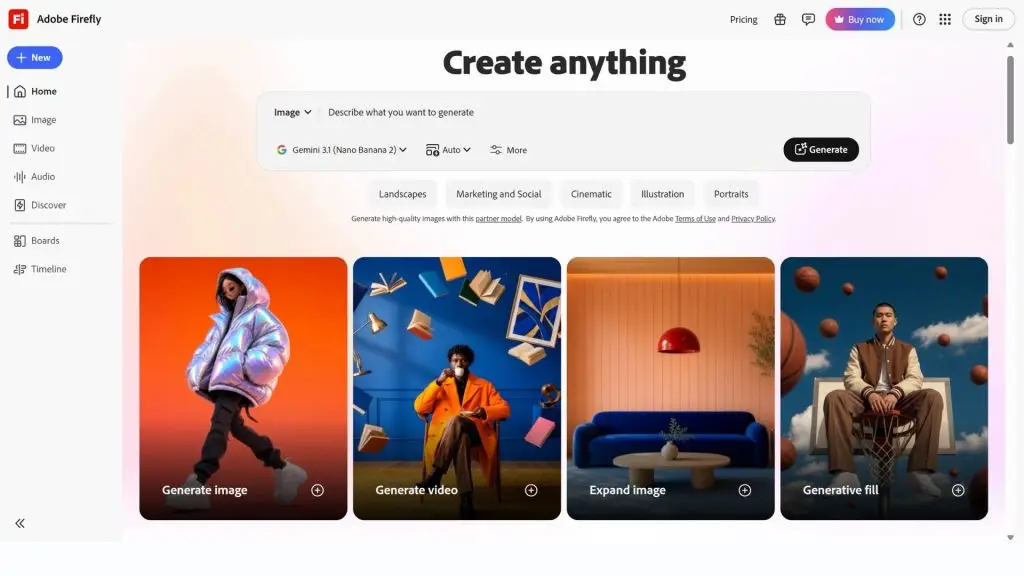
Adobe Firefly is Adobe’s generative AI platform for creating and editing video, images, audio and creative content within a single ecosystem. With its video generation tool, users can enter text or a reference image to create scenes and choose from multiple AI models, including Firefly Video Model, Veo 3.1, Kling 3.0, Luma Ray3.14 and Runway Gen-4.5. The basic workflow is: enter a prompt or image → choose a model and settings → generate the video → edit → publish. Adobe says videos created with Firefly Video Model are designed for commercial use.
- Basic usage:
- Go to Adobe Firefly.
- Sign in to your Adobe account.
- Choose the video generation tool.
- Choose a method:
- Text to video: Enter a prompt describing the scene.
- Image to video: Upload a reference image.
- Clearly describe:
- The subject.
- The action.
- The setting.
- The camera angle.
- The camera movement.
- Lighting and style.
- Choose an AI model if several are available.
- Set the aspect ratio and other video parameters.
- Click to generate the video.
- Review the result and regenerate if needed.
- Bring the video into the Firefly editor to add audio, captions or other elements.
- Export the video at a suitable resolution.
- Key features:
- Generates video from text and reference images.
- Brings multiple AI video models together in a single workspace.
- Supports models such as Veo 3.1, Kling 3.0, Luma Ray3.14 and Runway Gen-4.5.
- Includes a built-in AI video editor.
- Supports generating audio, sound effects and dialogue with some models.
- Can generate videos up to 8 seconds long with most models; some models support up to 15 seconds.
- Supports downloading MP4 videos at resolutions up to 4K in multiple aspect ratios.
- Video types: Product ad videos, marketing videos, social media videos, B-roll footage, cinematic videos, storyboards, animated videos and concept development videos.
- Best for: Content creators, designers, marketers, filmmakers and businesses already using the Adobe ecosystem.
- Pricing:
- Firefly Free: Includes free daily generations with set limits for video, images and audio.
- Firefly Standard: 9.99 USD/month, including 2,000 generative credits/month.
- Firefly Pro: 19.99 USD/month, including 4,000 generative credits/month.
- Firefly Pro Plus: Regular price 49.99 USD/month; Adobe is currently running limited-time promotions in some regions.
- Firefly Premium: 199.99 USD/month, designed for large-scale content creation.
- With its 2,000 credits, Firefly Standard can create up to about 20 videos of 5 seconds each, depending on the model and its credit consumption.
- Limitations:
- AI-generated videos are usually short clips, so longer content requires generating and stitching together multiple scenes.
- The number of videos you can create depends on your credits and the model you choose.
- Not all partner models come with the same commercial use terms, so check the conditions for each model.
- Some advanced features require a paid plan or consume a large number of credits.
Things to keep in mind when using AI-generated video
When using AI-generated video, pay particular attention to copyright, transparency and the policies of the platform you publish on to avoid legal and reputational risks. The more powerful the technology, the greater the responsibility that comes with publishing content.
Check the copyright of visuals, audio and characters
Copyright is the first thing to review before publishing an AI video. Visuals, background music, voices and even a character’s face can all involve a third party’s ownership rights. You should prioritize assets with clear licenses, read the tool’s terms carefully regarding commercial rights to the videos it produces, and avoid recreating real people or brands without permission. Checking proactively from the start helps limit disputes down the line.
Do not use AI to impersonate or mislead
AI video should not be used to impersonate anyone or spread false information. Recreating someone else’s face or voice to fabricate statements they never made (a deepfake) can break the law and cause serious harm to individuals and organizations. AI-generated content needs to be honest about context and must not be edited in ways that distort the nature of events, especially in sensitive fields such as politics, healthcare or finance. This is both an ethical boundary and a legal requirement that is being tightened over time.
Check the policies of the publishing platform
Every platform has its own rules for AI-generated content. Many social networks require posters to disclose when a video contains synthetic elements, and they also restrict certain kinds of content. Before posting, read the platform’s policies on AI content, mandatory labels and restricted categories to avoid having your video removed or its reach reduced. Understanding the rules helps your content reach the right audience without running into moderation measures.
Be transparent when content needs an AI label
Transparency is what keeps viewers’ trust. When a video uses AI-generated visuals, voices or characters, proactively labeling it or adding a clear note helps the audience understand the true nature of the content. Many tools also automatically add an AI-content identifier, and you should not try to remove these marks. Transparency both aligns with the growing trend toward AI content regulation and reflects a creator’s responsibility to the community.
Conclusion
Making videos with AI is becoming a valuable skill for individuals and businesses that want to produce content quickly and save resources while keeping quality consistent. The seven-step process (defining the goal, writing the script, writing the prompt, choosing a tool, generating the video, adding audio, and finally editing and publishing) helps beginners get started easily and steadily raise the quality of their output. Choosing the right category of tool, investing in detailed prompts and checking carefully before publishing are the factors that make the difference. Alongside this, you need to respect copyright, be transparent about AI content and comply with platform policies.
With its technology foundation and experience deploying AI solutions, TOT partners with businesses to apply AI to content production and optimize operational workflows in a sustainable way.
Frequently asked questions
Is making videos with AI free?
Yes. Many AI video tools offer a free plan or trial credits that let you try the basics at no cost. However, the free version usually limits video length, resolution and the number of generations per day, and it may add a watermark. To export high-resolution or longer videos, or to use them for commercial purposes, you will typically need to upgrade to a paid plan. So you can make videos with AI for free, but producing them at a professional scale will involve costs.
How do you make videos with AI on your phone?
On a phone, the simplest way is to use apps with built-in AI such as CapCut or VEED, or to access an AI video tool through your browser. Install the app, enter a prompt or choose an image, use the AI features to create scenes, add narration and automatic captions, then export the video in a vertical format suited to TikTok, Reels or Shorts. Many actions are optimized for touchscreens, which makes this approach beginner-friendly. You can edit the result right on your device before posting.
How do you make an AI video from an image?
To make an AI video from an image (image-to-video), upload one or more images to a tool that supports it, then describe the motion you want in a prompt. The AI analyzes the image and creates motion, camera effects or animation based on its content. Platforms such as Runway, Kling AI, Pika and Hailuo AI all support this mode. Sharp input images with good composition produce more consistent results. After generating, review the output and regenerate if the motion isn’t what you wanted.
Can you create an AI video from text?
Yes. Creating video from text (text-to-video) is one of the most popular approaches today. You simply describe the content, setting and style you want in natural language, and the AI turns that description into video scenes. Models such as Google Veo, Runway and Kling AI all support text-to-video. The quality of the result depends heavily on how detailed the prompt is, including the subject, action, camera angle, lighting and style. The clearer the prompt, the closer the video will be to your original idea.
Can you create an AI video without showing your face?
You can absolutely create an AI video without showing a real person’s face. You can choose a virtual presenter (avatar) video from tools such as HeyGen or Synthesia, or combine AI narration with illustrative footage, graphics and stock footage. This suits people who want to build a content channel but prefer not to appear on camera, as well as businesses that need to standardize the image of their spokesperson. The content stays engaging thanks to the narration, captions and visuals, while the creator’s real identity remains private.