
Hailuo AI is MiniMax’s artificial intelligence platform that helps users create videos and images from text or image inputs. With its ability to turn ideas into visual content, the tool is being used in content creation, marketing, advertising, and social media. In this article, TOT explains what Hailuo AI is, its standout features, and how to use Hailuo AI to create videos from text and images on both phone and computer.
>>> See more articles:
- The TOP 18 architecture AI tools for architects
- The TOP 15 best AI code-writing tools
- TOP 20+ leading AI design software tools that support designers today
Quick summary
- Hailuo AI is MiniMax’s AI platform that helps users create videos and images from text or existing images.
- Hailuo AI offers many standout features such as Text-to-Video, Image-to-Video, image generation, and motion and style control.
- Hailuo AI analyzes the input, then generates matching visuals and motion to turn an idea into a video.
- Users can create videos from text on a phone or computer by entering a prompt, configuring the settings, and generating the video.
- Users can also turn still images into videos by uploading an image and describing the desired motion, camera work, or effects.
- Hailuo AI Image lets users generate images from a prompt for design, marketing, and social media, or as input for a video.
What is Hailuo AI?
Hailuo AI is a generative AI platform developed by MiniMax that focuses on creating videos and images from inputs such as text or images. Users can describe an idea with a prompt so the AI produces visual content without carrying out the entire production process by hand. Hailuo AI is used in content creation, marketing, advertising, social media, and storytelling.
With text-to-video, users enter a description so the AI generates a video based on the desired subject, setting, action, and style. In addition, the image-to-video feature lets users upload an existing image and ask the AI to add motion, turning a still image into a video. MiniMax says the newer Hailuo models have improved at understanding motion, physics, expression, and following instructions.
Beyond video, Hailuo AI is expanding into multimodal creative workflows. Users can generate images from a prompt with Hailuo AI Image and then use those images as input for video generation. As a result, Hailuo AI supports a range of needs such as ideation, storyboarding, marketing, advertising, and social media content.
>>> See more:
- What is Pika AI? A guide to creating videos from images & text
- How to build an app with AI: free, detailed, and simple

What are the standout features of Hailuo AI?
Hailuo AI provides many features for AI-powered content creation, from generating videos and images to workflows that combine multiple data types. Users can start with text or an image, then create and adjust the content to fit their purpose.
Hailuo AI text-to-video
The text-to-video feature lets users enter a prompt describing the content they want. Hailuo AI can use the description of the subject, setting, action, camera movement, and style to build the video.
This approach suits short videos, social media content, idea pitches, or concept videos without any real-world filming.
Hailuo AI image-to-video
With the Image-to-Video feature, users can upload an image and describe the motion they want to create. Hailuo AI uses the input image to generate suitable motion, such as a character moving, changing expression, or the camera pushing in, pulling back, and panning.
Users should focus on motion, action, and camera work rather than re-describing everything already in the image. This is a handy workflow for turning product shots, character images, or concepts into short videos.
Hailuo AI image generation
Hailuo AI Image supports creating images from a text description. Users can build an image around their idea for a character, setting, product, or desired style.
The generated image can also serve as input for video generation, combining an image → video workflow. This feature can serve many needs such as marketing, advertising, social media, storyboarding, and product concept development.
Motion and style control
A notable aspect of the newer Hailuo models is how they handle motion and visual style. According to MiniMax, Hailuo 2.3 has improved at understanding physics, following motion instructions, and simulating body movement and facial expressions.
The model also supports many styles such as cinematic, anime, illustration, ink wash painting, and game CG. Users can therefore describe character motion, camera, lighting, and visual style more specifically in the prompt.
Support for multimodal creative workflows
Hailuo AI is expanding from a video generator into multimodal creative workflows that combine text, images, video, and audio. MiniMax says its Media Agent can automatically select suitable models to process content, while letting users upload images, video, or audio to customize the creative process. This helps Hailuo AI support more steps of content production, from idea development to a finished video.
>>> Read more:
- How does AI-assisted programming affect coding skills?
- How is AI in software development applied?
How Hailuo AI works
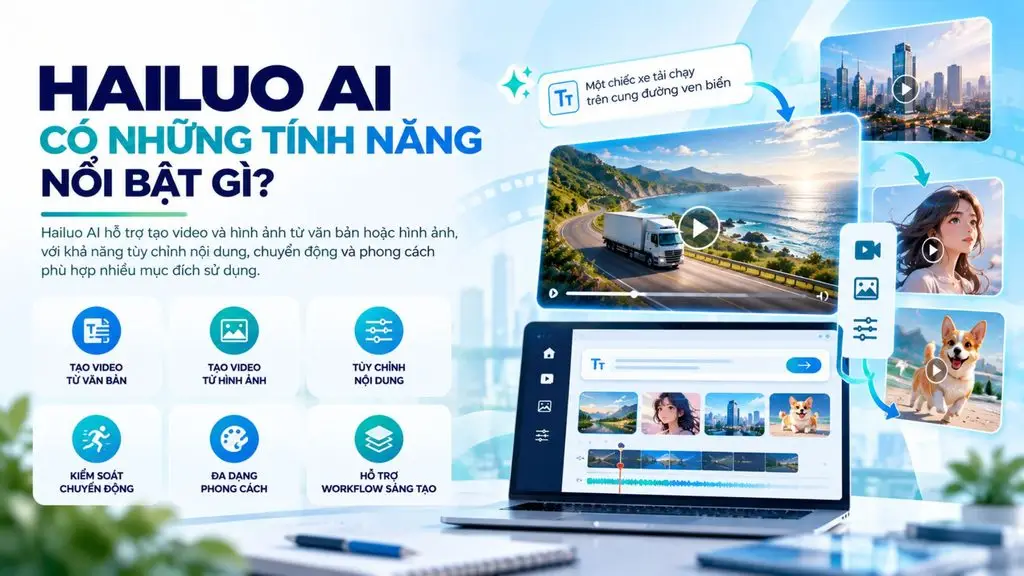
Hailuo AI takes input as text or an image, then analyzes the key elements of the request such as subject, setting, action, motion, and style. With a text prompt, the system identifies the relationships between the components of the description to understand what the user wants to create. With an image, the AI analyzes the content and visual characteristics of the image before generating the video.
Next, Hailuo AI uses a generative AI model to turn the request into visual content.
- With text-to-video, the AI builds the scene and motion based on the prompt.
- With image-to-video, the system analyzes the input image, then adds motion and successive frames, turning a still image into a moving video.
MiniMax has also improved the newer Hailuo models at handling motion, expression, and following instructions.
>>> See more:
- AI in UI/UX design: The power of Generative AI
- 18 ways to apply AI to ecommerce for high impact
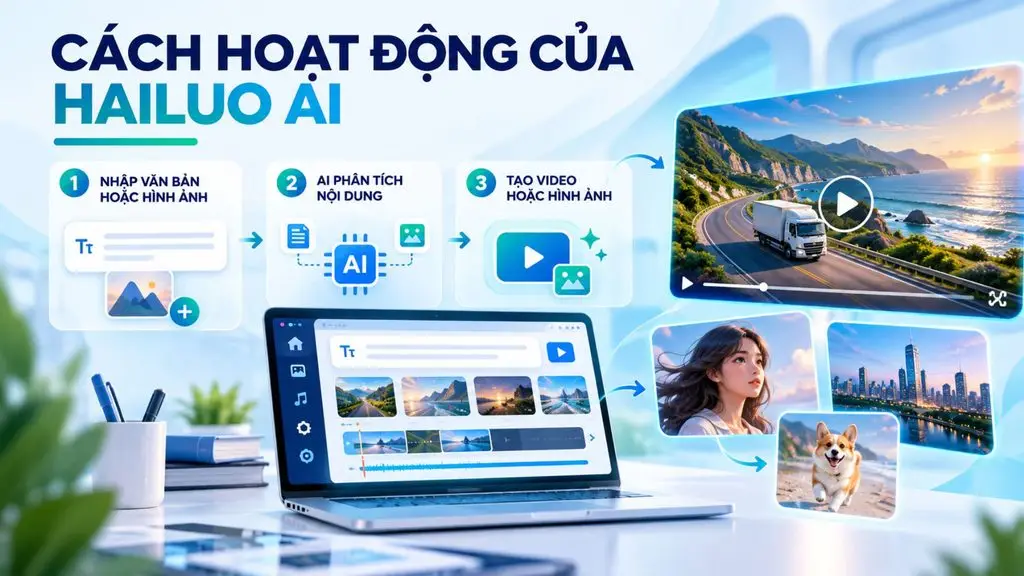
During video generation, the AI tries to keep characters, objects, settings, and motion consistent across frames. However, because the content is generated automatically, the result can sometimes show flaws in the visuals, motion, or details. When that happens, users can change the prompt or the input and regenerate the video to improve the result.
How to use Hailuo AI to create videos from text
Hailuo AI supports text-to-video (Text-to-Video) by turning a prompt into a video based on what the user describes. Users can do this directly on a phone or computer without professional video-editing software.
Using Hailuo AI to create videos from text on a phone
The steps on a phone are fairly simple. The interface may change between Hailuo AI versions, but the basic process is as follows:
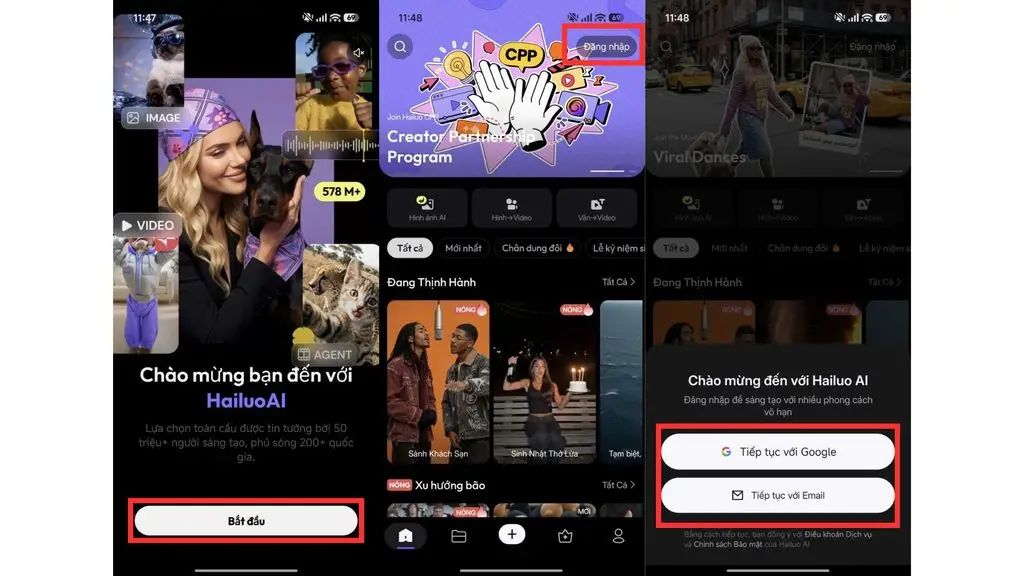
Step 1: Open Hailuo AI and sign in
- Open a browser on your phone.
- Go to Hailuo AI.
- Tap Sign in.
- Sign in with a Google account or an email address supported by Hailuo AI.
Step 2: Choose the video creation tool
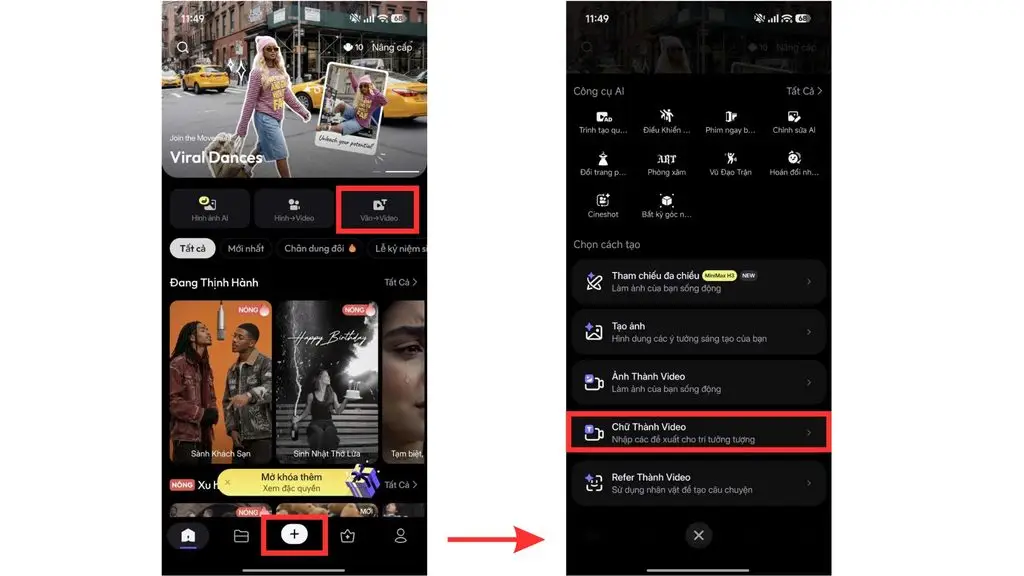
- Tap the Text → Video box.
- Or tap the plus icon (+) at the bottom of the screen, then choose the text to video tool.
- The system will show an area for entering your prompt.
Step 3: Enter the prompt
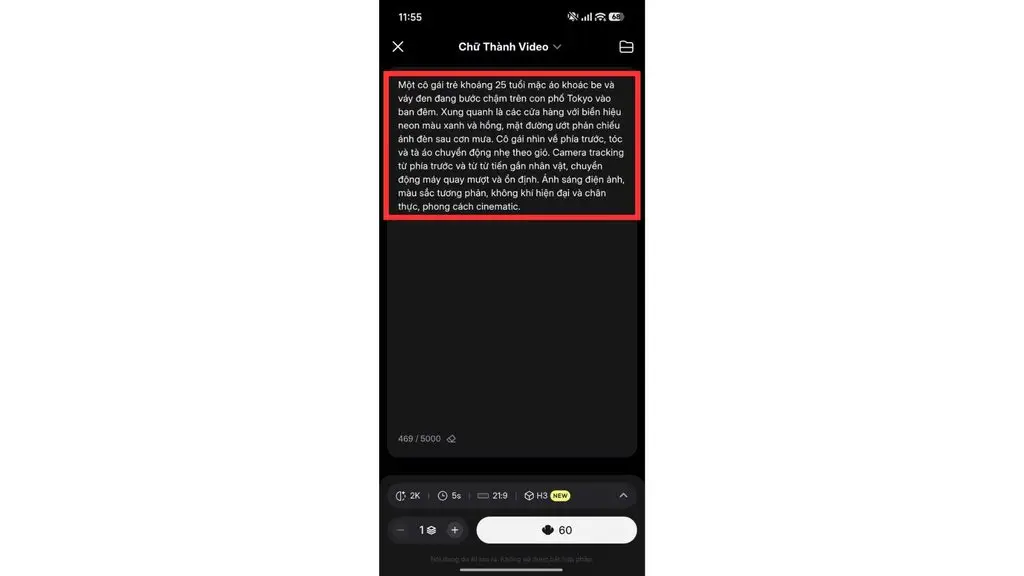
The prompt should clearly describe the main elements of the video, following this structure:
Subject + Action + Setting + Motion + Style
Example:
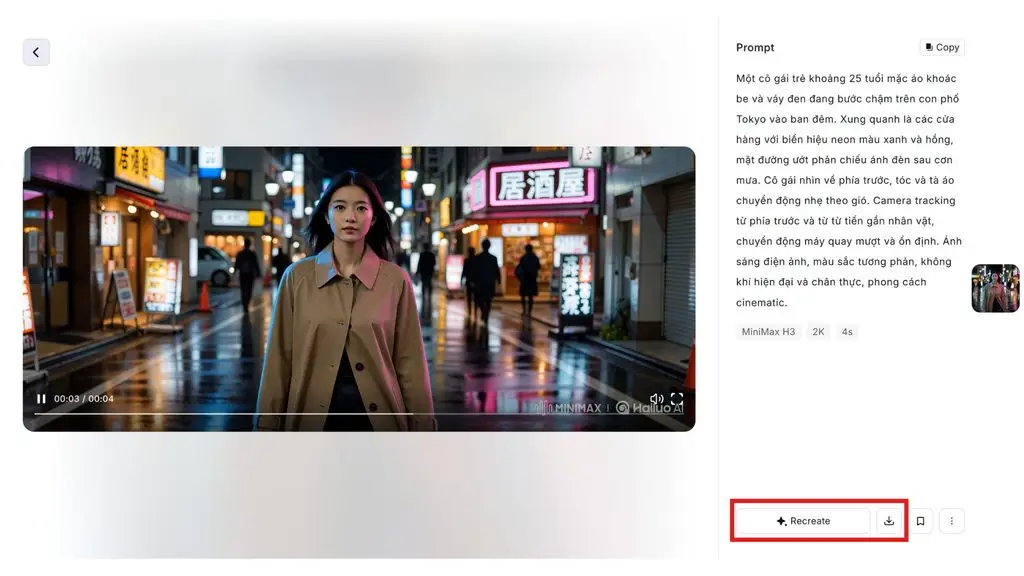
“A young woman of about 25, wearing a beige coat and a black dress, walks slowly down a Tokyo street at night. Around her are shops with blue and pink neon signs, and the wet pavement reflects the lights after the rain. She looks ahead, her hair and the hem of her dress moving gently in the wind. The camera tracks from the front and slowly moves closer to her, with smooth, steady camera motion. Cinematic lighting, contrasting colors, a modern and realistic atmosphere, cinematic style.”
This prompt specifies the character, outfit, action, location, time, lighting, motion, and camera angle, giving the AI more information to create the video as intended.
Step 4: Generate the video and adjust the settings
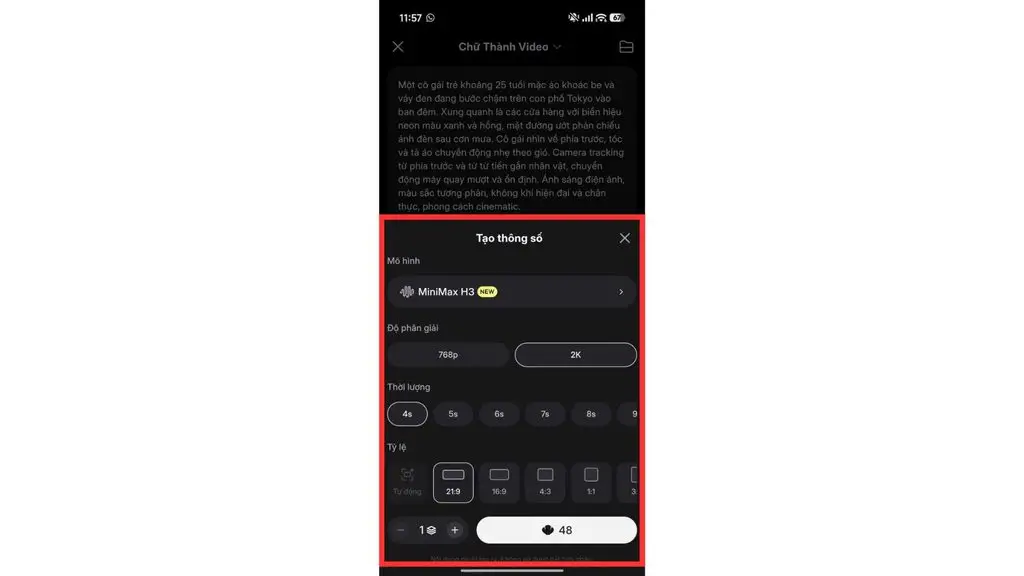
- Review the prompt after entering it and adjust the desired video settings.
- Tap Create.
- Wait for Hailuo AI to process and generate the video.
Processing time can depend on the requested content and the system load.
Step 5: View and download the video
Once it is finished, users can:
- Open the video you just created to review it.
- Evaluate elements such as the character, motion, setting, and style.
- If the result meets your needs, choose Download to save the video.
- If it is not right, edit the prompt or choose Recreate to generate a new video.
Note: When regenerating, change the elements that are off, such as the action, camera movement, setting, or style, instead of rewriting the entire prompt from scratch.
>>> Read more:
- A simple guide to deploying AI in mobile apps
- A guide to using Google AI Studio effectively and quickly
- How to build an AI app with vibe coding on Google AI Studio, made simple
Using Hailuo AI to create videos from text on a computer
On a computer, users can follow the same steps as on a phone, with a larger web interface that makes it easier to enter prompts and preview videos.
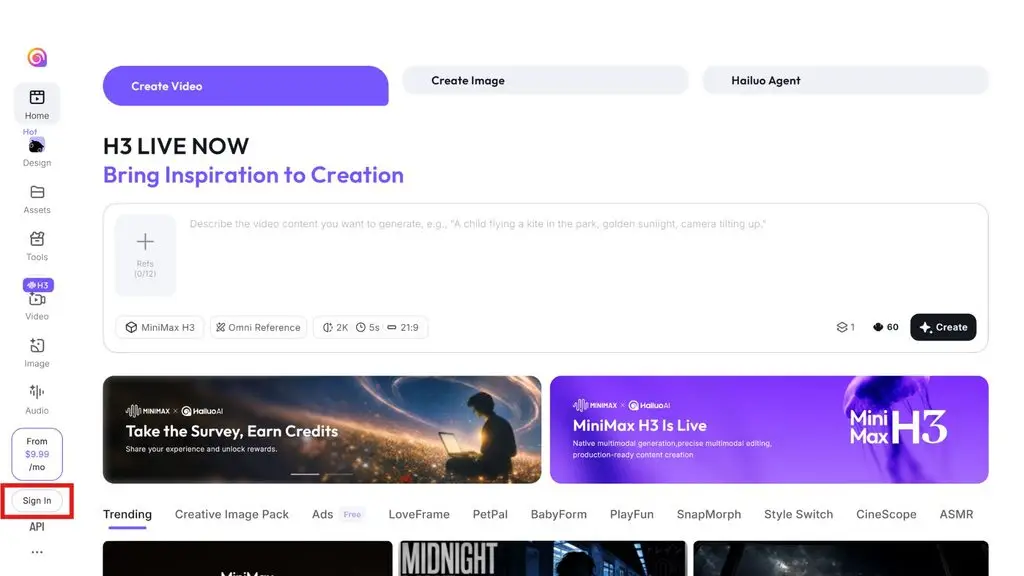
Step 1: Open Hailuo AI and sign in
- Open a browser on your computer.
- Go to Hailuo AI.
- Click Sign in.
- Sign in with a Google account or an email address supported by Hailuo AI.
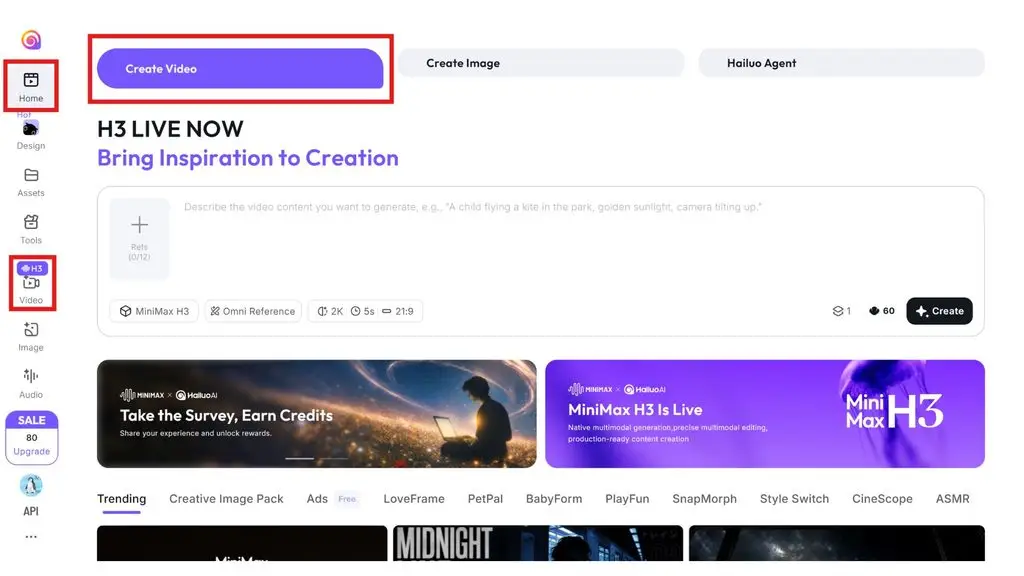
Step 2: Choose the video creation tool
- Click the Video box on the left of the interface.
- Or choose Create Video on the Home page.
- The system will show an area for entering your prompt.
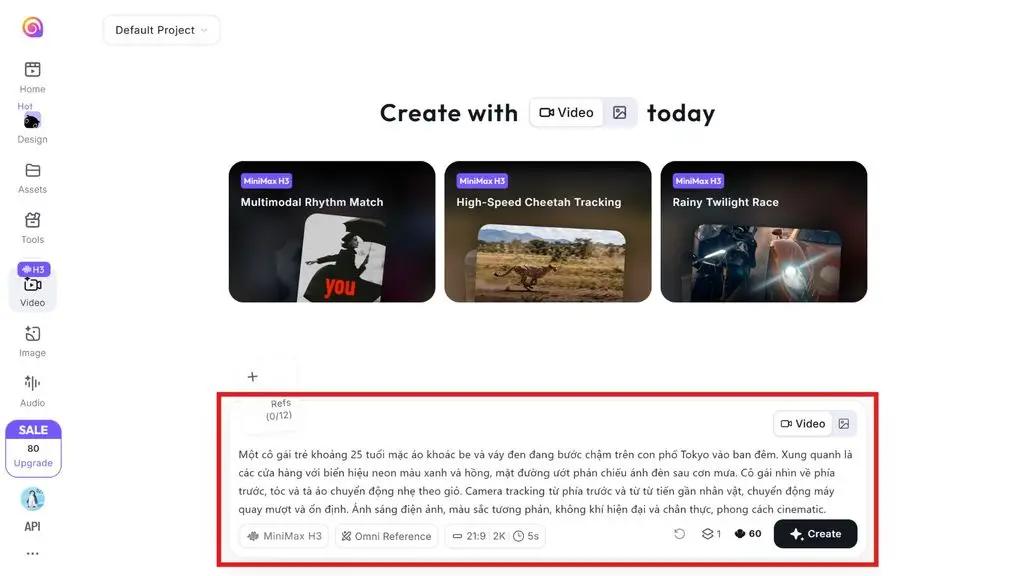
Step 3: Enter the prompt
- Enter a prompt describing the video you want to create.
- Make sure the prompt includes all the elements: subject + action + setting + motion + style.
- You can use the sample prompt from the phone section above and adjust it to the content you need.
Example:
“A young woman of about 25, wearing a beige coat and a black dress, walks slowly down a Tokyo street at night. Around her are shops with blue and pink neon signs, and the wet pavement reflects the lights after the rain. She looks ahead, her hair and the hem of her dress moving gently in the wind. The camera tracks from the front and slowly moves closer to her, with smooth, steady camera motion. Cinematic lighting, contrasting colors, a modern and realistic atmosphere, cinematic style.”
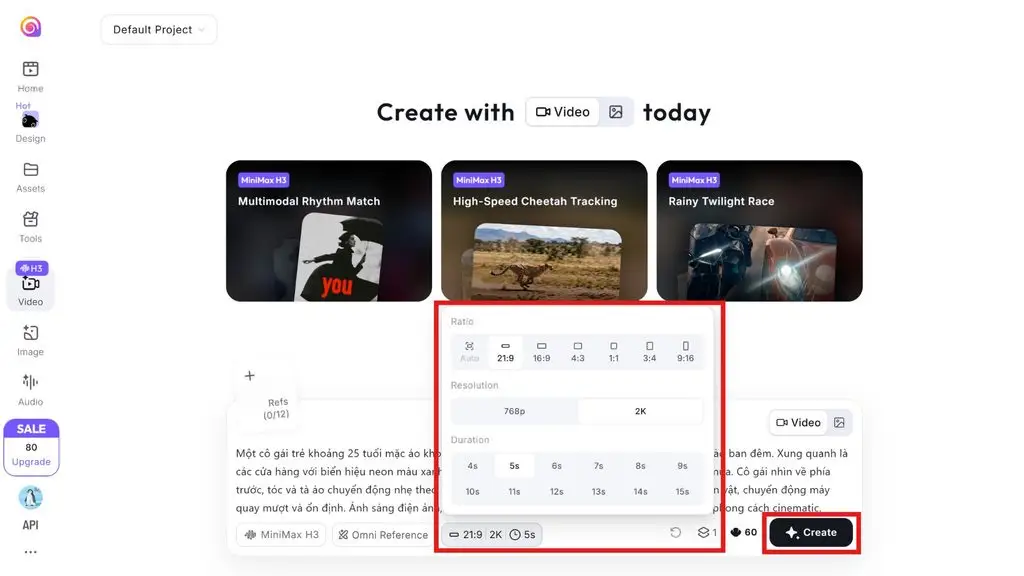
Step 4: Generate the video and adjust the settings
- Review the prompt and the settings before generating.
- Tap Create.
- Wait for Hailuo AI to process and generate the video.
Step 5: View and download the video
- Open the video you just created to review it.
- Evaluate elements such as the character, motion, setting, and style.
- If the result meets your needs, choose Download to save the video.
- If it is not right, choose edit the prompt or Recreate to generate a new version.
>>> Learn more:
- A quick guide to creating a landing page with AI for free and effectively
- AI Data Labeling: A guide to labeling AI data
- Common workflows for AI agents: How they work
How to use Hailuo AI to create videos from images
Hailuo AI lets users create videos from images (Image-to-Video) by uploading an existing image and describing the desired motion. The AI analyzes the input image, then adds motion to turn the still image into a video.
Unlike Text-to-Video, a prompt in Image-to-Video does not need to re-describe the whole image. Users should focus on the subject’s motion, action, camera movement, environment, and effects so the AI understands how to transform the image into a video.
Using Hailuo AI to create videos from images on a phone
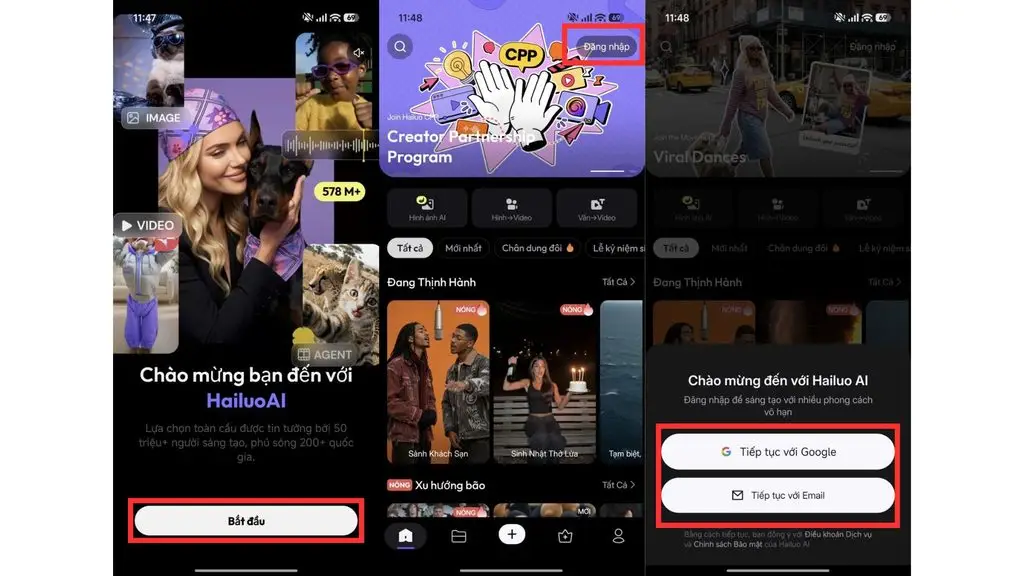
Step 1: Open the site and sign in
- Open a browser on your phone.
- Go to Hailuo AI.
- Tap Sign in.
- Sign in with a Google account or an email address supported by Hailuo AI.
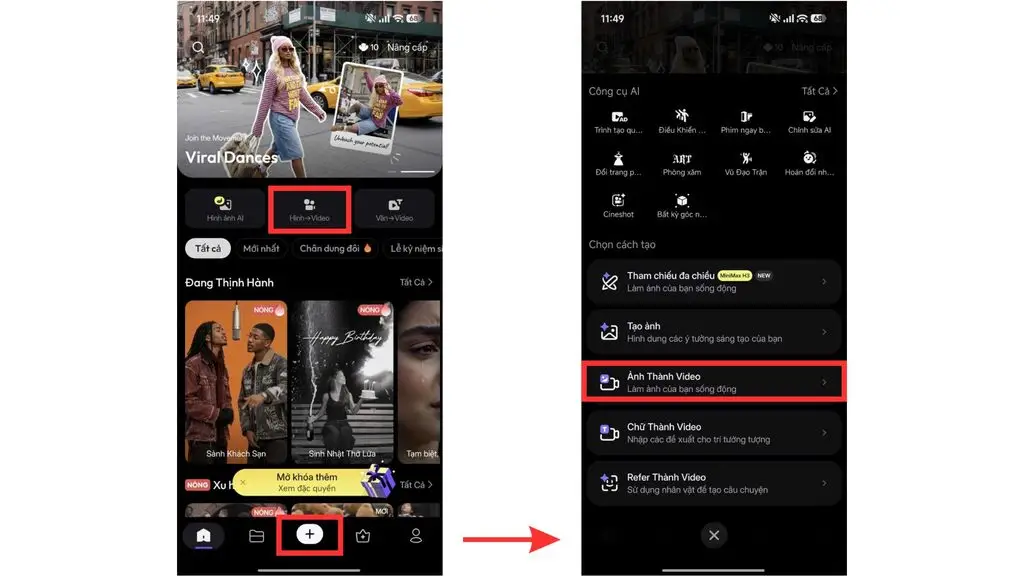
Step 2: Choose the image-to-video feature
- Tap the Image → Video box.
- Or tap the plus icon (+) at the bottom of the screen, then choose the image to video tool.
- The system will show an area for entering your prompt.
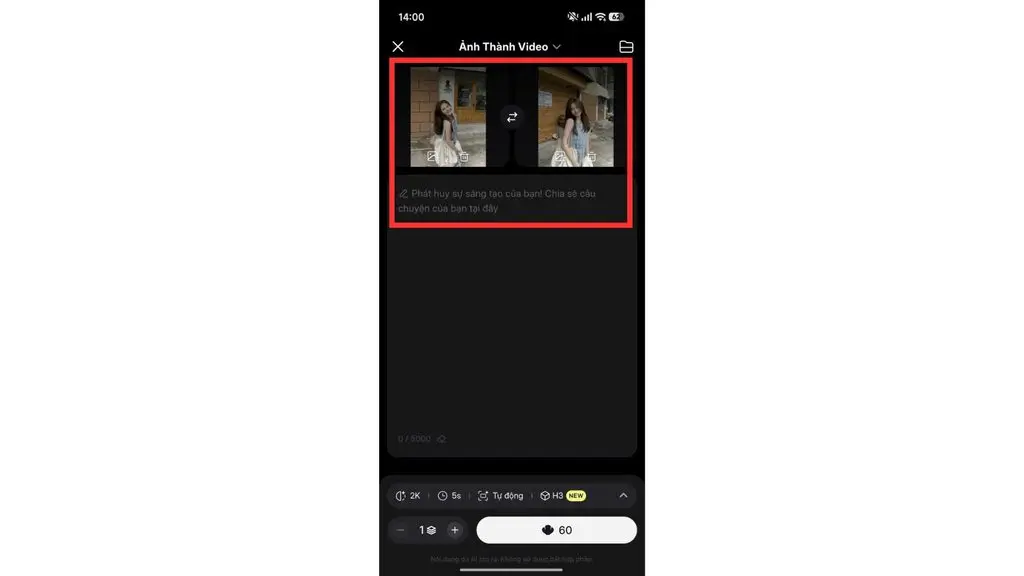
Step 3: Upload an image
- Tap the Upload area, which includes a Start frame and an End frame.
- Choose an image from your phone.
- Favor images with good resolution, a clear subject, and an easily recognizable composition.
- After uploading, check that the system has recognized the image correctly before continuing.
Step 4: Enter a prompt describing the motion
With Image-to-Video, you should not re-describe what is already in the image. Instead, focus on:
Subject + Motion + Camera + Environment + Style
Example:
“The girl slowly turns her head toward the camera, her hair moving gently in the wind, the camera pushing in slowly and steadily, natural sunset lighting, smooth motion, cinematic style.”
This prompt focuses on the action and motion rather than re-describing the character or setting in the image.
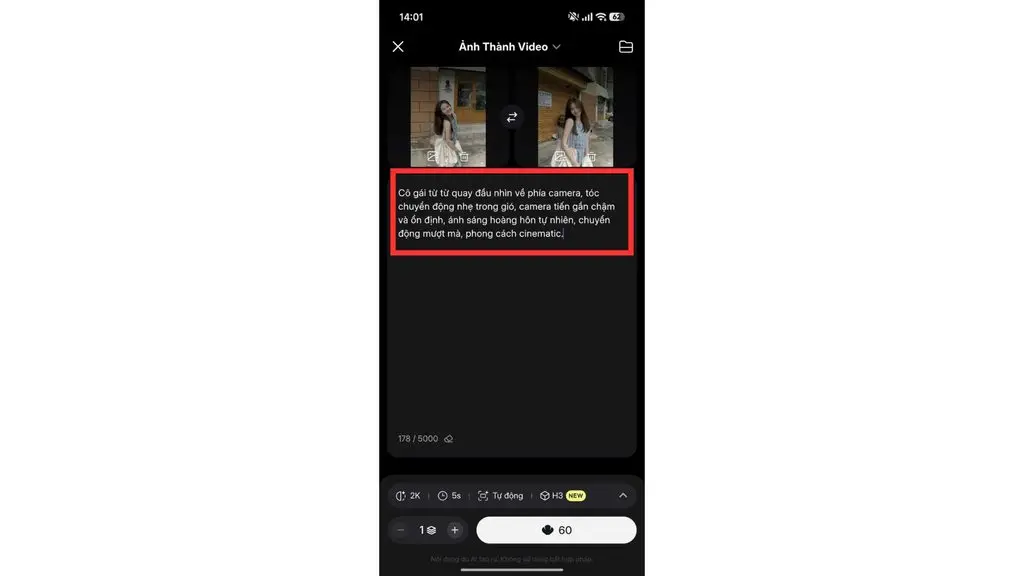
Step 5: Generate the video and review the video settings
- Review the prompt and the video settings.
- Tap Create.
- Wait for Hailuo AI to process and generate the video.
- Once it is finished, review the motion of the character, the face, objects, and the background.
- If any distortion or unnatural motion appears, adjust the prompt and regenerate.
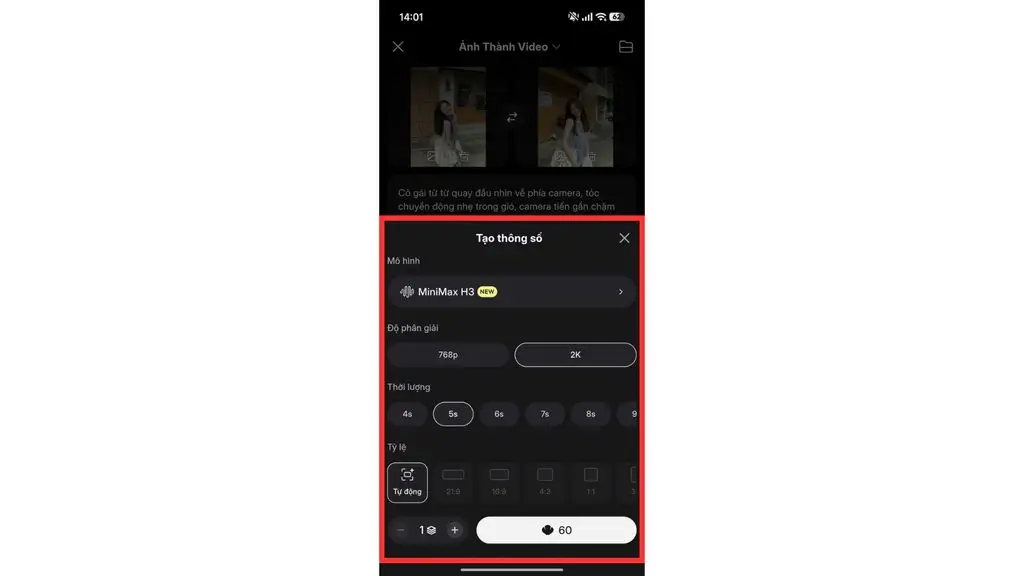
Step 6: Download the video
- Preview the video to make sure the result is suitable.
- If it meets your needs, tap Download to save the video to your phone.
>>> See more:
- The TOP 20 best free AI tools for online selling
- How to build a WordPress website with AI: A detailed A-to-Z guide
- A guide to building AI agents in healthcare and life sciences
Using Hailuo AI to create videos from images on a computer
Hailuo AI can be used directly in a desktop browser, which helps when users need to work with long prompts, upload images, and review videos on a large screen. The process is similar to the phone version but more convenient for handling images and evaluating the results.
Step 1: Open and sign in to Hailuo AI
- Open a browser on your computer and go to Hailuo AI.
- Choose Sign in.
- Sign in with a method supported by the platform.
- After signing in, go to the video creation area.
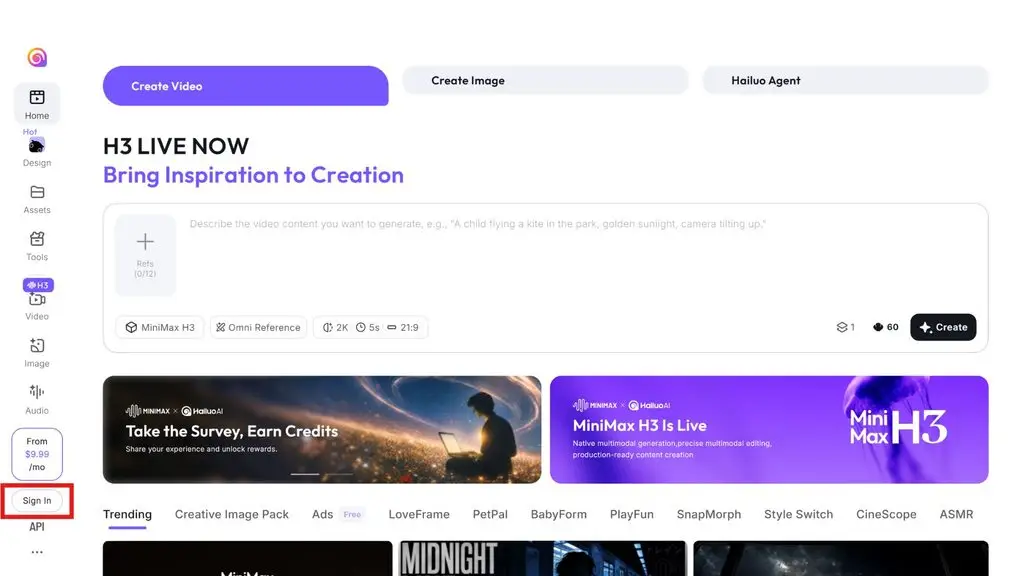
Step 2: Choose the video creation feature
- Click the Video box on the left of the interface.
- Or choose Create Video on the Home page.
- This feature lets you use an existing image as input and ask the AI to add motion to it.
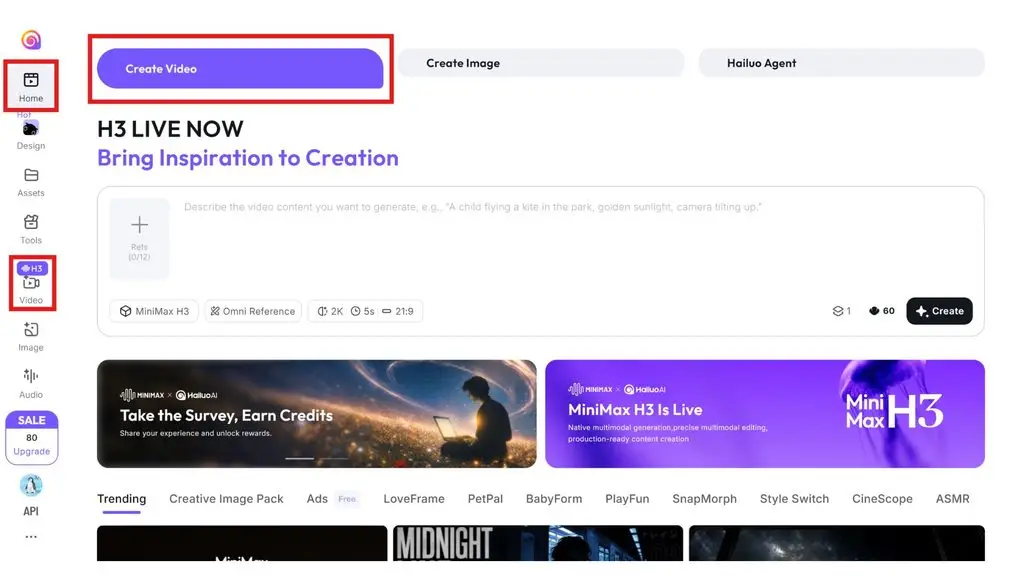
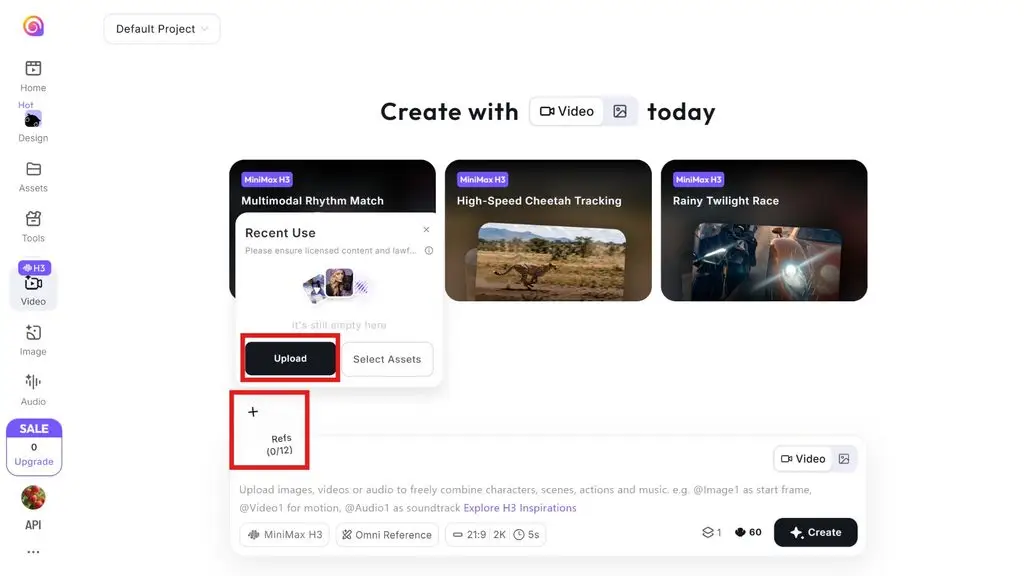
Step 3: Upload an image to Hailuo AI
- Click the Upload area.
- Choose an image from your computer.
- Favor images with good resolution, a clear subject, and an easily recognizable composition.
- Avoid images with too many distracting details.
- After uploading, check that the system has recognized the image correctly.
Step 4: Enter a prompt describing the motion
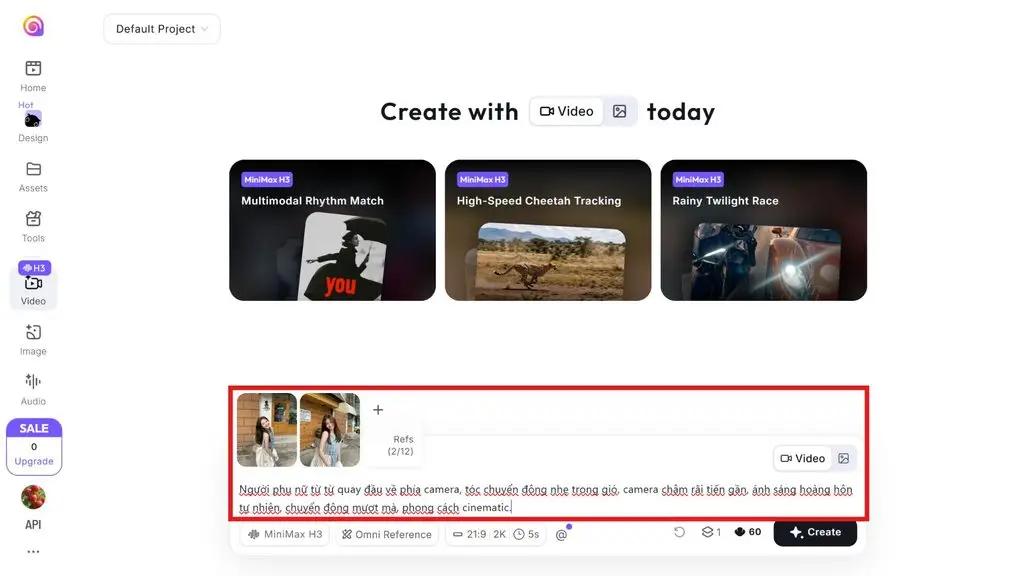
There is no need to re-describe everything already in the image. The prompt should focus on the motion of the character or object, expression, camera, and environment.
You can use this structure:
Subject + Motion + Camera movement + Environment + Style
Example:
“The woman slowly turns her head toward the camera, her hair moving gently in the wind, the camera slowly pushing in, natural sunset lighting, smooth motion, cinematic style.”
Step 5: Generate the video and adjust the settings
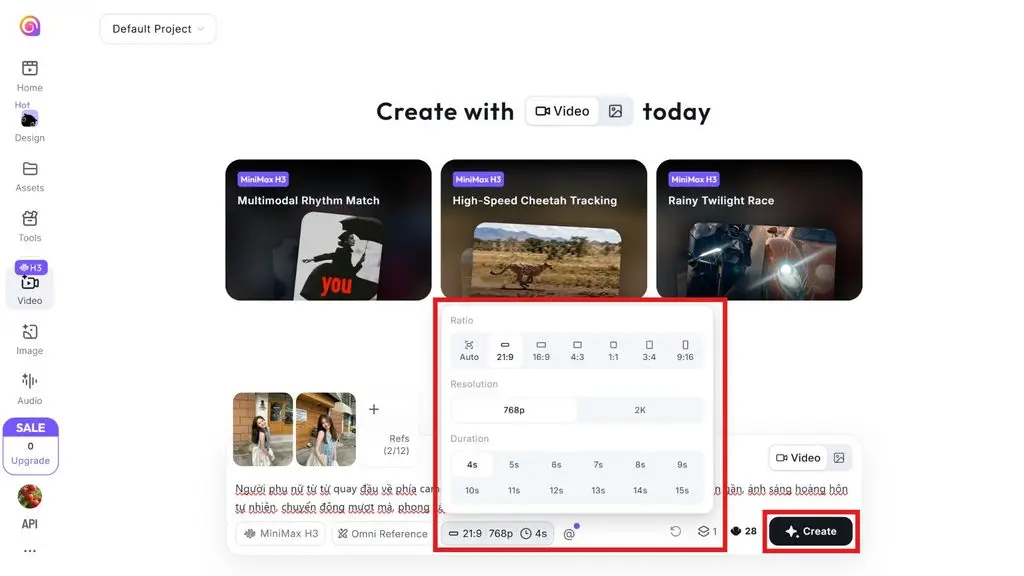
- Review the image, the prompt, and the video settings.
- Adjust the options if the interface offers them.
- Tap Create.
- Wait for Hailuo AI to process and generate the video.
Step 6: Review and download the video
After the video is generated, check the following:
- Whether the character is distorted.
- Whether the motion looks natural.
- Whether the face and expressions are stable.
- Whether the background and objects change unexpectedly.
If the result falls short, adjust the prompt and Recreate. When the video meets your needs, choose Download to save it to your computer.
>>> Read more:
- What is Character AI? How to download the Vietnamese AI to your phone or PC
- The 10 best AI website design tools with a detailed comparison
- Notable GitHub repos: AI agents dominating every field
How to use Hailuo AI to create images
Hailuo AI supports text-to-image generation, letting users turn ideas into images by entering a descriptive prompt. Users can create images of characters, products, or scenes, or images for marketing, and then use those images to create videos.
Using Hailuo AI to create images on a phone
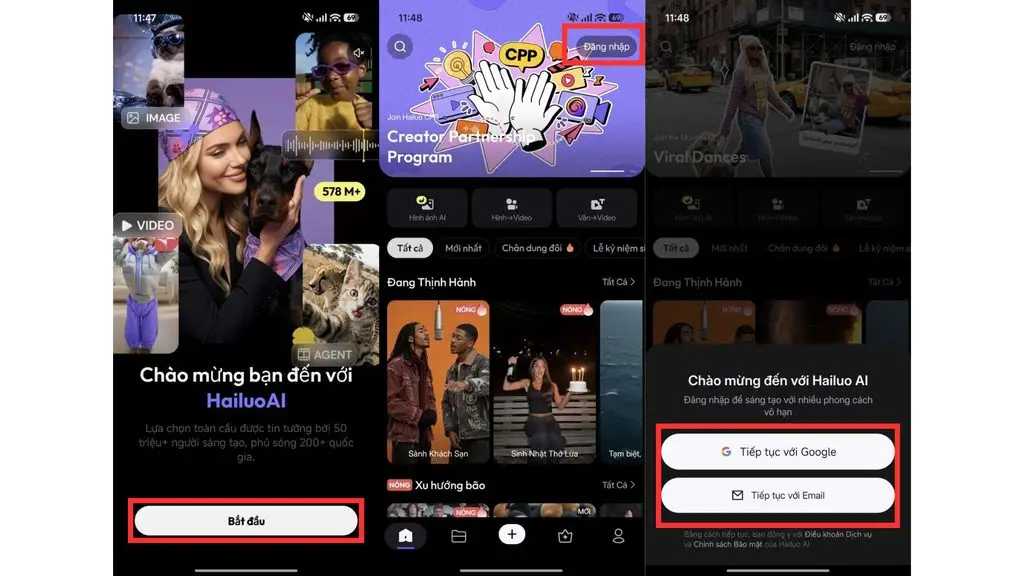
Step 1: Open the site and sign in
- Open a browser on your phone.
- Go to Hailuo AI.
- Tap Sign in.
- Sign in with a Google account or a supported email.
Step 2: Choose the image creation tool
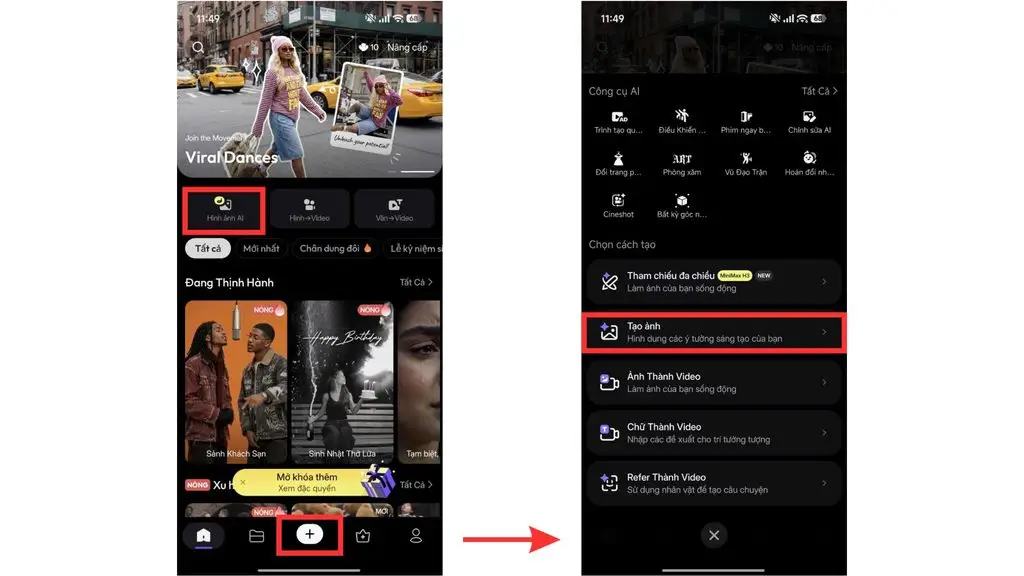
- Tap the AI Image box.
- Or tap the plus icon (+) at the bottom of the screen, then choose the Create image tool.
- The system will show an area for entering a prompt and uploading an image.
Step 3: Enter an image prompt
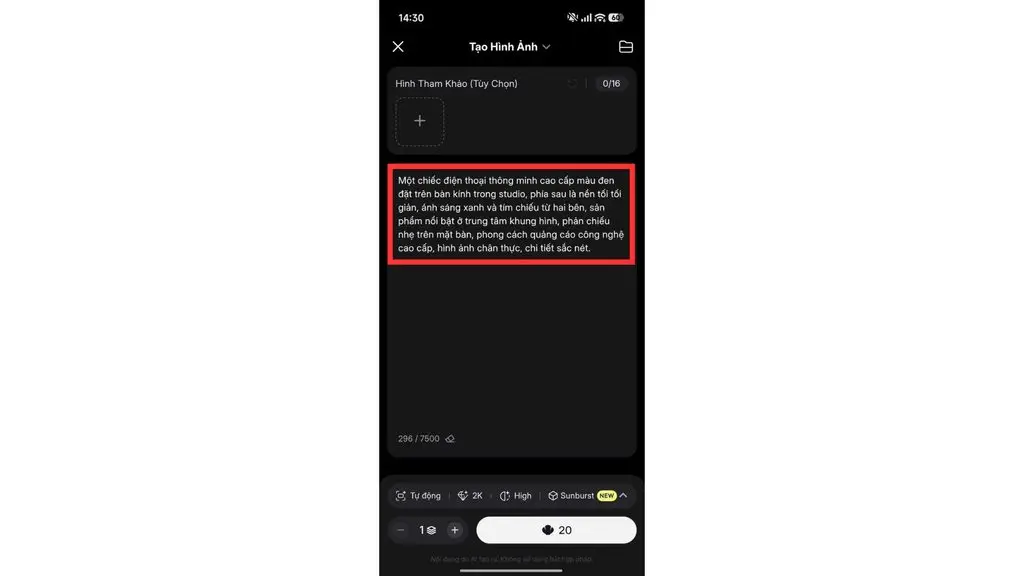
You can choose an existing image as a reference and then enter a prompt, or simply enter a descriptive prompt. The prompt should clearly describe the main elements:
Subject + Setting + Details + Lighting + Style
Example:
“A premium black smartphone sits on a glass table in a studio, with a dark, minimalist background behind it, blue and purple light coming from both sides, the product standing out in the center of the frame, a soft reflection on the tabletop, a high-end tech advertising style, realistic imagery, and sharp detail.”
The more specific the prompt is about the subject, setting, lighting, and style, the better Hailuo AI can create an image that matches the intended idea.
Step 4: Generate and review the image
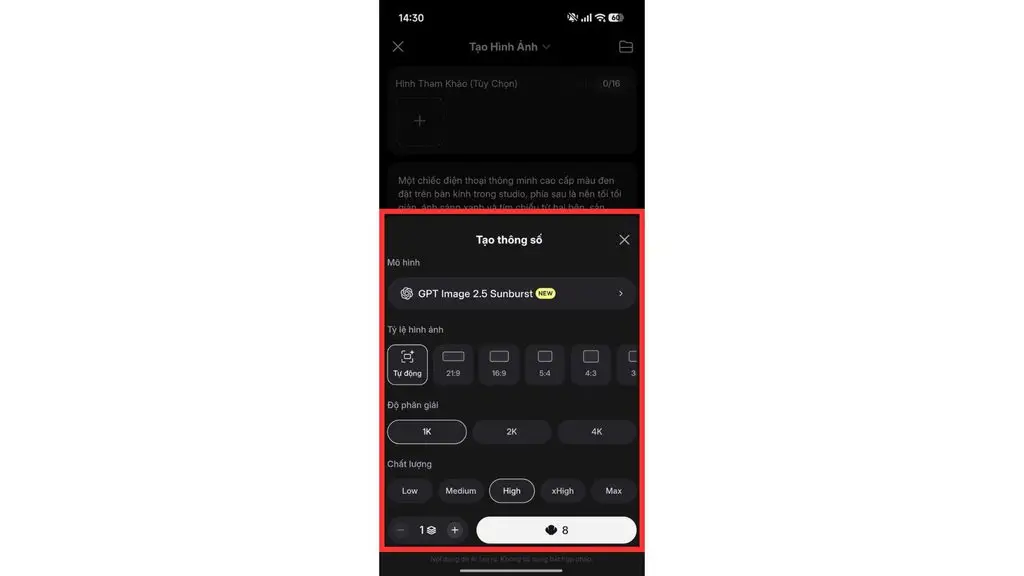
- Review the prompt and the image settings.
- Tap Create.
- Wait for Hailuo AI to process and generate the image.
- Check the subject, composition, face, details, and visual style.
If the result is not right, users can adjust the prompt and regenerate.
Step 5: Download the image
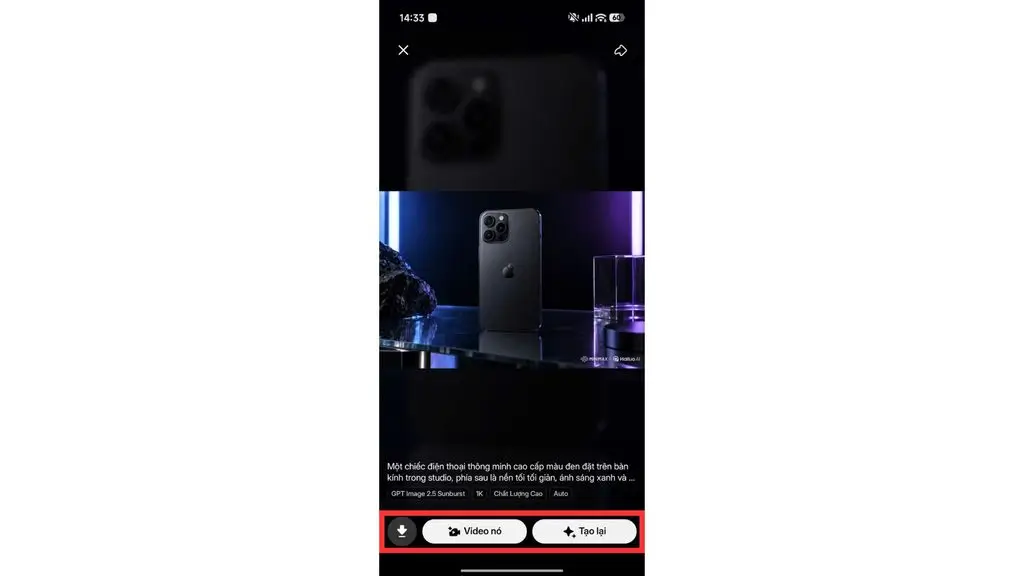
- Preview the image.
- If the result meets your needs, choose Download to save it to your device.
- If the image is not good enough, you can edit the prompt or tap Recreate.
- The image can then be reused as input for the image creation feature.
>>> Read more:
- How to build an AI sales chatbot across channels, effectively and in detail
- Agentic Web: AI agents taking over and automating the web experience
- What is Human-in-the-loop? Applying HITL in high-risk AI
Using Hailuo AI to create images on a computer
On a computer, the steps are similar to the phone version and more convenient for entering long prompts or reviewing images on a large screen.
Step 1: Open the site and sign in
- Open a browser and go to Hailuo AI.
- Choose Sign in.
- Sign in with a supported account.
Step 2: Choose the image creation tool
- Choose Create Image on the Home interface.
- Or choose the Image feature on the left of the interface.
- The system shows the prompt input area.
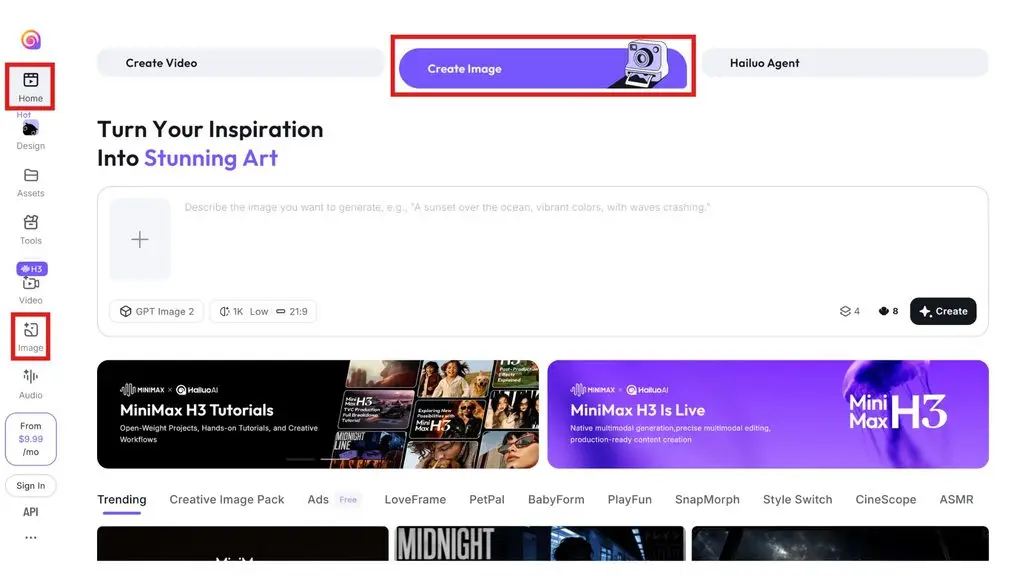
Step 3: Enter the prompt
You can choose an existing image as a reference and then enter a prompt, or simply enter a descriptive prompt. Describe the image using the structure subject + setting + details + lighting + style. You can use the sample prompt below and adjust it to your purpose.
Example:
“A premium black smartphone sits on a glass table in a studio, with a dark, minimalist background behind it, blue and purple light coming from both sides, the product standing out in the center of the frame, a soft reflection on the tabletop, a high-end tech advertising style, realistic imagery, and sharp detail.”
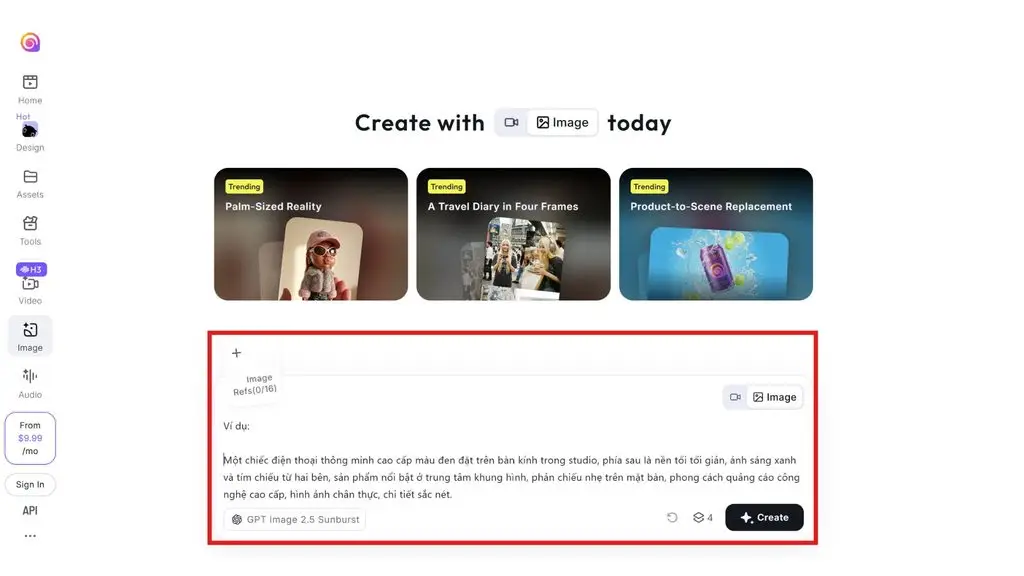
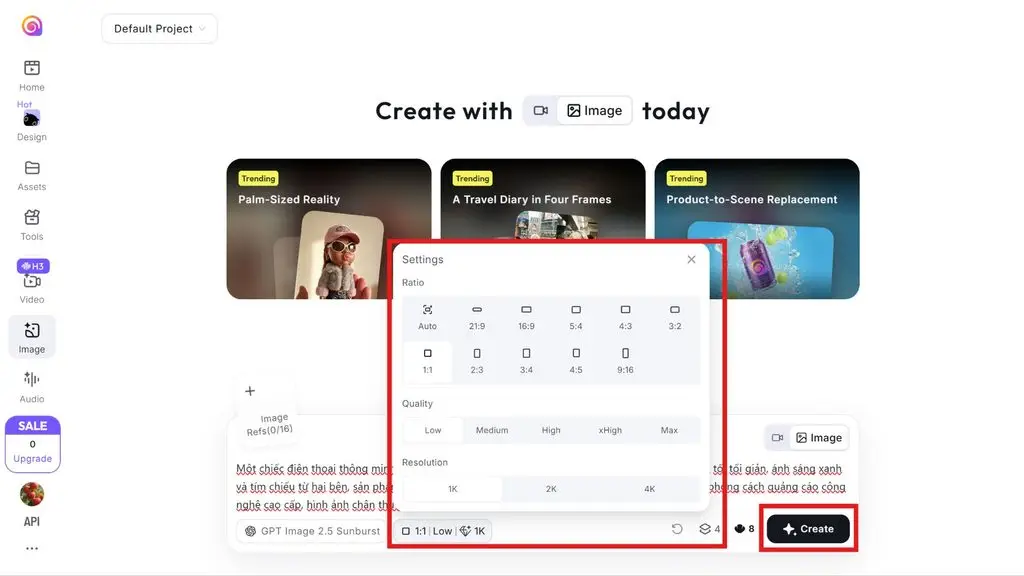
Step 4: Generate and review the image
- Adjust the image settings and click Create.
- Wait for Hailuo to generate the image with AI.
- Check the composition, subject, and important details.
- If it falls short, adjust the prompt and regenerate.
Step 5: Download and use the image
If the image meets your needs, choose Download to save it to your computer. The image can be used directly for marketing or social media content, or fed into the image-to-video workflow.
Comparing Hailuo AI with other AI video tools
Hailuo AI, Kling AI, Runway, and Google AI Studio can all support AI and digital content needs, but they are oriented toward different uses. The table below offers a quick comparison based on video generation capability, input, and intended use.
| Criteria | Hailuo AI | Kling AI | Runway | Google AI Studio |
|---|---|---|---|---|
| Main focus | AI video and image generation | AI video and image generation | AI-powered video content creation and production | Developing and testing AI applications |
| Text-to-video | Yes | Yes | Yes | Yes, through supported models |
| Image-to-video | Yes | Yes | Yes | Yes, depending on the model and feature |
| Image generation | Yes | Yes | Yes | Yes, depending on the model |
| Notable points | Focuses on short-video creation, motion, and multimodal creative workflows | Supports video generation with motion and image control | Geared toward in-depth video creation and content editing | Suited to testing models and prompts and building AI applications |
| Best suited for | Content creators, marketers, and users who want to create videos quickly | Creators and users producing content with AI | Creators, filmmakers, and content production teams | Developers and those researching and testing AI |
| Supported devices | Web and mobile app | Web and supported apps | Web | Web |
Note: The features, models, and interfaces of AI platforms may be updated over time. Users should therefore check the official page of each tool before choosing one for a specific need.
>>> Learn more:
- A guide to designing a website with AI for free and effectively
- What is optimizing a website with AI? How to optimize SEO content
- Build an e-commerce website with AI for free, SEO-friendly, and highly effective
Things to keep in mind when using Hailuo AI
Hailuo AI helps shorten the time needed to create images and videos, but users still need to review the content before using or publishing it. Especially for commercial content, advertising, or public posts, keep the following in mind:
- Check image copyright: Do not upload or use images, characters, logos, artwork, or creative assets that belong to others without permission. The fact that the AI creates new content does not mean the input image or the elements used in it are automatically free of copyright obligations.
- Do not use other people’s images without permission: If you use a photo showing a real person’s face, make sure you have the right to use it, especially for advertising, business, or public release.
- Review AI content before publishing: Review all images and videos before posting. AI content can produce inaccurate details, out-of-context visuals, or unwanted elements.
- Do not rely entirely on AI: Hailuo AI should be seen as a creative support tool. Users still need to provide the ideas, review, edit, and decide on the final version.
- Check for image and motion errors: Pay particular attention to faces, hands, text in the image, objects, body movement, and the background. These are the areas most prone to distortion or unexpected changes in AI content.
- Check the terms of use: If the video or image is created for commercial purposes, check Hailuo AI’s licensing terms and content usage rights at the time you use it.
- Check credits and service plans: Policies on credits, content generation limits, features, and service plans may change. Users should check the current information on Hailuo AI before starting a project with a large volume of content.
Conclusion
Hailuo AI is an AI tool for creating images and videos from text or images, helping users turn ideas into visual content quickly. With features such as Text-to-Video, Image-to-Video, and image generation, the platform can support a range of needs from content creation and marketing to social media. However, for quality results, users still need to write clear prompts, review the output, and mind copyright and terms of use before publishing.
Frequently asked questions
What is Hailuo AI?
Hailuo AI is an AI platform for creating images and videos from text or images. Users can enter a prompt for Text-to-Video, upload an image for Image-to-Video, or generate images with AI. The platform provides an online interface to create, preview, and download content once it is finished. Hailuo AI fits many needs such as content creation, marketing, social media, and short-video production.
Is Hailuo AI free?
Hailuo AI does offer a free option, but free users face limits on features and content generation. According to the service policy, free accounts can use some basic features, and downloaded videos carry a watermark. Hailuo AI also uses a credit system, while paid plans provide more credits, priority video generation, and other benefits. Pricing and credit policies may change over time.
What is Hailuo AI Image?
Hailuo AI Image is Hailuo AI’s AI image-generation feature, which lets users enter a text description to create an image that matches their idea. Users can describe the subject, setting, lighting, details, and style in the prompt. The generated image can serve marketing or social media content and design, or act as input for the Image-to-Video workflow. Hailuo AI currently provides an image-creation area directly on the platform.
Can Hailuo AI be used on a phone?
Yes. Hailuo AI can be used on a phone through a web browser. Users simply open a browser, go to the Hailuo AI platform, and sign in to their account to use the available tools. The interface currently has areas for video, images, and audio, and it supports creating videos from an image or a description. However, the interface and features may change between versions or over time.
Does Hailuo AI support Vietnamese?
Yes. Hailuo AI currently has a Vietnamese interface and offers a website version for Vietnamese users. Some areas of the platform are shown in Vietnamese, including sections such as Create, Video, Image, and Audio and the content creation tools. When writing prompts, users can try describing in Vietnamese, but the quality of the results may depend on the model and the prompt. For complex requests, it is best to test and refine the prompt to get suitable results.